概要 #
TenjinのMCPサーバーを活用すれば、チームはAIアシスタントに対し、自然言語で直接指示を出すだけで、マーケティングパフォーマンスのクエリ実行や、アプリ・キャンペーン・コールバックの管理を行えるようになります。煩雑な手動ワークフローは一切不要です。
2つのプラグインを使用してインストールします。
| プラグイン | 機能の説明 |
| tenjin-core | アシスタントをTenjinのホスト型MCPサーバーに接続し、利用可能なツールを認識させます。(必須) |
| tenjin-sdk | プラットフォームごとのSDK実装ガイド(iOS、Android、Flutter、Ionic、React Native、Unity)を追加します。(任意) |
サーバURL: https://mcp.tenjin.com
インストール #
クライアントを選択してください。すべてのインストールコマンドにおいて、マーケットプレイスのサフィックス@tenjin-agent-pluginsが必要です。
Claude Code (CLI) #
シェルから
Bash
claude plugin marketplace add tenjin/agent-plugins
claude plugin install tenjin-core@tenjin-agent-plugins
claude plugin install tenjin-sdk@tenjin-agent-plugins   # optional
claude mcp login plugin:tenjin-core:tenjin # complete authentication in browserあるいは、Claude Codeセッション内から:
Bash
/plugin marketplace add tenjin/agent-plugins
/plugin install tenjin-core@tenjin-agent-plugins
/plugin install tenjin-sdk@tenjin-agent-plugins   # optional
/reload-plugins
/mcp # choose plugin:tenjin-core:tenjin, then Authenticate, then finish in browserClaude (Web / Desktop / Cowork) #
- カスタマイズ → プラグイン を開きます。
- 追加 → マーケットプレイスの追加 をクリックします。
- 「Add from a repository」を選択し、
tenjin/agent-pluginsを入力します。 - プラグインリストからtenjin-core(および必要に応じて tenjin-sdk)をインストールしてください。
- 「tenjin」コネクタ(MCP Server)を接続します。[Customize] -> [Connectors] -> [tenjin] -> [Connect] の順に操作してください。
Codex (CLI) #
bash
Bash
codex plugin marketplace add tenjin/agent-plugins
codex plugin add tenjin-core@tenjin-agent-plugins
codex plugin add tenjin-sdk@tenjin-agent-plugins   # optional
codex mcp login tenjinCodex (Desktop) #
- サイドバーでPluginsをクリック → +のドロップダウンを展開 → Add marketplace
- 「Source」に「tenjin/agent-plugins」と入力しAdd Marketplaceを選択します。
- Personalタブを開き、「Tenjin Agent Plugins」を探します。
- tenjin-coreの「Install」をクリックすると、Tenjin OAuthフローがインストールされ、起動します。
- 任意:SDK機能を利用するためにtenjin-sdkをインストールします。
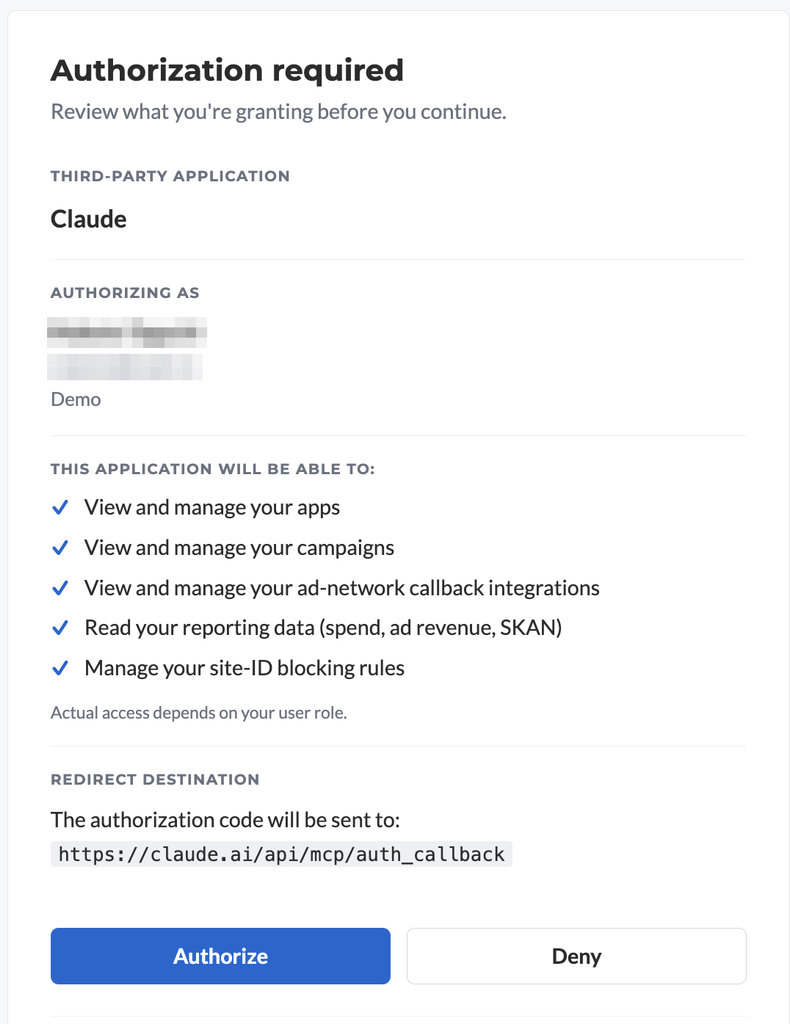
TenjinのOAuthフローを通じて認証を行います(ログインおよび承認)。セッションは、承認したTenjinアカウントで使用されます。
Cursor (Desktop) #
- Customize → Plugins → Add → From Marketplace に移動します。
- Add Marketplace → Import from GitHub を選択します。
- 次を入力:
tenjin/agent-plugins. - tenjin-core を選択します。
- 認証をクリックします。
最初のクエリ #
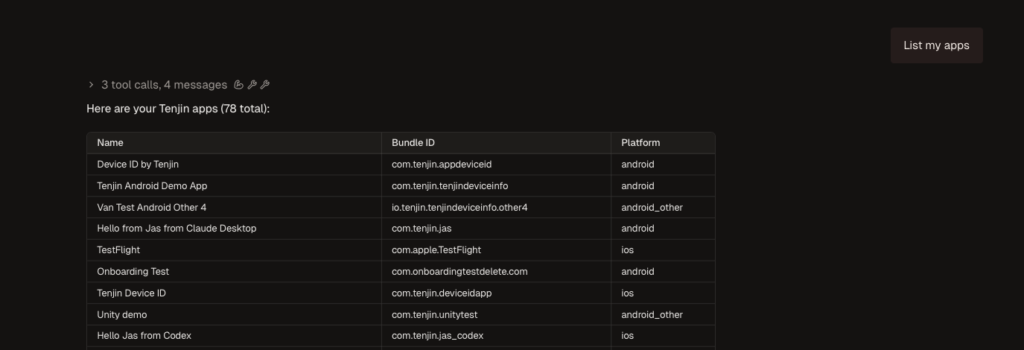
新しいチャットを開始して、以下を試してみてください: list my tenjin apps
できること #
- カテゴリ別または平易な言葉による説明で指標を検索できます。正確な名称を知る必要はありません。
- すべてのアプリ、チャネル、キャンペーンを横断してクエリを実行
- 日付、アプリ、チャネル、キャンペーン、国、およびサイトIDでフィルタリングとグループ化を行います。
- アプリ、キャンペーン、トラッキングリンク、S2Sコールバックを、対話形式で管理
- (Tenjin SDKをインストール済み)ご利用のプラットフォーム向けのSDK導入ガイドをご確認ください。
新規アプリの追加 #
たった一度の会話で、全く新しいアプリを最初から最後まで構築できます。例えば、次のようなものです。
「Skill Test 2」(バンドルID:com.skilltest.two、iOS版)というアプリを追加してください。
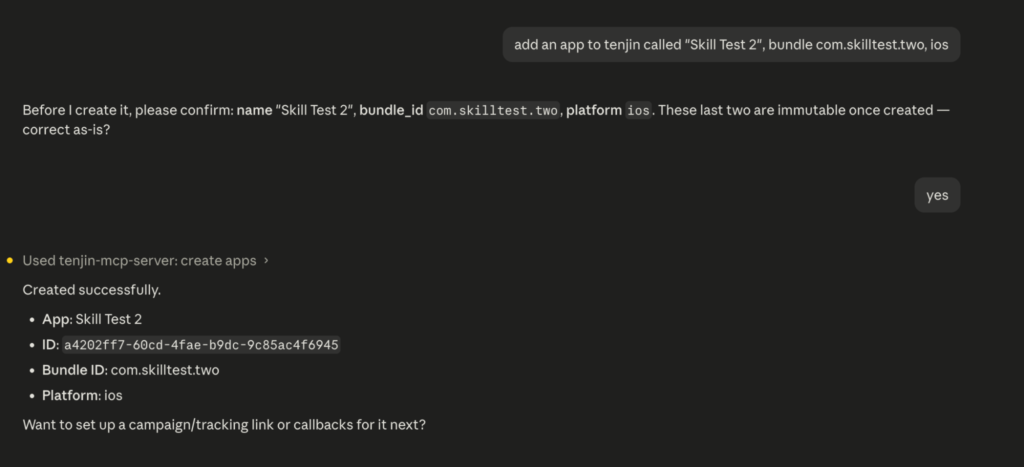
アシスタントがアプリを作成した後、そのままキャンペーン、トラッキングリンク、S2Sコールバックの設定へとスムーズに移行できます。ダッシュボードの画面を行き来する必要はありません。作成前に確認したい場合は、「まず、どのようなものを作成するのか見せて」と指示してプレビューを表示させることも可能です。
プロンプトの例 #
- 先週の主要アプリ上位5つについて、チャネル別のD7 ROASを表示し、前週比で20%以上低下しているものにフラグを立ててください。
- 国別にグループ化し、前四半期のTikTokとAppLovin経由のインストールにおける30日LTVを比較してください。
- AppLovinで、米国を対象地域としたiOSアプリのキャンペーンとトラッキングリンクを作成してください。
- 自身のネットワークのエンドポイントを指す、アプリのインストールおよび購入のコールバックを設定する。
- React NativeアプリにTenjin SDKを組み込む手順を教えてください。
ヒント #
- まずはシンプルに始め、徐々に絞り込んでいく。なじみのある指標から着手し、その後、より詳細な内訳を求めます。
- 正確な名称がわからない場合は、わかりやすい言葉で指標を説明してください。
- セッションの焦点を絞りましょう。 有益な情報が見つかったら、新しいチャットを開いて改めて情報を取得してください。そうすることで、クエリの速度と精度が維持されます。
- さらに一歩進んでみましょう。グラフや要約、あるいは推奨される次のステップを尋ねてみてください。
MCPのみ #
プラグインをインストールできない場合や、Tenjinのスキルを追加したくない場合は、https://mcp.tenjin.comにてMCPサーバーへ直接接続してください。