About #
Tenjin’s MCP Server lets your team query marketing performance and manage apps, campaigns, and Callbacks directly from your AI assistant — using plain language, no manual workflows.
You Install it via two plugins:
| Plugin | What it does |
| tenjin-core | Connects your assistant to Tenjin’s hosted MCP Server and orients it to the available tools. (required) |
| tenjin-sdk | Adds per-platform SDK integration guides — iOS, Android, Flutter, Ionic, React Native, Unity. (optional) |
Server URL: https://mcp.tenjin.com
Install #
Pick your client. The @tenjin-agent-plugins marketplace suffix is required in every Install command.
Claude Code (CLI) #
From your shell:
claude plugin marketplace add tenjin/agent-plugins
claude plugin install tenjin-core@tenjin-agent-plugins
claude plugin install tenjin-sdk@tenjin-agent-plugins   # optional
claude mcp login plugin:tenjin-core:tenjin # complete authentication in browserOr from inside a Claude Code Session:
/plugin marketplace add tenjin/agent-plugins
/plugin install tenjin-core@tenjin-agent-plugins
/plugin install tenjin-sdk@tenjin-agent-plugins   # optional
/reload-plugins
/mcp # choose plugin:tenjin-core:tenjin, then Authenticate, then finish in browserClaude (Web / Desktop / Cowork) #
- Open Customize → Plugins
- Click Add → Add marketplace
- Choose Add from a repository and enter tenjin/agent-plugins
- Install tenjin-core (and optionally tenjin-sdk) from the plugin list
- Connect the ‘tenjin’ connector (MCP Server). Customize -> Connectors -> tenjin -> Connect
Codex (CLI) #
bash
codex plugin marketplace add tenjin/agent-plugins
codex plugin add tenjin-core@tenjin-agent-plugins
codex plugin add tenjin-sdk@tenjin-agent-plugins   # optional
codex mcp login tenjinCodex (Desktop) #
- Click Plugins in the sidebar → expand the + dropdown → Add marketplace
- For Source, enter tenjin/agent-plugins → Add Marketplace
- Open the Personal tab → find “Tenjin Agent Plugins”
- Click Install on tenjin-core — it installs and opens the Tenjin OAuth flow
- Optional: Install tenjin-sdk for SDK skills
You’ll authenticate through Tenjin’s OAuth flow – log in and authorize. Your Session works with whichever Tenjin account you authorize.
Cursor (Desktop) #
- Go to Customize → Plugins → Add → From Marketplace.
- Select Add Marketplace → Import from GitHub.
- Enter
tenjin/agent-plugins. - Select tenjin-core.
- Click Authenticate.
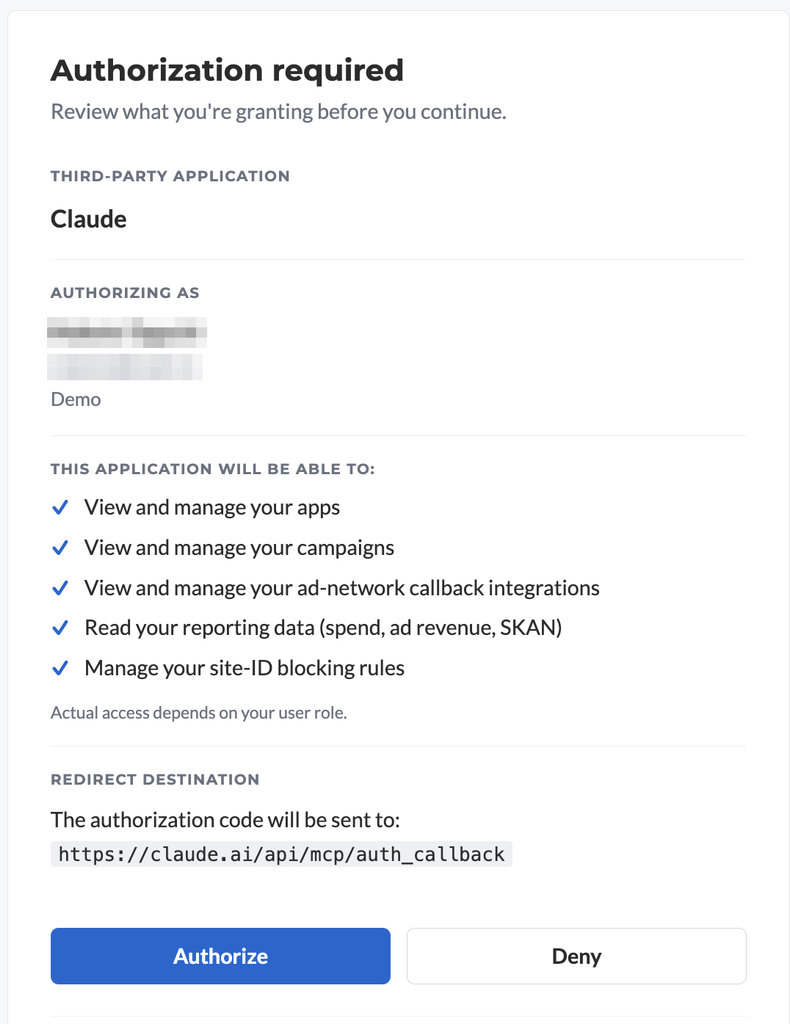
Your First Query #
Start a fresh chat and try: list my tenjin apps
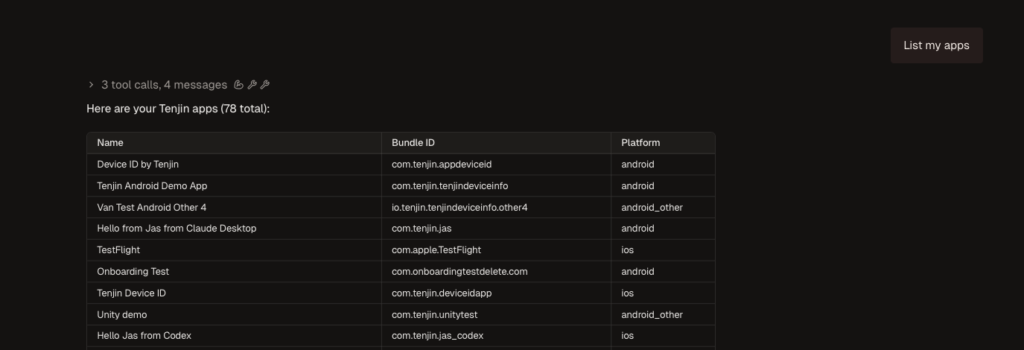
What You Can Do #
- Discover metrics by category or plain-language description — no need to know exact names
- Query across all your apps, channels, and campaigns
- Filter and group by date, app, channel, campaign, country, and Site ID
- Manage apps, campaigns, tracking links, and S2S Callbacks conversationally
- Get SDK guidance for your platform (with tenjin-sdk installed)
Onboard a New App #
You can set up a brand-new app end to end in a single conversation. For example:
“Add an app called Skill Test 2, Bundle ID com.skilltest.two, ios in Tenjin”
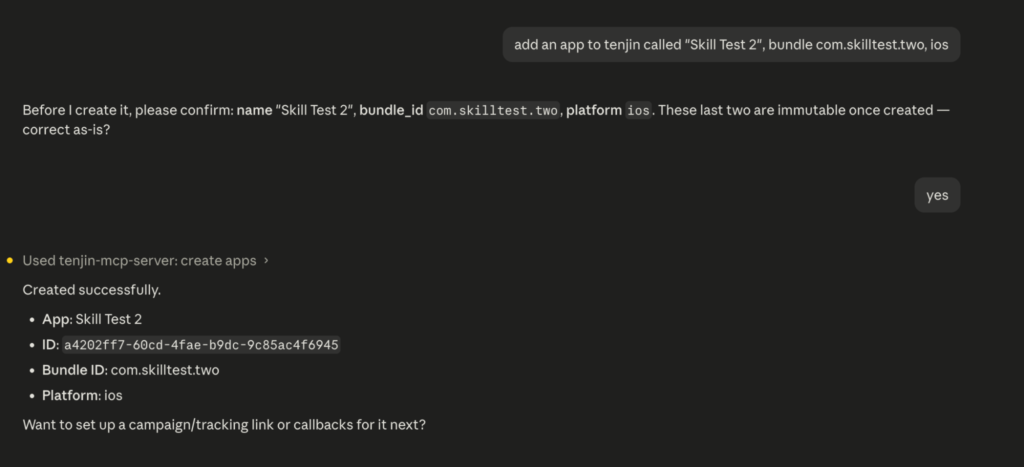
Your assistant creates the app, then offers to continue with campaigns, tracking links, and S2S Callbacks. No jumping between dashboard screens. If you’re unsure, ask it to preview before creating: “show me what you’d create first.”
Example Prompts #
- “Show D7 ROAS by channel for my top 5 apps last week, and flag anything down 20%+ week-over-week.”
- “Compare 30-day LTV for TikTok vs AppLovin installs last quarter, grouped by country.”
- “Create a campaign and tracking link for my iOS app on AppLovin, US geo.”
- “Set up Install and purchase Callbacks for my app pointing to my network’s endpoint.”
- “Walk me through adding the Tenjin SDK to my React Native app.”
Tips #
- Start simple, then narrow. Begin with familiar metrics, then ask for deeper breakdowns.
- Describe metrics in plain language if you don’t know the exact name.
- Keep sessions focused. Found something useful? Open a fresh chat and re-retrieve — it keeps queries fast and accurate.
- Go further. Ask for charts, summaries, or recommended next steps.
MCP Only #
If you can’t Install the plugin, or prefer not to add Tenjin’s skills, connect the MCP Server directly at https://mcp.tenjin.com