What is Data Explorer? #
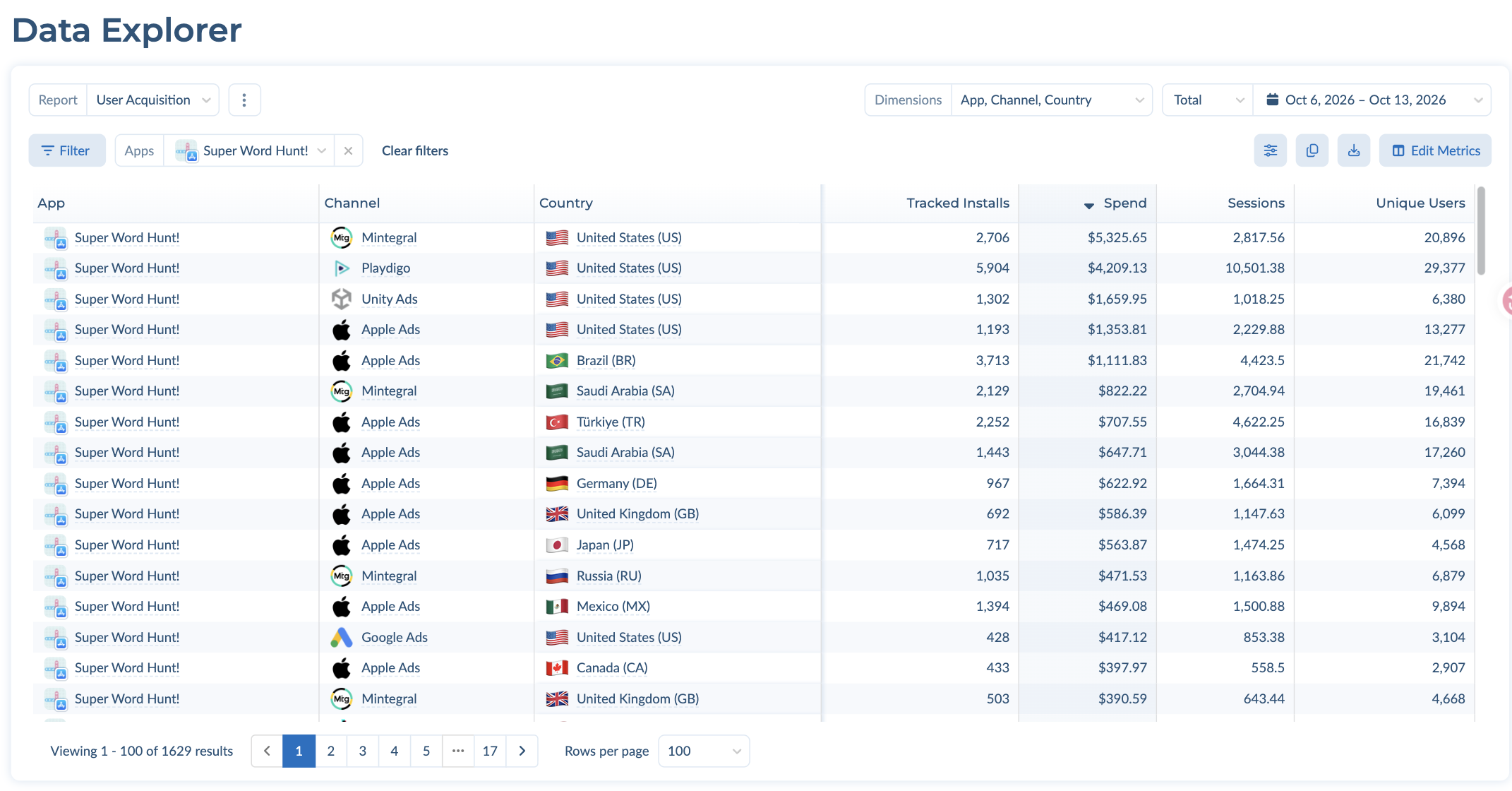
Data Explorer (formerly the Aggregated Data Exporter) lets you build any aggregated report from your Tenjin data, explore it right in the dashboard, and export it to CSV or your clipboard. If you like working in Excel or Google Sheets, this is the fastest way to get your Tenjin numbers there.
Open it from Data Explorer in the Tenjin dashboard.
How to build a report #
1. Choose a report type #
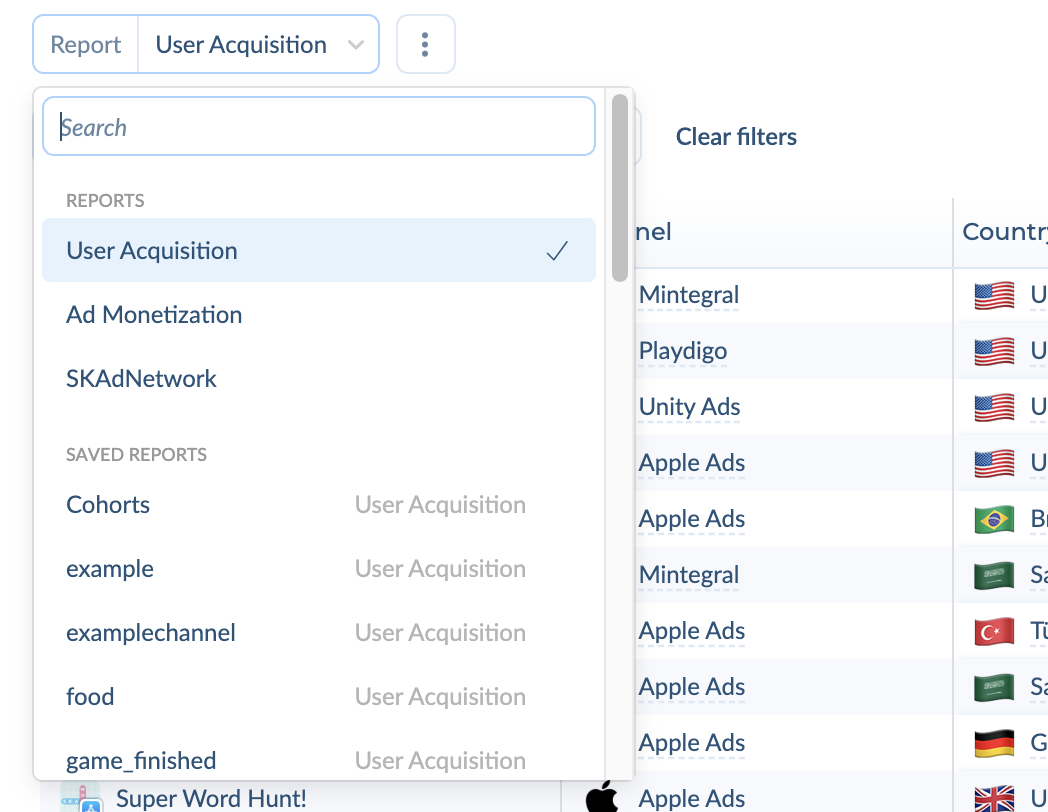
Use the Report dropdown at the top left. Pick one of the three report types, or open one of your organization’s saved reports listed below them.
- User Acquisition: installs, spend, retention, LTV, ROAS and other UA metrics.
- Ad Monetization: ad revenue, impressions, clicks, eCPM and eCPC from your ad networks and mediation.
- SKAdNetwork: SKAN installs and Conversion values. This report covers one app at a time, so an App selector appears next to the report name.
2. Pick your dimensions #
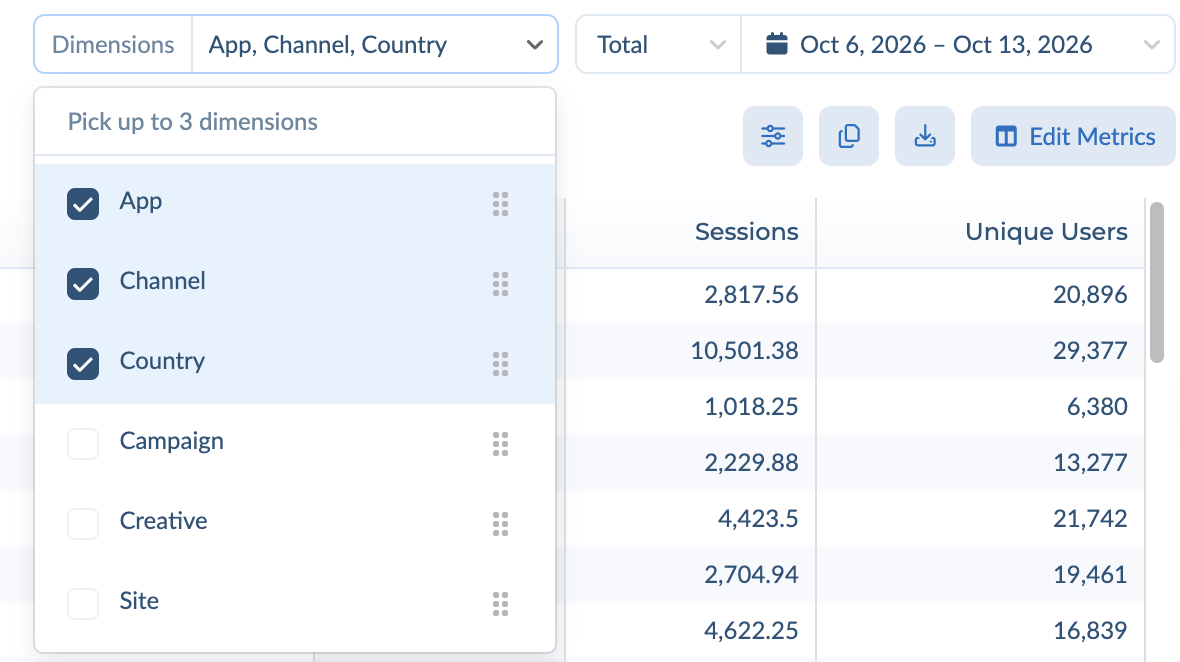
Dimensions decide how your data is broken out. Open Dimensions at the top right and tick up to 3. Drag the handle next to a dimension to change its order; the first one becomes the first column.
| Report type | Dimensions available |
|---|---|
| User Acquisition | App, Campaign, Channel, Country, Creative, Site |
| Ad Monetization | App, Ad Placement, Channel, Country |
| SKAdNetwork | App, Campaign, Channel, Conversion Value, Fidelity Type, SK Ad Network, Source App ID, Source ID |
For example, App + Channel + Country gives you one row for every app, channel and country combination.
3. Set the time granularity and date range #
Next to Dimensions, choose how to split your data over time:
- Daily, Weekly or Monthly adds a Date column with one row per period.
- Total gives one row per dimension combination for the whole date range.
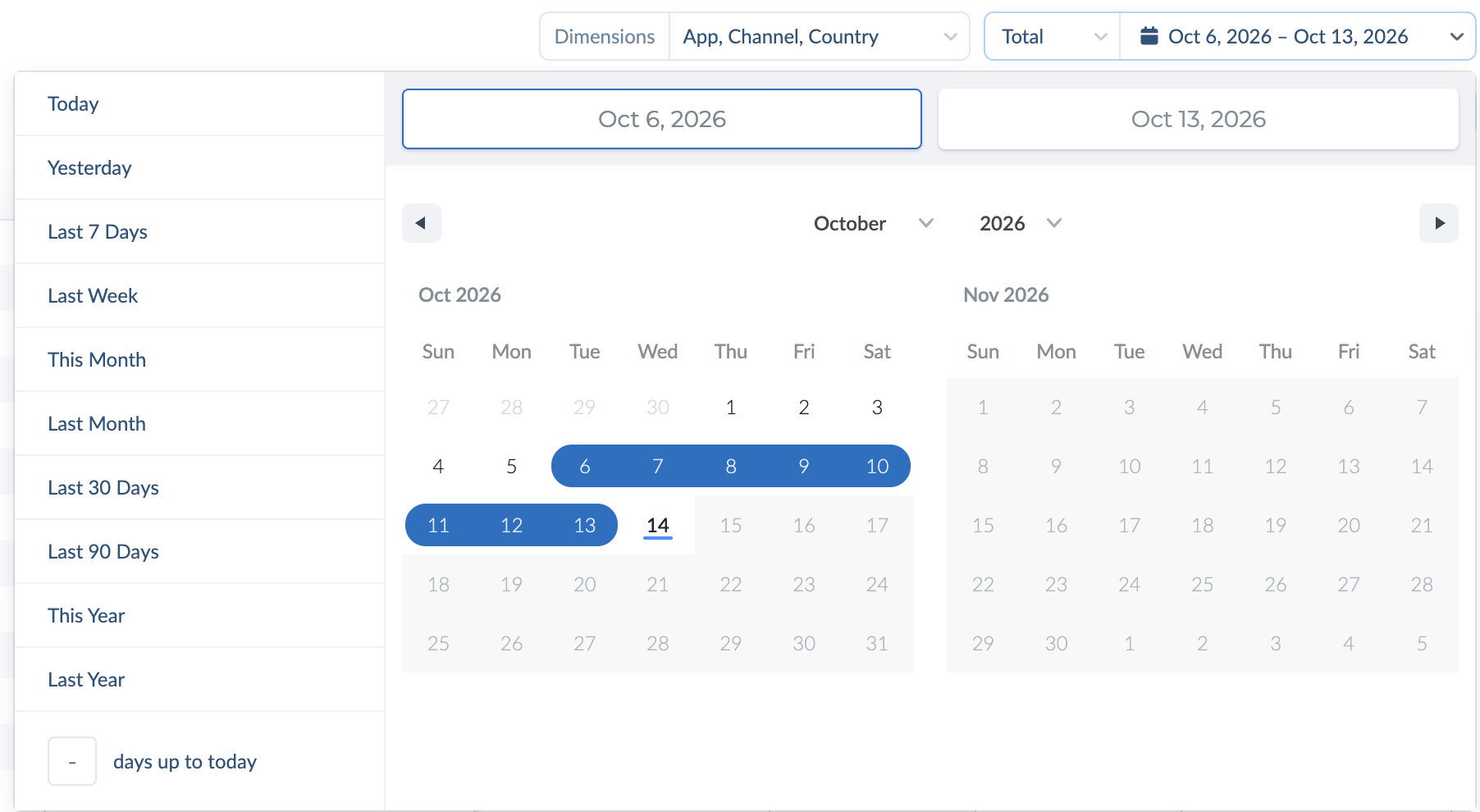
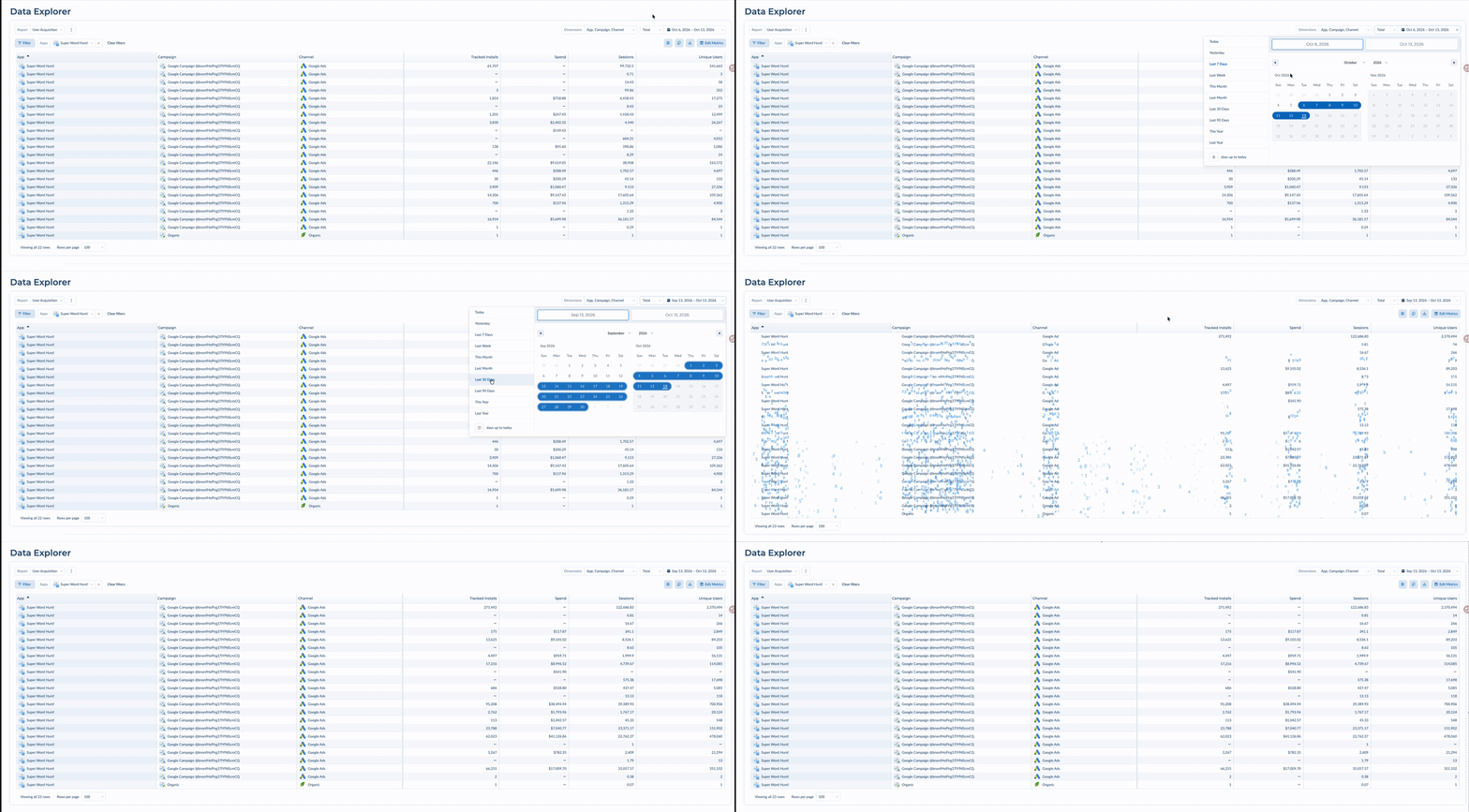
Click the date range to open the calendar. Use a preset (Today, Yesterday, Last 7 Days, Last Week, This Month, Last Month, Last 30 Days, Last 90 Days, This Year, Last Year), pick dates on the calendar, or type a number into days up to today for a custom rolling window.
4. Add filters (optional) #
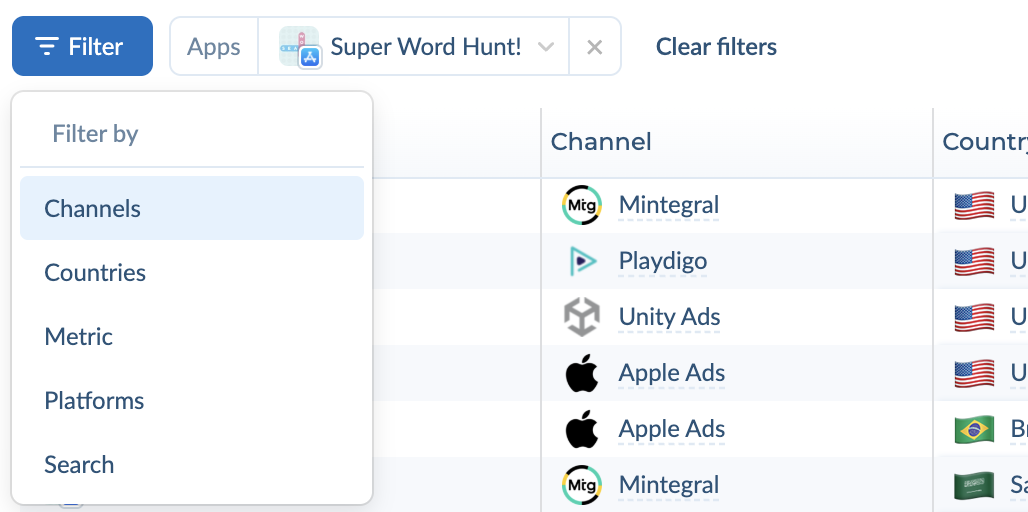
Click Filter and choose what to filter by. Each filter appears as a chip next to the Filter button; click x on a chip to remove it, or Clear filters to remove them all.
- Apps: search by app name, Bundle ID or store ID; use Select all or Clear.
- Channels and Countries: keep only the channels or countries you pick.
- Platforms: Apple, Google Play, Amazon, Android Other or web.
- Metric: keep rows where a metric is >, ≥, <, ≤ or = a value. For example, Spend > 100 hides rows with little spend.
- Search: keep rows whose dimension values contain your text.
The SKAdNetwork report offers Channels, Metric and Search filters.
5. Choose your metrics #
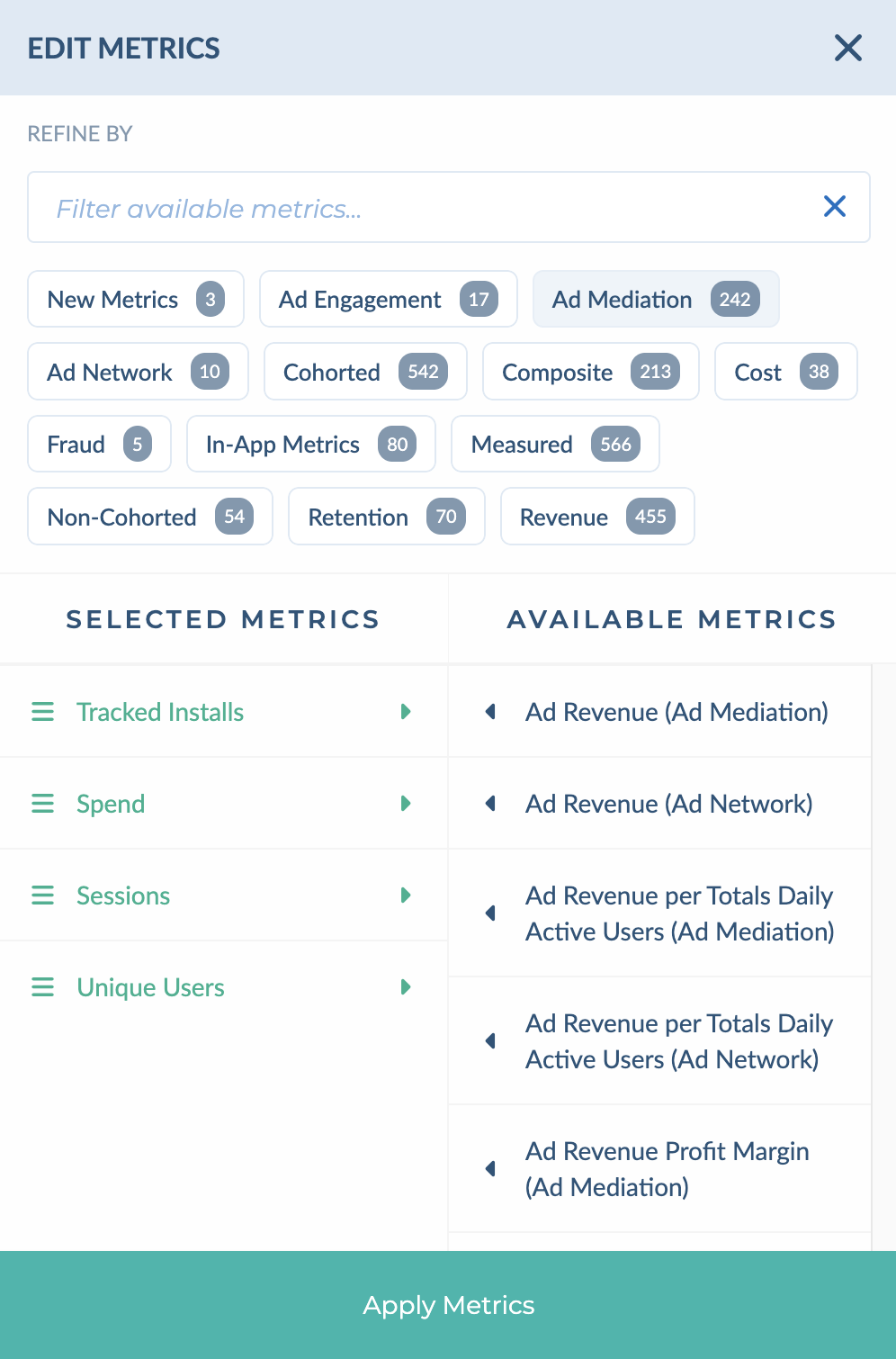
Click Edit Metrics to open the metrics panel.
- Type in the search box, or click a category (for example Cohorted, Cost, Retention or Revenue) to narrow the list. The number on each category shows how many metrics it holds.
- Click a metric under Available Metrics to add it. Metrics marked NEW were added recently.
- Drag metrics under Selected Metrics to change the column order, or remove the ones you don’t need.
- Click Apply Metrics.
The list includes cohorted metrics (for example 7-Day ROAS, 30-Day LTV and 1-Day Retention Rate), predicted metrics (pLTV, pROAS and pROI), and your own custom in-app events.
Working with the results table #
- Sort: click any column header to sort by it; click again to change direction.
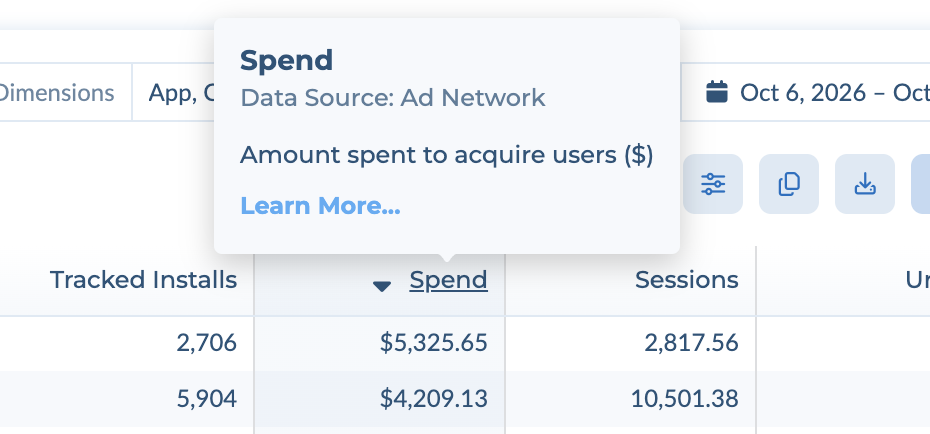
- See what a metric means: hover a column header. A card shows the metric’s name, its data source and a short definition, with a Learn More link.
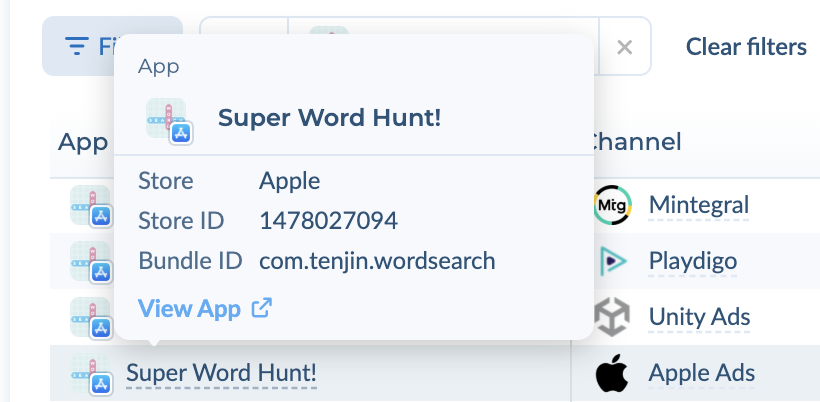
- See details for a row: hover an app, channel or country name. For apps, the card shows the store, store ID and Bundle ID, with a link to the store page.
- Page through large reports: the footer shows how many rows match. Use the page numbers to move between pages and Rows per page to show more at once.
- Change how the table looks: see Display options below.
Display options #
Click the sliders icon next to Copy to clipboard to open Display options. These settings only change how the table looks for you; they don’t change your data or your saved reports.
- Density: Compact fits more rows on screen; Standard adds more space between rows.
- Layout: Contained keeps the table inside the page; Full page stretches it to fill your browser window.
- Loading style: the animation shown while a report loads. Choose Random, Rain, Murmuration or None if you prefer no animation.
Export, save and share #
Export your data #
Two buttons sit next to Edit Metrics:
- Copy to clipboard copies the table so you can paste it straight into Excel or Google Sheets.
- Download CSV downloads the report as a CSV file.
Save a report #
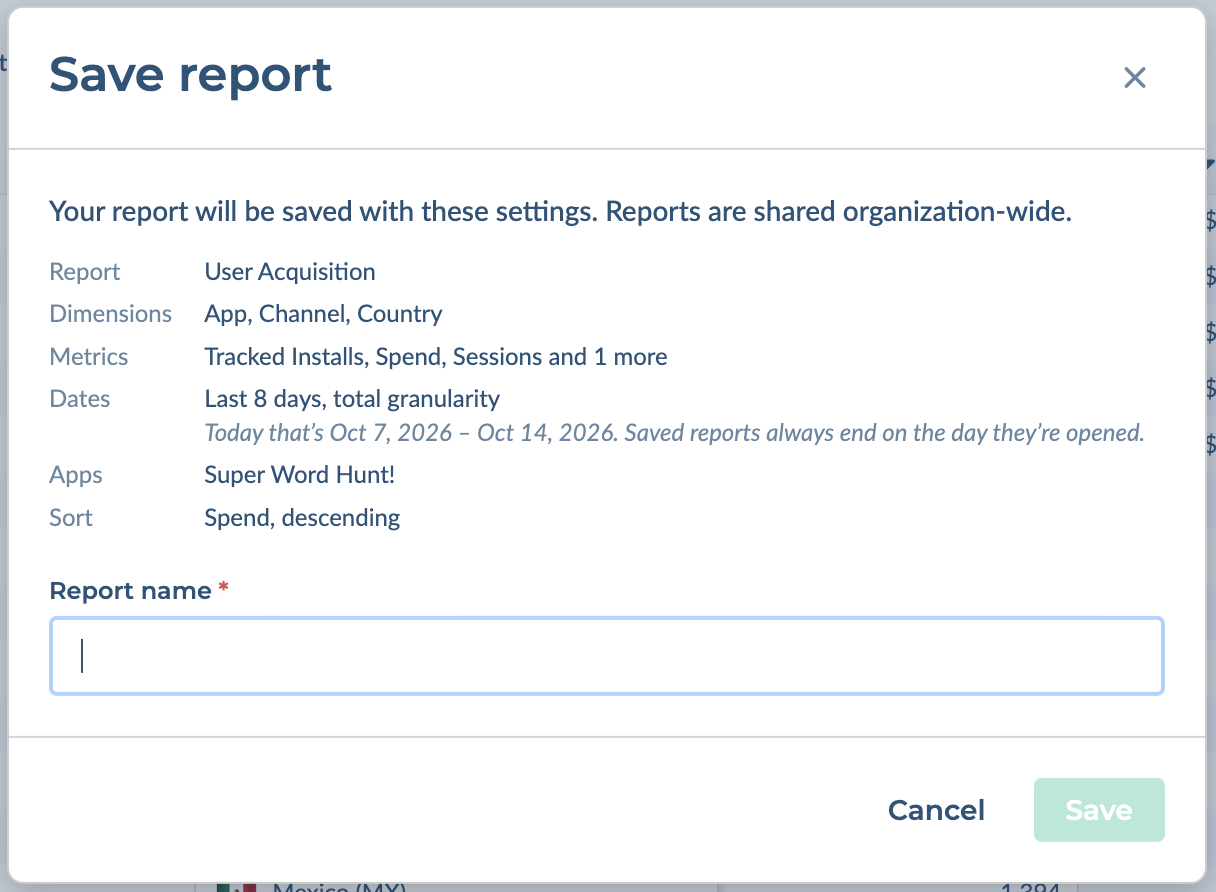
To reuse a setup, click the ⋮ menu next to the Report dropdown and choose Save…. The dialog lists exactly what will be saved: report type, dimensions, metrics, dates, filters and sort. Enter a Report name and click Save.
- Saved reports are shared with your whole organization. Everyone on your Tenjin account sees them under Saved Reports in the Report dropdown.
- Dates are saved as a rolling range. If you save “Last 7 Days”, the report always shows the most recent 7 days when you open it.
Manage saved reports #
Open a saved report, then use the ⋮ menu to:
- Duplicate… to make a copy you can change without affecting the original.
- Rename… to change its name.
- Delete… to remove it for everyone in your organization.
Share a view with a link #
The page URL updates as you work and holds your full setup: report type, dimensions, metrics, dates, filters and sort. Copy the URL from your browser and send it to a teammate; they’ll see the same view, as long as they have access to the same apps.
FAQ #
Where did the “Fetch Results” button go? #
You don’t need it anymore. The table refreshes on its own whenever you change the report, dimensions, dates, filters or metrics.
Are my reports from the old Data Exporter still there? #
Yes. They appear under Saved Reports in the Report dropdown.
Why can I only pick one app in the SKAdNetwork report? #
SKAN data is reported per app, so the SKAdNetwork report works on one app at a time. Use the App selector next to the report name to switch apps.
Why don’t the numbers match another dashboard? #
Check that the date range, filters and metric versions match. Several metrics come in more than one version (for example Ad Network vs Ad Mediation revenue); hover the column header to confirm which data source each one uses.
What if I need user-level data instead? #
Data Explorer is for aggregated reports. For event-level data, use DataVault or Raw Data Export.