How to add a new app to the Tenjin dashboard #
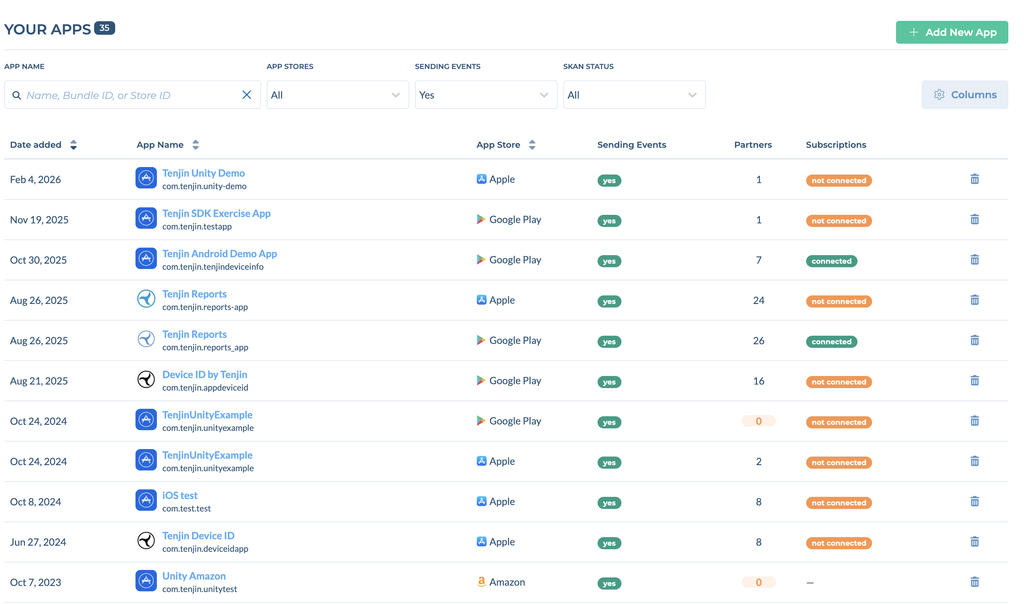
You can see and add your apps by clicking CONFIGURE > Apps on the Tenjin dashboard. The Your Apps page lists all your apps, and you can search by app name, Bundle ID or store ID, or filter by app store, whether the app is sending events, and SKAN status.
Before you can send events from your apps to Tenjin, you need to add your mobile app to the Tenjin dashboard. Here’s how:
My app is already live #
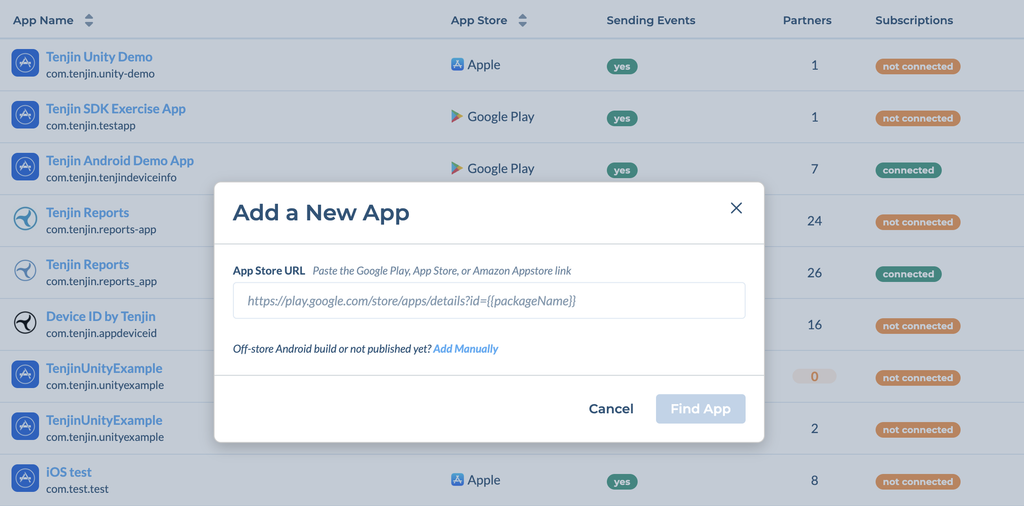
- Go to CONFIGURE > Apps on the Tenjin dashboard and click + Add New App.
- Paste your app’s Google Play, App Store or Amazon Appstore link into the App Store URL field and click Find App.
- Tenjin will automatically fetch the bundle_id, store_id, platform, and the name of your app from the app store.
My app isn’t live yet #
- Go to CONFIGURE > Apps on the Tenjin dashboard and click + Add New App.
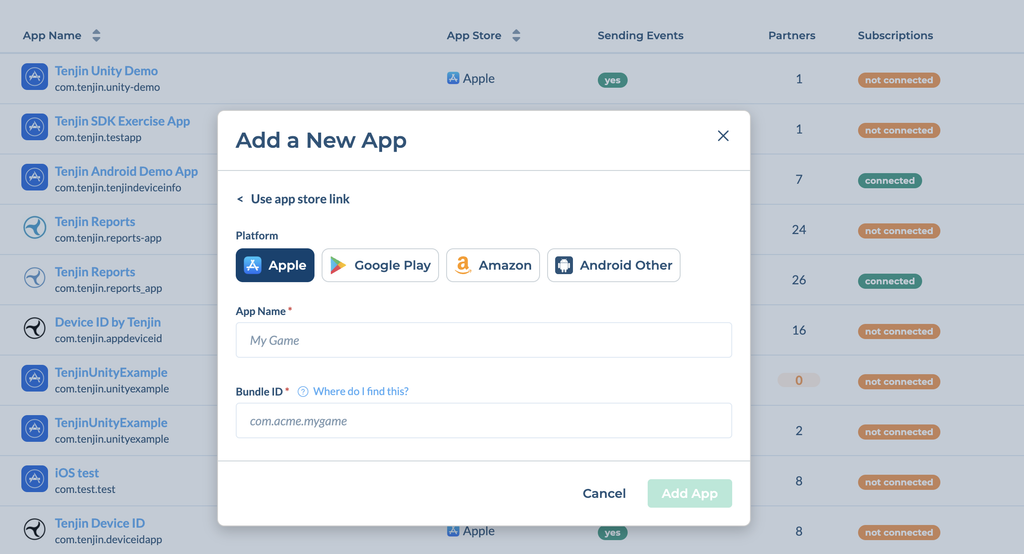
- Click Add Manually (for apps that aren’t published yet or are distributed outside the main stores).
- Select the platform (Apple, Google Play, Amazon or Android Other), enter the App Name and Bundle ID of your app, and click Add App.
After your app goes live, Tenjin will automatically find your app in the store and refresh all the information. This may take up to 24 hours. You can also update the app info yourself by clicking the Update App Store Info button on your app page.
How to Edit Apps #
Go to CONFIGURE > Apps and click your app. The app page is organized into tabs: Settings, SDK, Attribution, Callbacks and SKAdNetwork. It opens on the Settings tab, where you can edit your app’s information directly and click Save.
Settings tab #
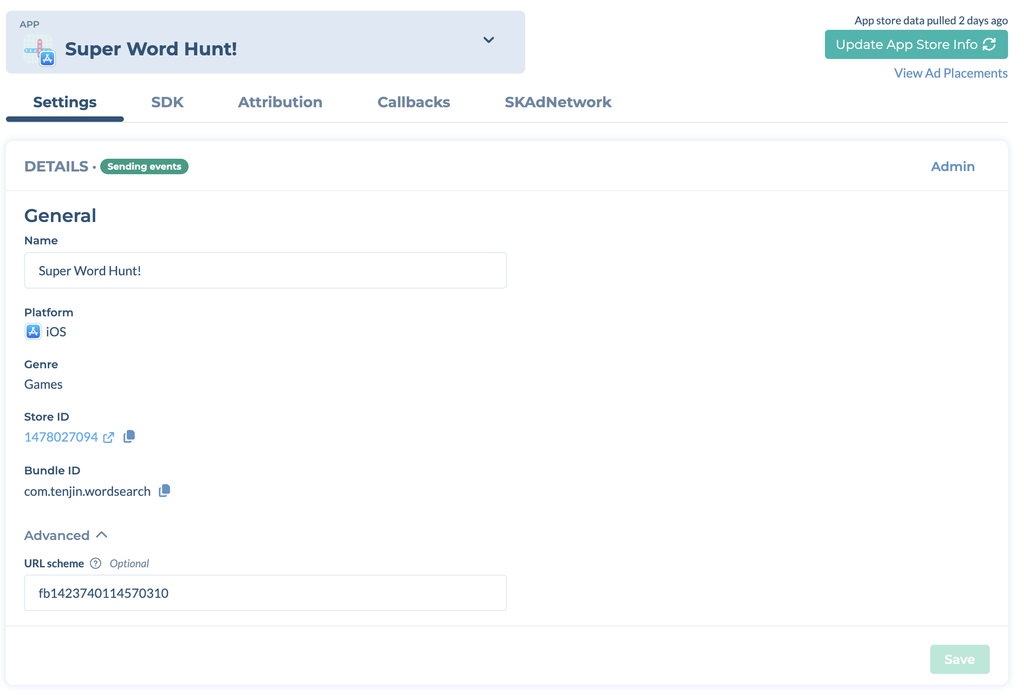
Details: Change your app’s Name, and see its platform, genre, store ID and Bundle ID. Under Advanced, you can set the app’s URL scheme (optional).
In-App Purchases & Subscriptions: Subscriptions Tracking, IAP Validation and App Store Commission each have their own section. Click Save in each section after you change it.
- Subscriptions Tracking: Add your store credentials so Renewals, trials and refunds flow into your reports. See Set Up Subscription Revenue Tracking.
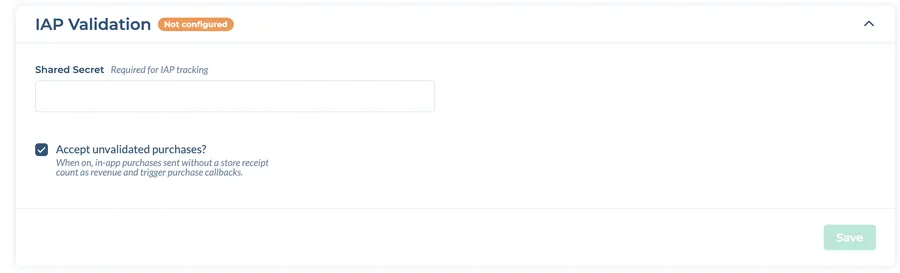
- IAP Validation: Add the key Tenjin needs to validate in-app purchase receipts (for iOS, your App-Specific Shared Secret). You can also choose whether to accept unvalidated purchases. When this is on, in-app purchases sent without a store receipt count as revenue and trigger purchase Callbacks.
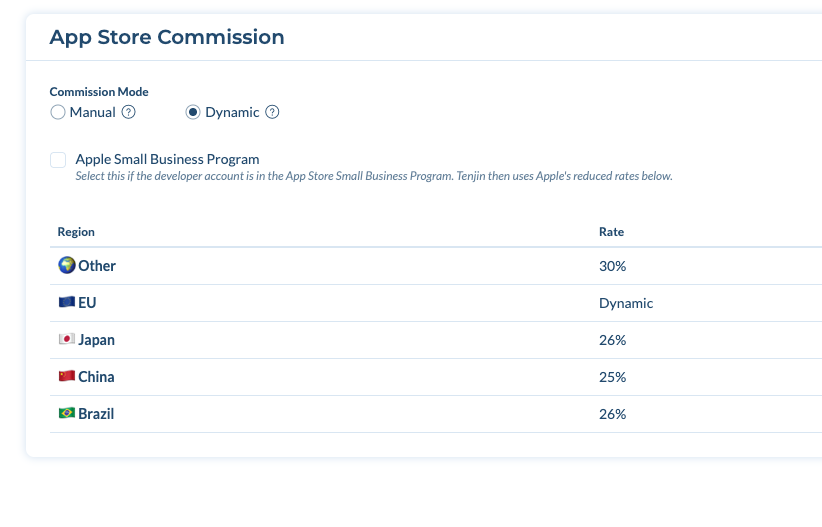
- App Store Commission: Set the app store commission for in-app purchases and subscriptions, and the dates it is valid for. For iOS apps, choose Dynamic to use Apple’s country-specific rates.
If you want to enable the SKAdNetwork report for the app, please send an email to support@tenjin.com.
SDK tab #
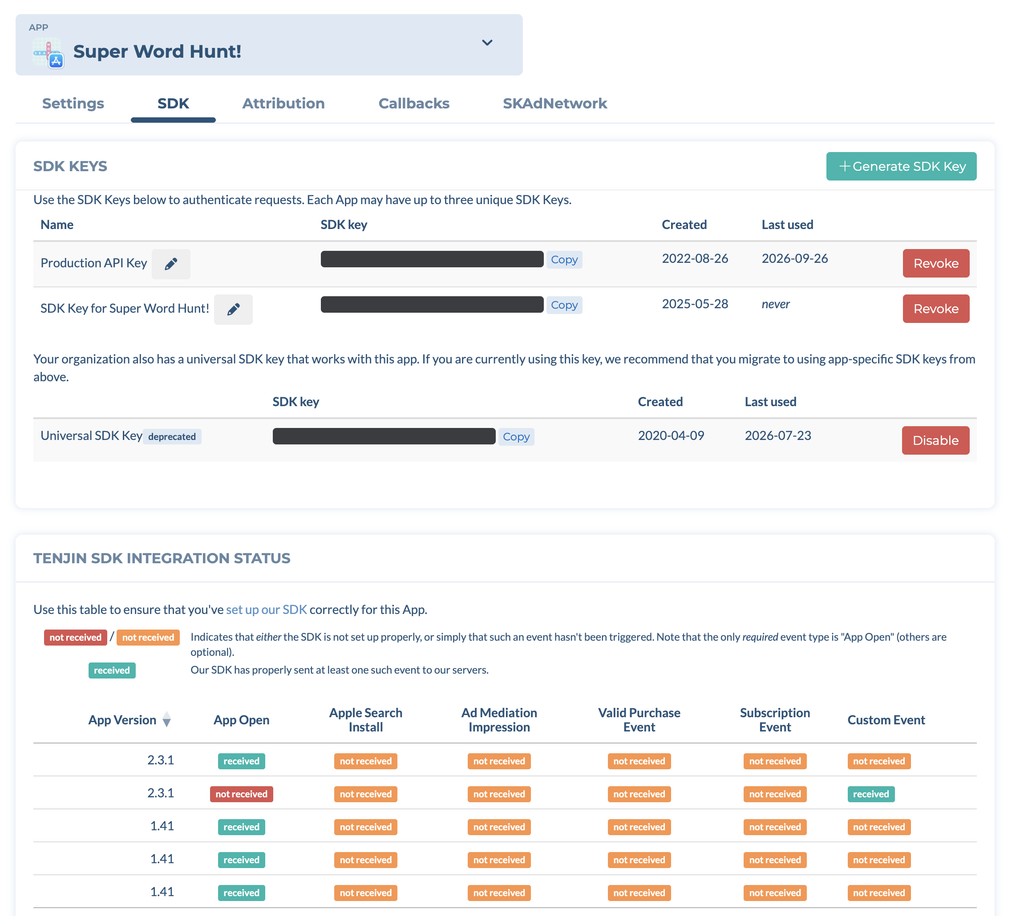
The SDK tab shows your app’s SDK Keys. Each app can have up to three SDK keys, and you can create one with Generate SDK Key, copy it, rename it or revoke it here. The tab also shows the Tenjin SDK Integration Status table, which you can use to check that the SDK is set up correctly.