Attribution Window Setup Guide #
Tenjin has expanded its Attribution configuration capabilities, now allowing advertisers to set Attribution windows at both the App level and the App + Ad Network level. You can customize settings for both click-through and view-through Attribution at the App level and App + Ad Network level. This setting provides greater flexibility and control, enabling precise optimization of your apps and advertising network channels for improved Attribution results.
To customize the Attribution Window settings please follow these steps below:
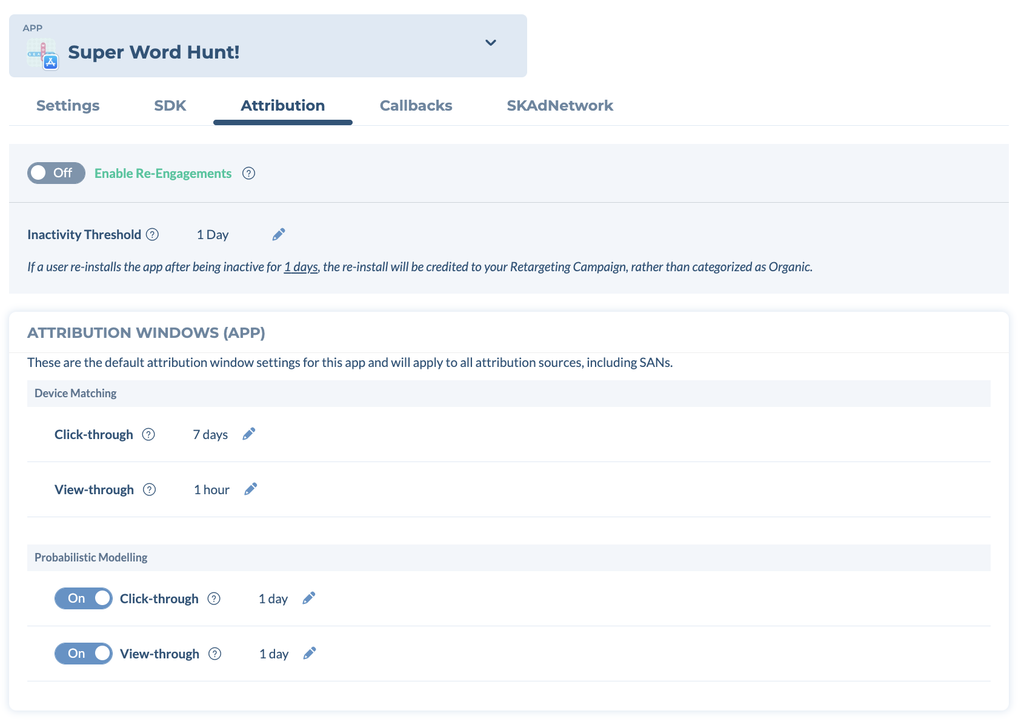
- Go into CONFIGURE (at the top of the main menu) → Apps, select the App and click on the Attribution tab.
The top of the Attribution tab also holds your re-engagement settings (Enable Re-Engagements and the Inactivity Threshold).
App Attribution Window #
In the Attribution tab, the Attribution Windows (App) section shows the default Attribution Window settings for the app. They apply to all Attribution sources, including SANs. Click the pencil icon next to a window to change it.
- Device Matching
- Click-through (Default 7 days)
- View-through (Default 24 hours)
- Probabilistic Modelling
- Click-through: turn on or off, and set its window
- View-through: turn on or off, and set its window
App + Ad Network Attribution Window #
- If you want to use a non default Attribution Window for a specific network, you can do this under this section. For this, select the channel from the Channels and Partners dropdown below the App Attribution windows. For e.g. Google Ads.
- Now you will see the App x Ad Network Attribution Windows settings section. (This will override the App settings above.)
- Turn On the Override App Settings toggle on the top right to make changes at the Ad Network level. The section has the same Device Matching and Probabilistic Modelling windows as the App level. Click the pencil icon next to a window to change it.
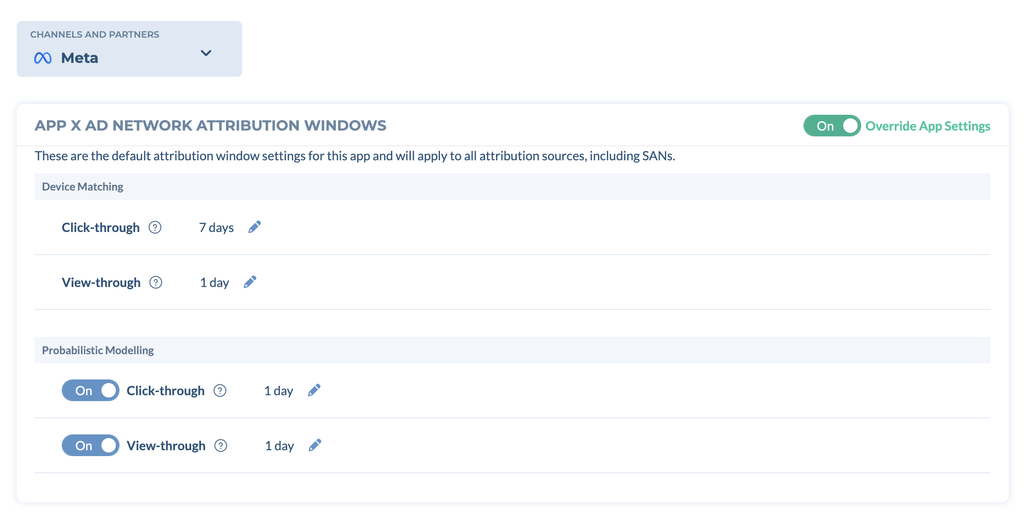
App + Ad Network Attribution Window settings will override the settings done on the App Attribution Window. If you make no changes, Tenjin will continue using default app Attribution Window settings.
If you have any questions or issues, please contact us at support@tenjin.com.