Overview of the SKAdNetwork Report in the dashboard #
Tenjin has a dedicated report for your SKAdNetwork campaigns. If you are not familiar with how SKAdNetwork works, please read this article at first.
#
SKAdNetwork Report: Setup guide #
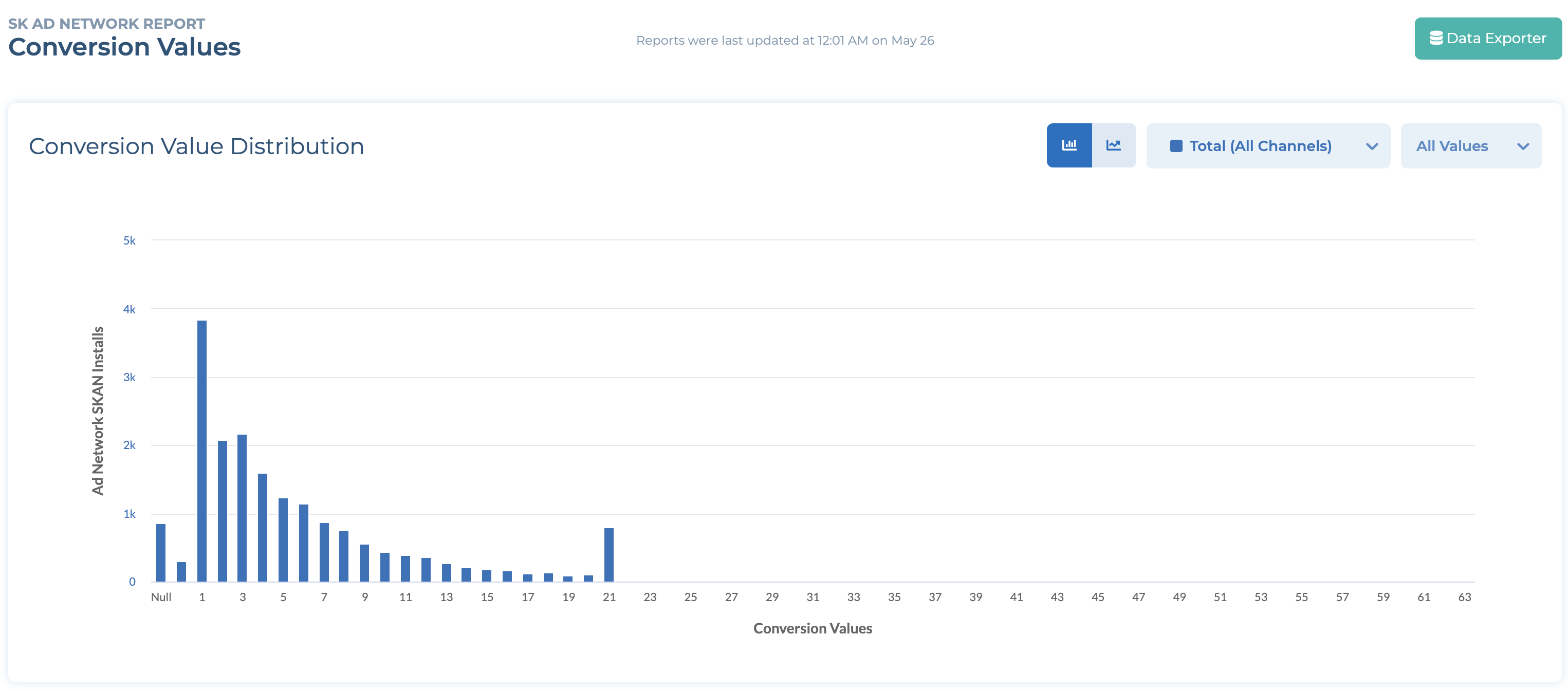
- Go to ANALYZE -> SKAdNetwork on the dashboard. The main chart in the SKAdNetwork tab is the conversion value distribution as shown below.
- You can choose one of 3 options for conversion values. The default is All Values.
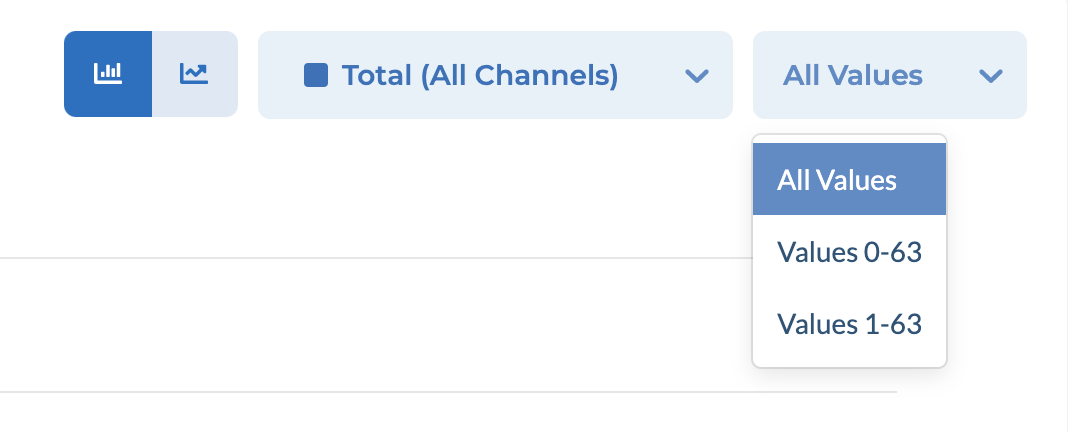
- All Values: Show all conversion values including NULL
- Values 0-63: Show all conversion values excluding NULL
- Values 1-63: Show 1 – 63 conversion values excluding NULL
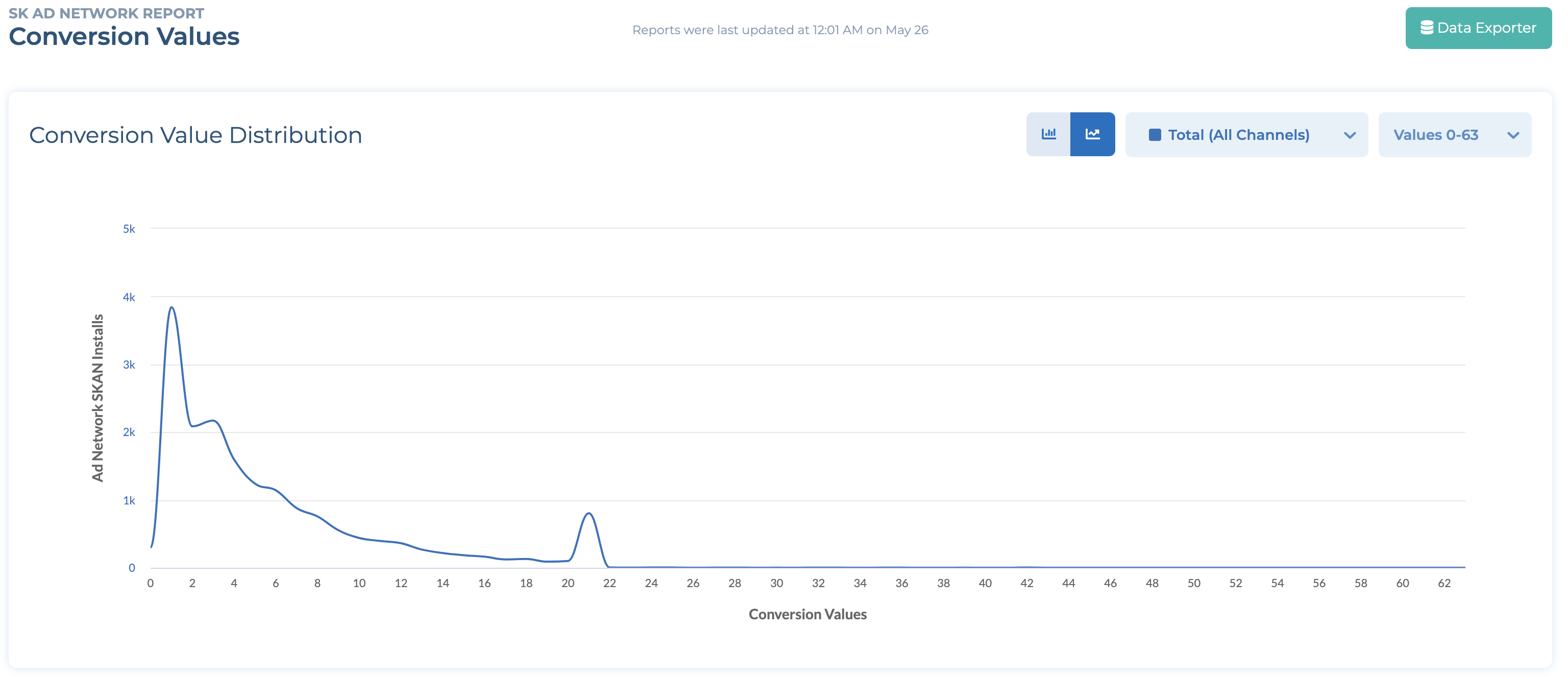
- You can also choose the chart type (historgram or line chart).
- At the bottom, you can see the report table, broken down by Channel > Conversion Value by default. Click the arrow next to a channel to see its conversion values, or switch to the Dimensions view to see both as columns. You can also filter the table with the Filter button (see Filters and Grouping).
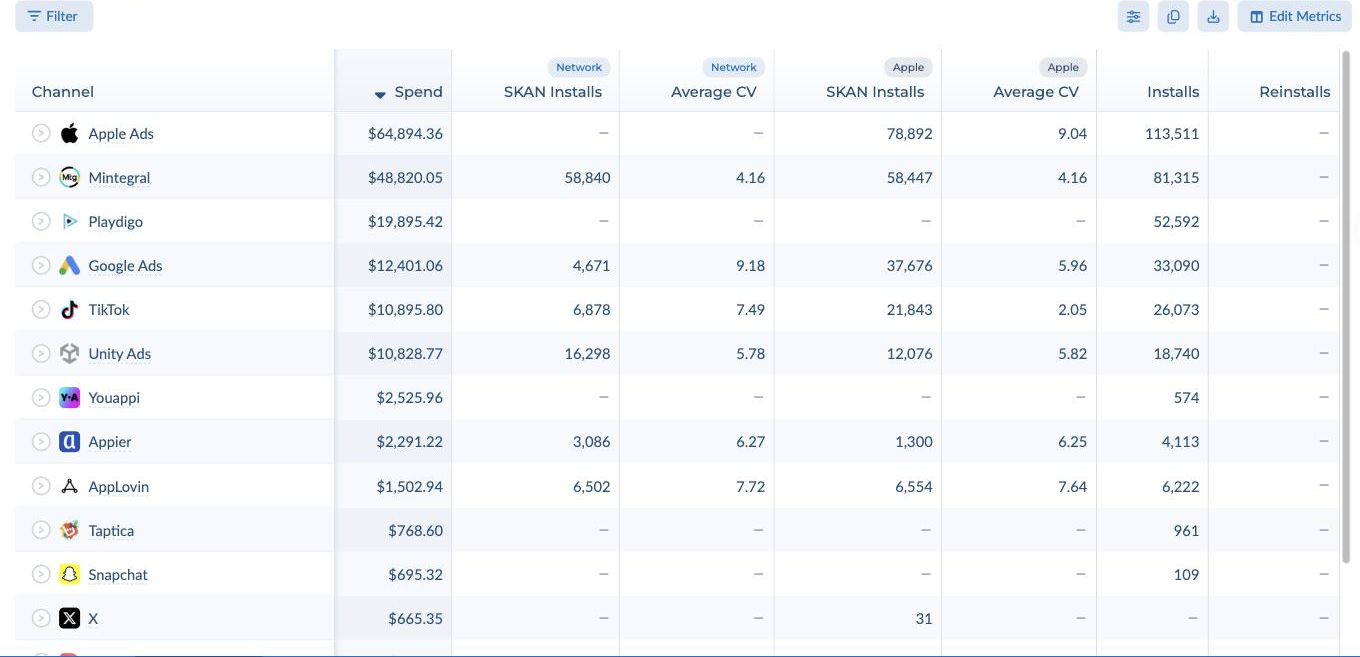
You can choose to view the following metrics by clicking Edit Metrics.
- Installs
- Network SKAN Installs
- Network Average CV
- Network CV Sum
- Apple SKAN Installs
- Apple Average CV
- Apple CV Sum
- First Installs
- Network SKAN First Installs
- Network Average CV of First Installs
- Network CV Sum of First Installs
- Apple SKAN First Installs
- Apple Average CV of First Installs
- Apple CV Sum of First Installs
- Reinstalls
- Network SKAN Reinstalls
- Network Average CV of Reinstalls
- Network CV Sum of Reinstalls
- Apple SKAN Reinstalls
- Apple Average CV of Reinstalls
- Apple CV Sum of Reinstalls
- Assists
- Network SKAN Assists
- Network SKAN First Install Assists
- Network SKAN Reinstall Assists
- Spend
- Installs
- Network Installs
#
SKAdNetwork Report: Filters and Grouping #
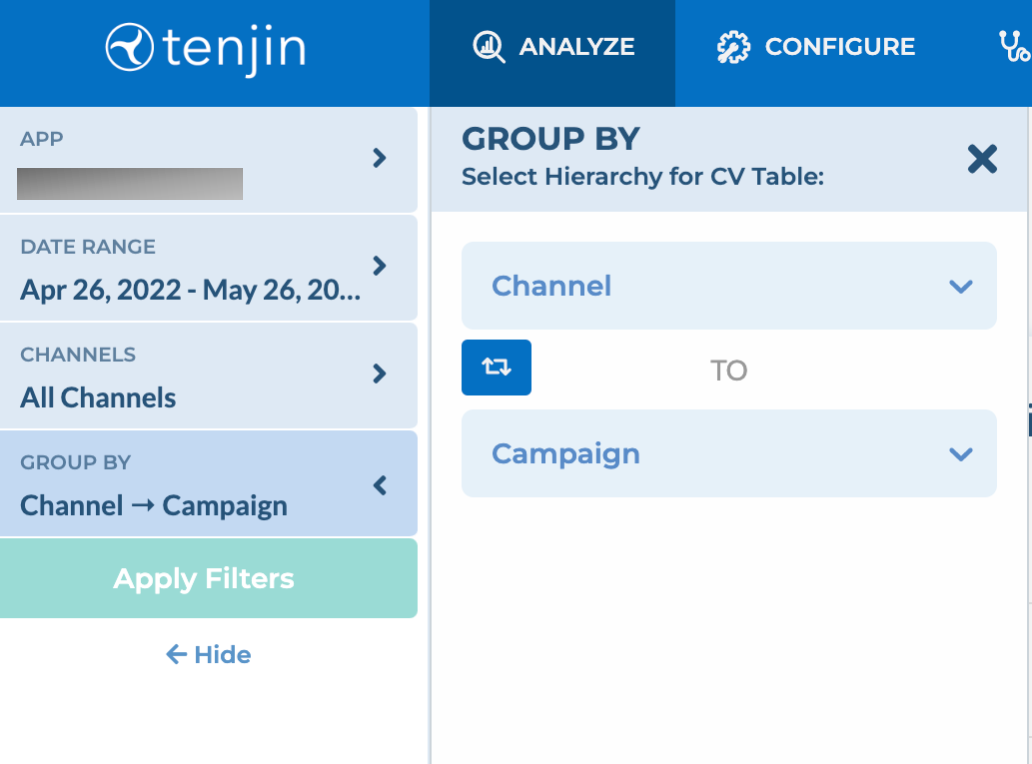
- App: You can only choose one iOS app on the report. The app has to be marked as claimed by the Tenjin team. If you don’t see your app in the report, please contact support@tenjin.com.
- Channels: You can select the user acquisition channels
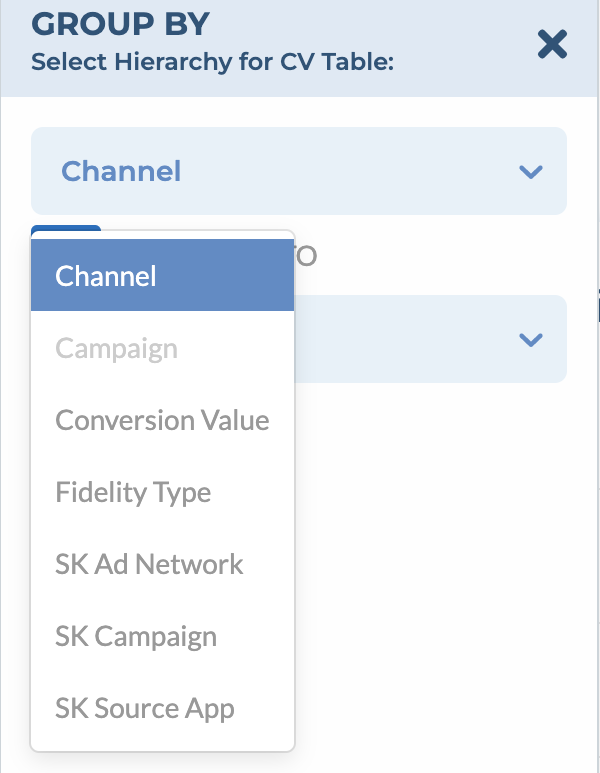
Grouping: You can choose 2 group by options for the report. By default, it is channel -> campaign. The available options are
- Channel (Tenjin channel)
- Campaign (Tenjin campaign)
- Conversion value (0 – 63)
- Fidelity type (0 or 1)
- Sk Ad Network (Sk Ad Network ID defined by Apple. Ex: 4dzt52r2t5.skadnetwork)
- SK Campaign (0 – 100, campaign ID defined by Apple)
- SK Source App (Source App ID that ad is shown, equivalent to iOS store ID)