How to Manage Campaigns in Tenjin #
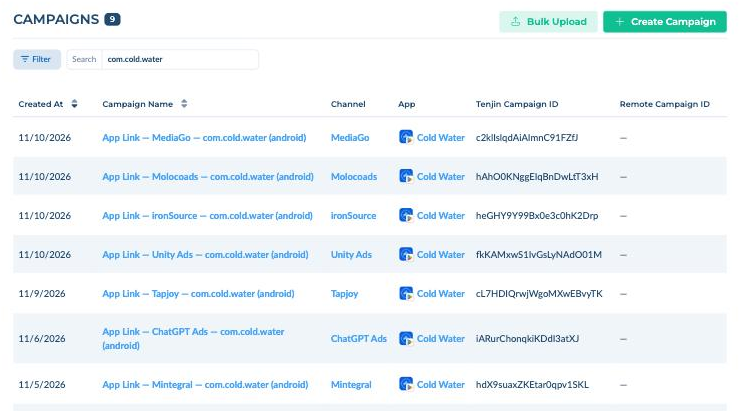
Campaign management includes creating, searching and bulk uploading campaigns. Go to CONFIGURE > Campaigns on the Tenjin dashboard. The Campaigns page lists all your campaigns with their channel, app, Tenjin campaign ID and remote campaign ID, newest first.
Campaign Search #
Use the Search box to find campaigns by campaign name, Tenjin campaign ID or remote campaign ID. Any part of the name matches, so searching for “US” shows every campaign with “US” in its name.
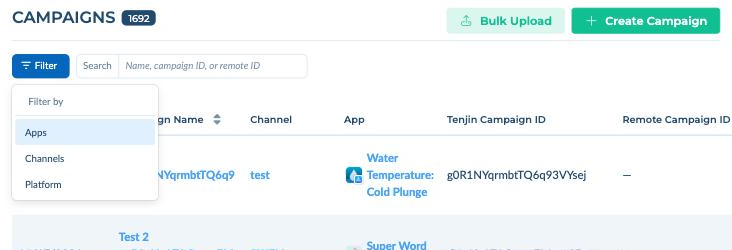
To narrow the list further, click Filter and filter by Apps, Channels or Platform. Click Clear filters to remove them. You can also sort by Created At or Campaign Name by clicking the column header.
Campaign Bulk Upload #
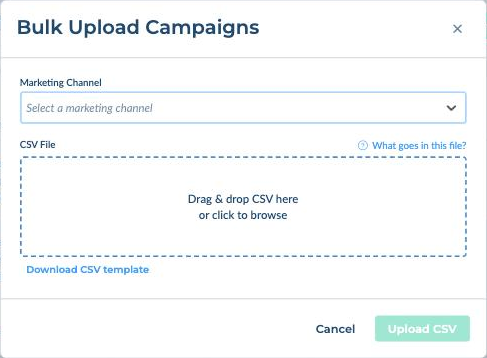
Bulk uploading campaigns from a CSV saves time if you have a lot of campaigns to create. Click Bulk Upload, select the Marketing Channel, then drag and drop your CSV file (or click to browse) and click Upload CSV. Click Download CSV template to get a file with the right headers.
The CSV needs one row per campaign, with these headers:
campaign_name: name of the campaign (required).campaign_id: ID of the campaign (optional).bundle_id: bundle ID of the app being promoted. Required unless you givestore_id.store_id: App Store ID of the app being promoted. Required unless you givebundle_id.platform: platform of the app being promoted (iosorandroid).
After your campaigns are created successfully, you will receive an email notification.