This guide walks you through setting up Subscription Revenue Measurement for your iOS and Android apps. New to the feature? Read the overview first.
Before you start #
Setup has four steps. Only one of them needs a developer:
| Step | Who does it | Time |
|---|---|---|
| 1. Add your store credentials in Tenjin | You (no coding) | 5–15 min |
| 2. Add the subscription method to the Tenjin SDK | Your developer | Varies |
| 3. Check your Subscriptions report | You | 1 min |
| 4. Turn on subscription Callbacks | You (no coding) | 1 min per channel |
Using RevenueCat? You can skip the SDK work in Step 2. Follow the RevenueCat option in Step 2 instead.
Step 1: Add your store credentials in Tenjin #
Your store credentials let Tenjin read subscription details (price, trial status, Renewals, cancellations) directly from the App Store and Google Play.
- Go to Configure → Apps in the Tenjin dashboard.
- Select your app.
- Find the Subscriptions Tracking section and fill it in:
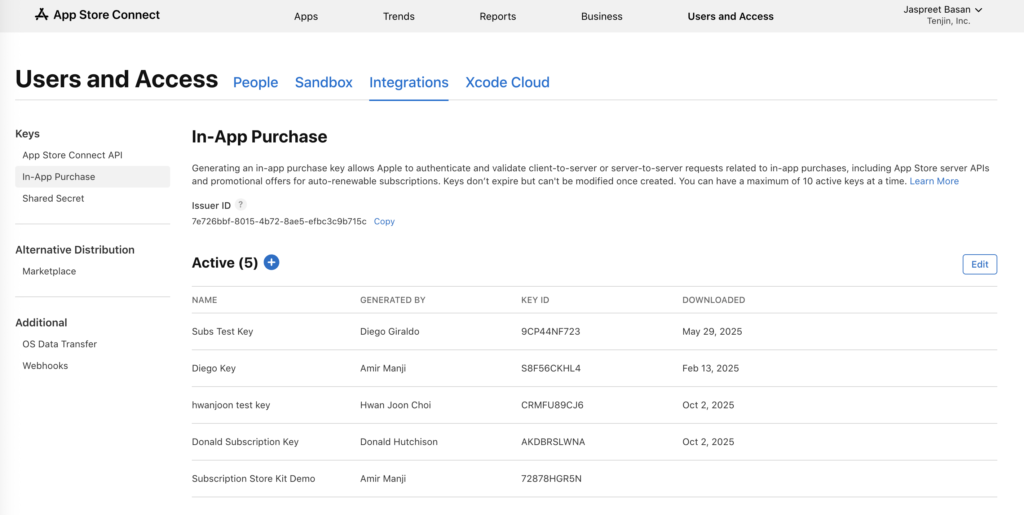
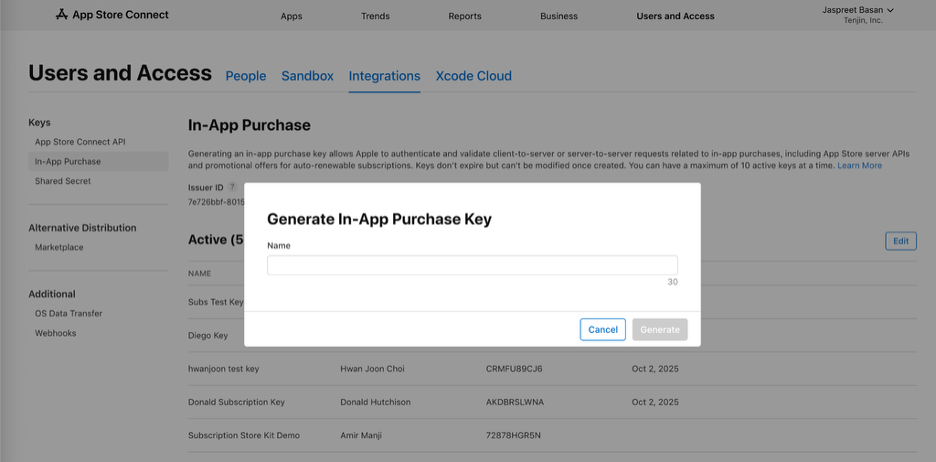
- iOS apps: Key ID, Issuer ID, and your In-App Purchase key (.p8 file)
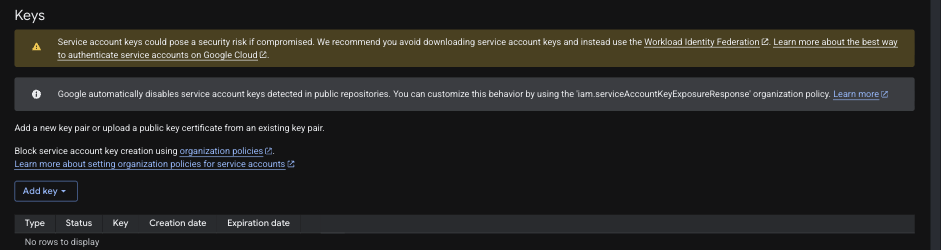
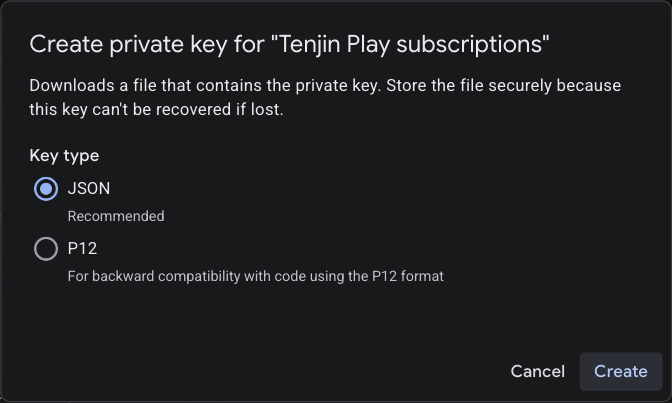
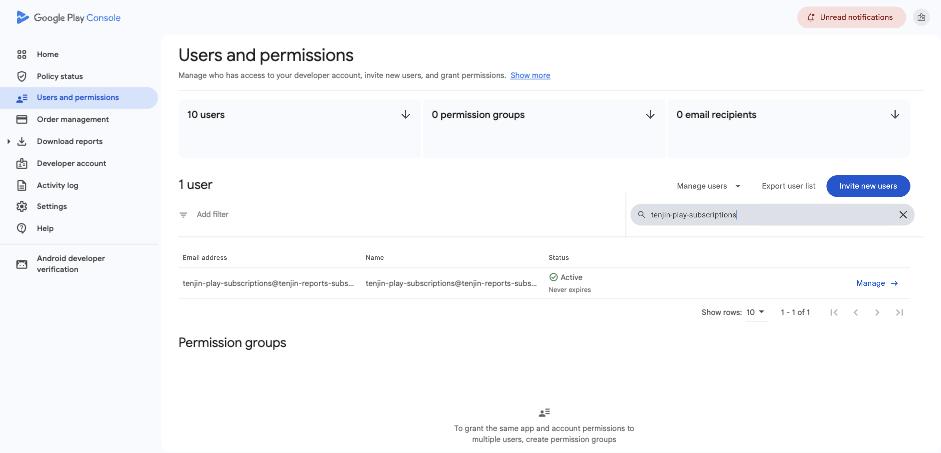
- Android apps: upload your Google Play service account private key (.json file). Android subscription measurement is in beta, so to turn it on for your app, email support@tenjin.com.
- Click Save in that section. For iOS apps, Tenjin checks your credentials when you save. If something is wrong, you’ll see an error. If they work, the section shows Configured.

iOS app: Key ID, Issuer ID and In-App Purchase Key
Android app: Service Account Private Key (JSON file)
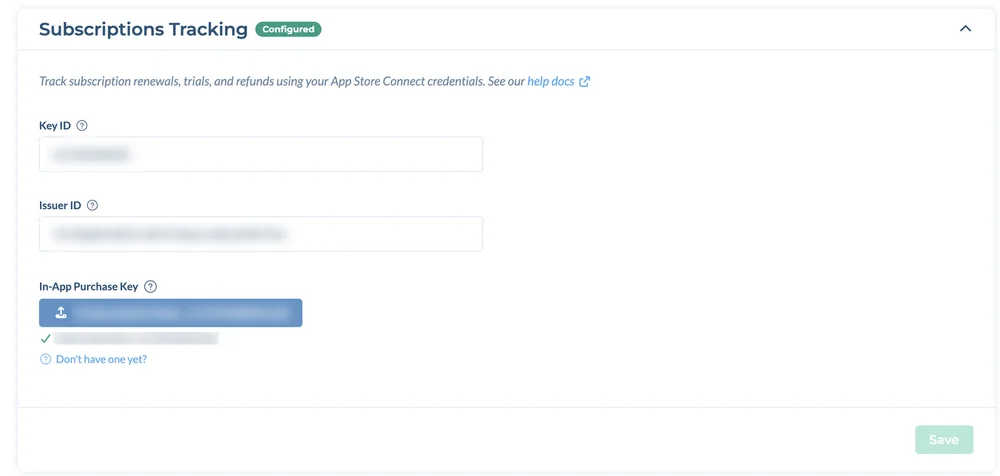
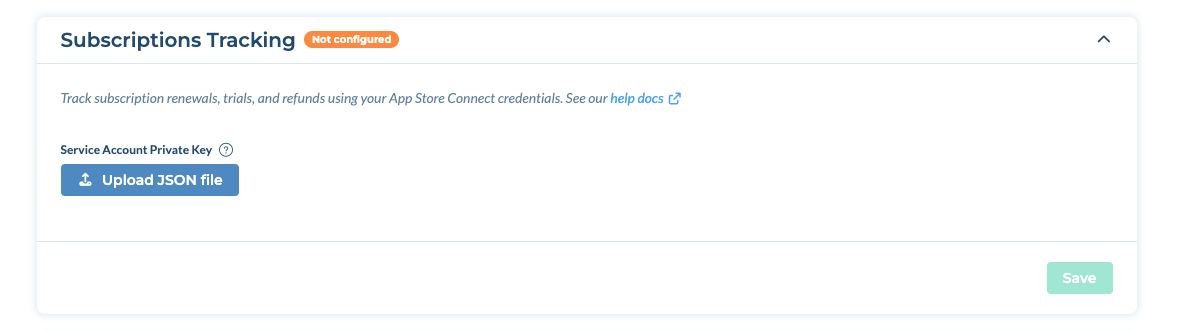
Don’t have these credentials yet? Open the guide for your store below.
How to generate App Store Connect credentials (iOS) #
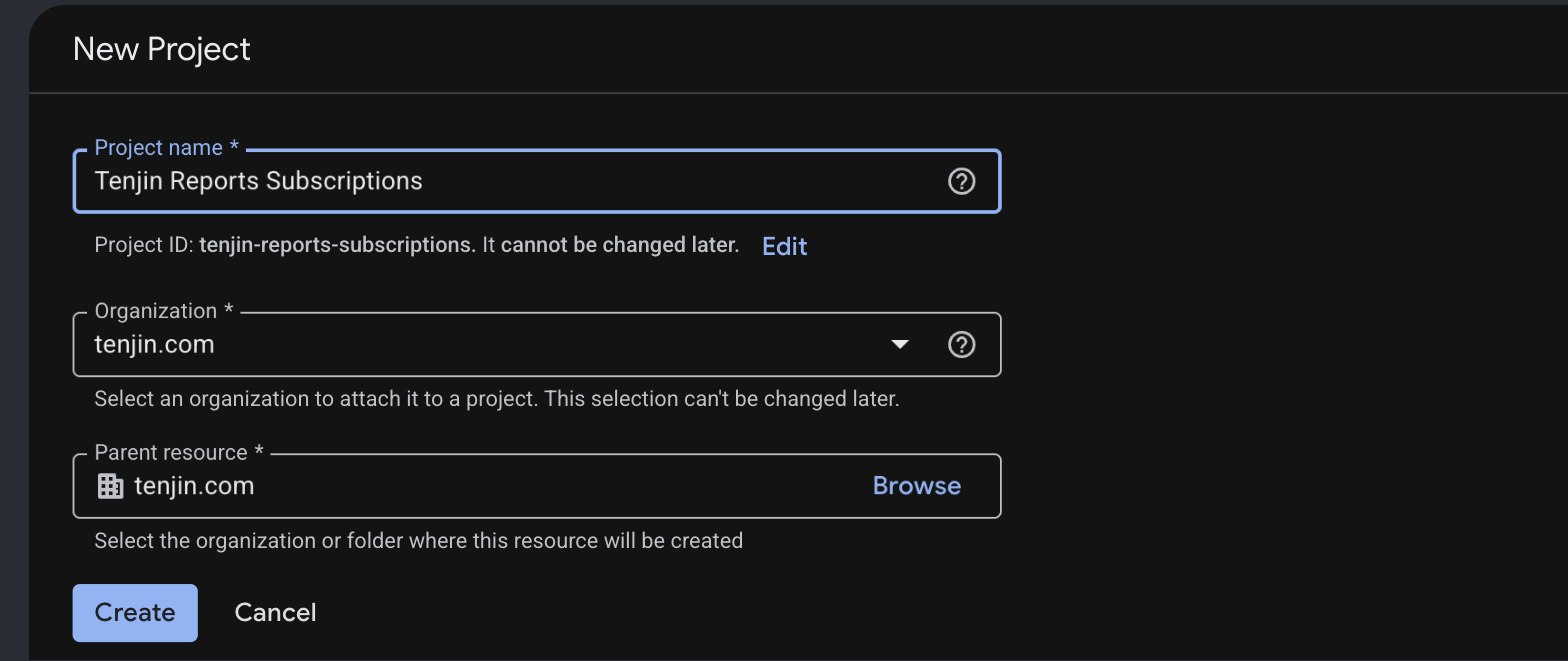
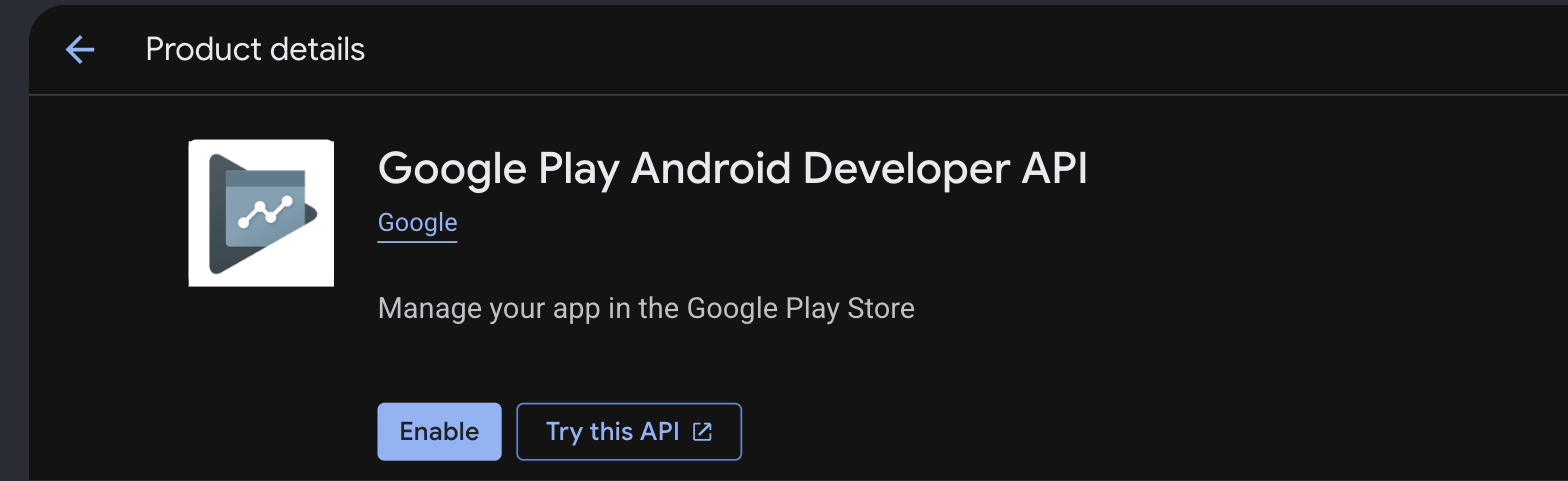
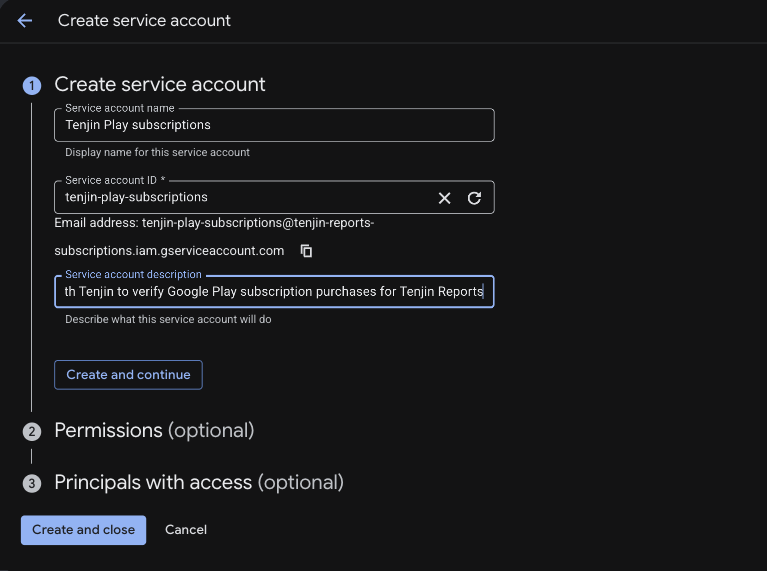
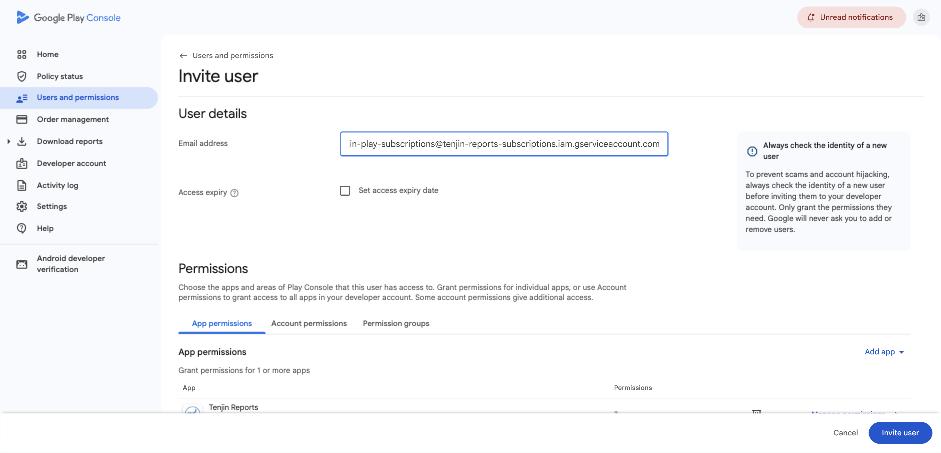
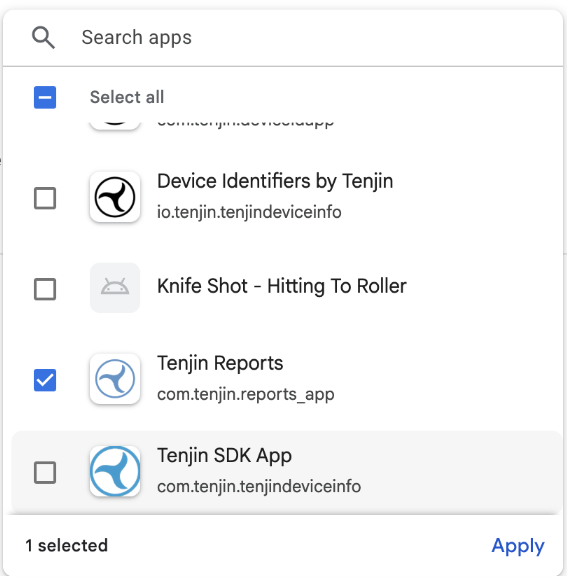
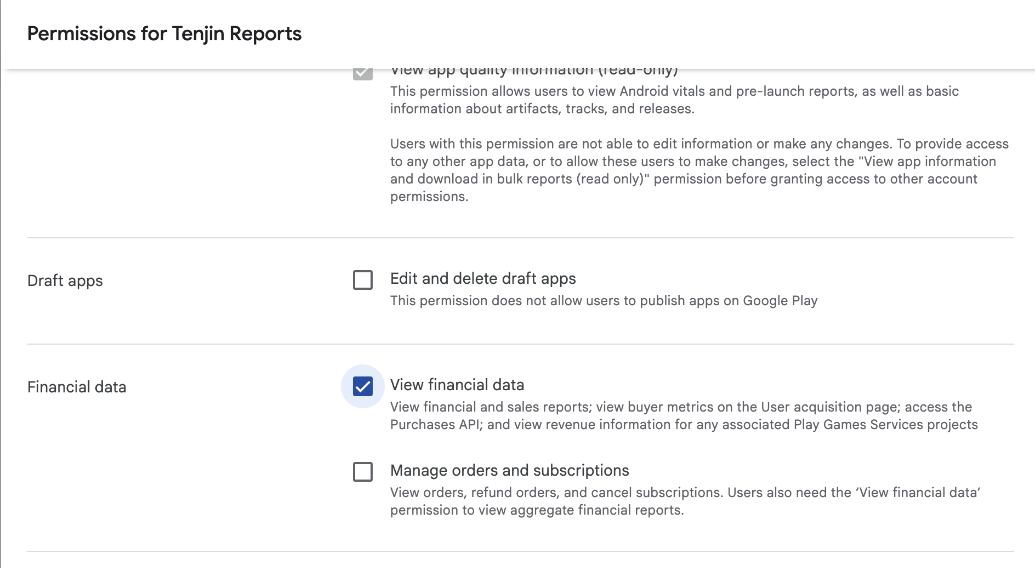
How to generate Google Play credentials (Android) #
Step 2: Add the subscription method to the Tenjin SDK #
The SDK connects each subscription to the Install and the ad campaign that brought the user in. Share the guide for your platform with your developer:
Integrate using AI #
Using an AI coding assistant like Claude Code, Cursor or Copilot? Give it this prompt and it will find the right guide for your platform and add subscription tracking for you:
Add Tenjin SDK subscriptions tracking to my app using:

https://raw.githubusercontent.com/tenjin/sdk-llm-guides/main/guides/llm-guide.mdUsing RevenueCat instead? Connect RevenueCat (no SDK work) #
If you already use RevenueCat, you don’t need the SDK subscription method. Keep your store credentials from Step 1 and add the Tenjin integration in RevenueCat:
- In the RevenueCat dashboard, open your Project settings → Integrations.
- Select Tenjin and add your Tenjin SDK key(s).
RevenueCat will start sending your subscription events to Tenjin. For iOS apps, Tenjin automatically removes duplicates between RevenueCat and the App Store data, so each trial and renewal is counted only once. Deduplication for Android apps is coming soon. See Third Party Purchase Integration for more on RevenueCat.
Step 3: Check your Subscriptions report #
Once data starts coming in, open the Subscriptions report. If you see trials, subscriptions and revenue here, your setup is working. Use Breakdowns to split the numbers by subscription plan (product_id) and channel.
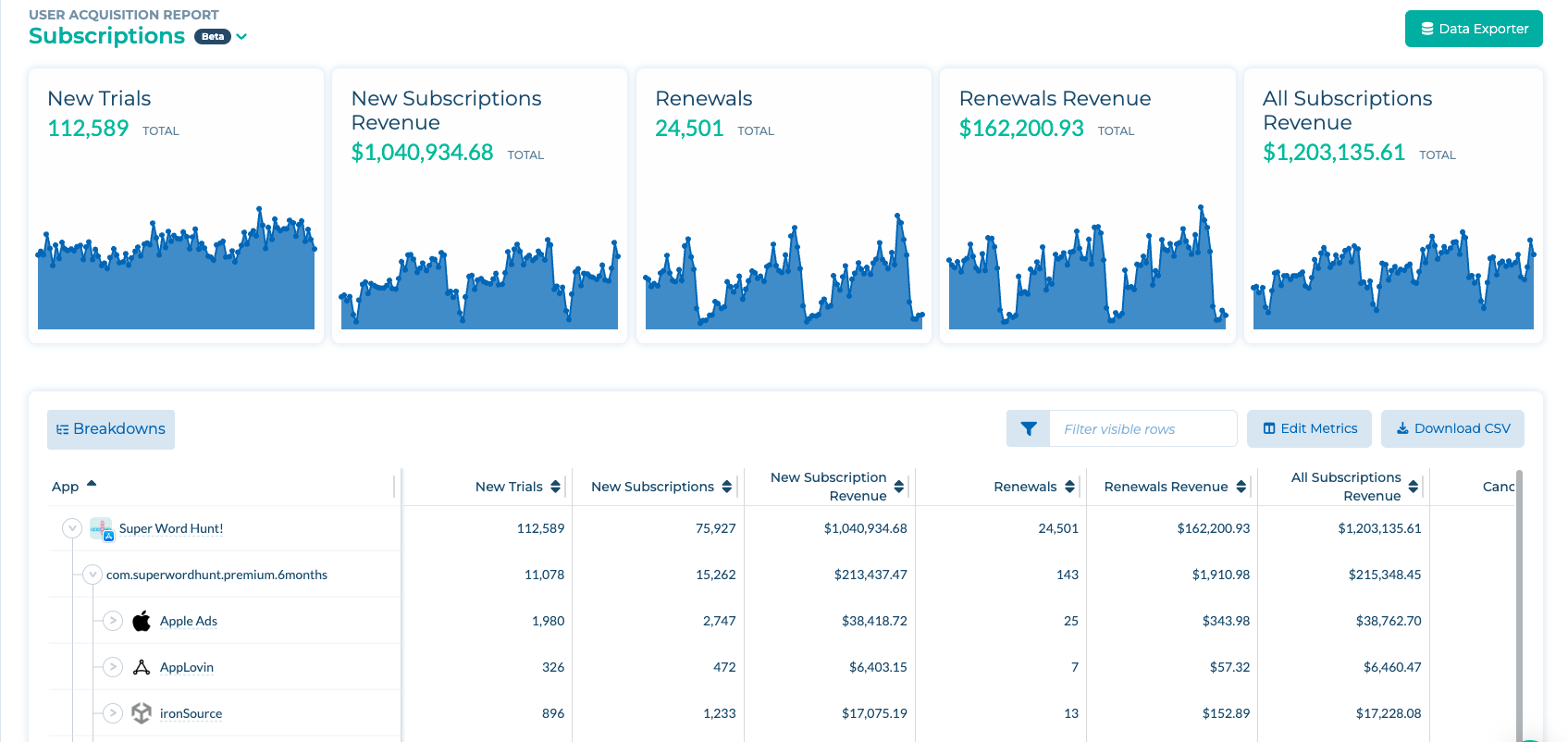
Want to know what each metric means? See Subscription Revenue Tracking.
Step 4: Turn on subscription Callbacks #
Callbacks send your subscription events to your ad networks so they can optimize your campaigns. There are two built-in events, and you don’t need to create any custom events:
- Trial Start: helps networks find users who start trials.
- Subscription Revenue: helps networks find users who pay and keep renewing.
- Go to Configure → Apps, select your app, and open the Callbacks tab.
- Choose your channel (for example, Meta).
- Turn on the Trial Start and/or Subscription Revenue callback.
Using a third-party purchase integration? On iOS with RevenueCat, duplicates are removed automatically, so you can turn on both the Subscription Revenue and In-App Purchase Callbacks. For Android apps, and for other third-party purchase integrations, turn on either the Subscription Revenue or the In-App Purchase callback for a network, not both, to avoid sending duplicate events.
Don’t see a subscription callback for the network you want, or have questions? Email us at support@tenjin.com.