归因窗口设置指南 #
随着Tenjin不断提升归因配置功能,现在您可以在应用层级,应用+广告渠道层级上进行归因窗口设定。您可以在应用层级或应用+广告渠道层级页面上,灵活设置点击归因和展示归因,更好地控制和优化您的应用和广告渠道。
请按照以下步骤自定义归因窗口设置:
- 进入CONFIGURE(主菜单顶部)→ Apps,选择应用并点击Attribution标签页。
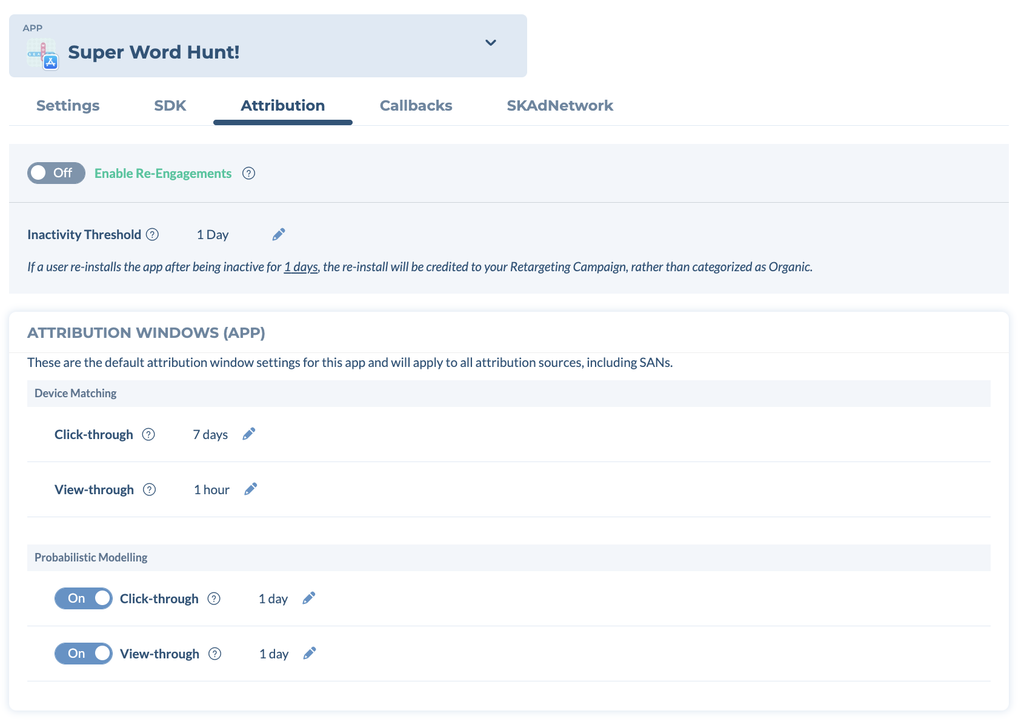
Attribution标签页顶部还有再营销相关设置(Enable Re-Engagements和Inactivity Threshold)。
应用层级归因窗口设置 #
在Attribution标签页中,Attribution Windows (App)区域显示该应用的默认归因窗口设置,适用于所有归因来源,包括自归因网络(SAN)。点击窗口旁的铅笔图标即可修改。
- 设备匹配(Device Matching)
- 点击归因(Click-through,默认7天)
- 展示归因(View-through,默认24小时)
- 概率建模(Probabilistic Modelling)
- 点击归因:开启或关闭,并设置归因窗口
- 展示归因:开启或关闭,并设置归因窗口
应用 + 广告渠道层级归因窗口设置 #
- 如果想为某个广告渠道使用非默认的归因窗口,可以在此区域设置:在App归因窗口下方的Channels and Partners下拉菜单中选择该渠道,例如Google Ads。
- 随后会出现App x Ad Network Attribution Windows设置区域(会覆盖上方的App级设置)。
- 打开右上角的Override App Settings开关(On),即可在广告渠道层级进行修改。该区域与App层级一样包含Device Matching和Probabilistic Modelling窗口,点击窗口旁的铅笔图标即可修改。
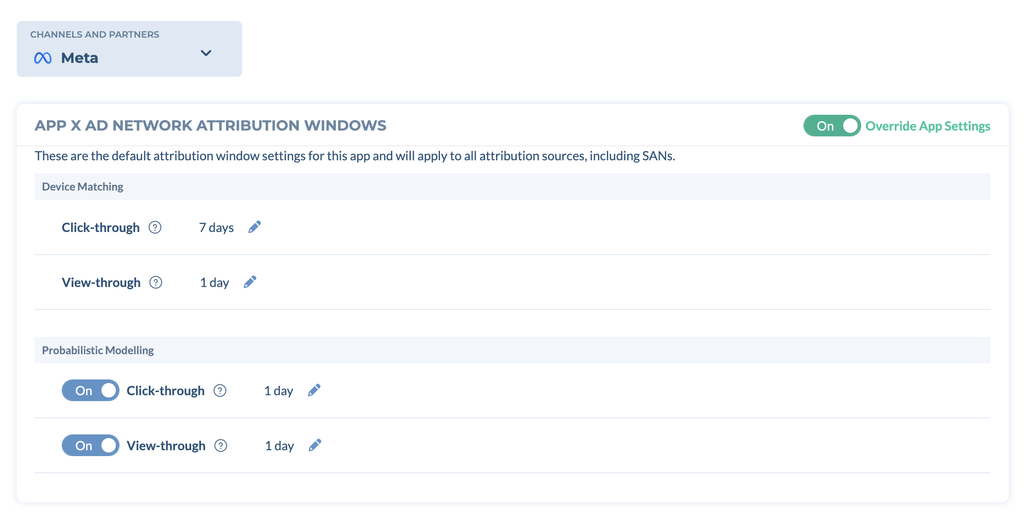
应用 x 广告渠道的层级的归因窗口设置优于应用层级归因窗口的设置。若在应用+广告渠道层级做任何归因的修改,则会覆盖应用层级归因的设置。如果您不进行任何更改,Tenjin将默认使用应用层级的归因窗口设置。
如果您有任何问题,请欢迎联系:support@tenjin.com