---
title: Mobile Measurement Partner (MMP) SDK for Android
url: "https://tenjin.com/zh/docs/mmp-sdk-android/"
updated: "2026-06-15"
category: Tenjin SDK Integration Guides
---

# Mobile Measurement Partner (MMP) SDK for Android

**Integrate using LLMs (AI) – Use following prompt:**Add Tenjin SDK to my project using: [https://raw.githubusercontent.com/tenjin/sdk-llm-guides/main/guides/android/llm-guide.md](https://raw.githubusercontent.com/tenjin/sdk-llm-guides/main/guides/android/llm-guide.md)

### Get Started with the Android SDK

The Tenjin Android SDK allows users to track events and installs in their Android apps. To learn more about Tenjin and our product offering, please visit https://www.tenjin.com.

- Please see our [Release Notes](https://github.com/tenjin/tenjin-android-sdk/blob/master/RELEASE_NOTES.md) to see detailed version history of changes.
- We recommend using the latest version of [Android Studio](https://developer.android.com/studio/index.html).
- For Unity integration, please visit https://github.com/tenjin/tenjin-unity-sdk.
- For any issues or support, please contact: support@tenjin.com.

---

## Basic Integration

### Manual Installation

Please use the steps listed below under the section ‘Android Studio.’

### Maven

If you use Maven, add implementation `com.tenjin:android-sdk:VERSION` to your `Gradle` dependencies and add `mavenCentral()` to the source repositories if it’s not there already.

### Android Studio

1. Download the latest Android SDK from [here.](https://github.com/tenjin/tenjin-android-sdk/releases)
2. Add the Tenjin SDK into your Android Studio project. Go to the Project Navigator in Android Studio. Select the option `Project` in the Project Navigator. You will find the `libs` folder under the `app` module of your Android Studio project.
3. You need to add the file `tenjin.jar` or `tenjin.aar` to the `libs` folder.

1. In your Android Studio project under `app` module, select the `build.gradle` file, and add the following under the dependencies block:

 Java

```
dependencies {
    implementation fileTree(dir: 'libs', include: ['*.jar', '*.aar'])
    implementation files('libs/tenjin.aar')
}
```

```
dependencies {
    implementation fileTree(dir: 'libs', include: ['*.jar', '*.aar'])
    implementation files('libs/tenjin.aar')
}
```

> We have a demo project – [tenjin-android-sdk-demo][31] that demonstrates the integration of tenjin-android-sdk. You can this project as example to understand how to integrate the tenjin-android-sdk.

---

### Google Play or Amazon store

If you distribute your apps on Google Play Store or Amazon store, implement the following initial setups.

### Permission

The Tenjin SDK requires the following permissions:

 XML

```
<uses-permission android:name="android.permission.INTERNET" />
<uses-permission android:name="android.permission.ACCESS_NETWORK_STATE" /> <!-- Required to get network connectivity (i.e. wifi vs. mobile) -->
```

```
<uses-permission android:name="android.permission.INTERNET" />
<uses-permission android:name="android.permission.ACCESS_NETWORK_STATE" /> <!-- Required to get network connectivity (i.e. wifi vs. mobile) -->
```

Google Play Services requires all API level 32 (Android 13) apps using the advertising_id(Android Advertising ID (AAID)) to declare the Google Play Services AD_ID permission (shown below) in their manifest file.

 XML

```
<uses-permission android:name="com.google.android.gms.permission.AD_ID"/>
```

```
<uses-permission android:name="com.google.android.gms.permission.AD_ID"/>
```

### Android Advertising ID (AAID) and Install Referrer

Add [Android Advertising ID (AAID)](https://developers.google.com/android/guides/setup#list-dependencies) and [Install Referrer](https://developer.android.com/google/play/installreferrer/library) libraries, add it to your build.gradle file.

 Java

```
dependencies {
  implementation 'com.google.android.gms:play-services-ads-identifier:{version}'
  implementation 'com.android.installreferrer:installreferrer:{version}'
}
```

```
dependencies {
  implementation 'com.google.android.gms:play-services-ads-identifier:{version}'
  implementation 'com.android.installreferrer:installreferrer:{version}'
}
```

To be able to collect [Meta’s Install Referrer,](https://developers.facebook.com/docs/app-ads/meta-install-referrer/) add these queries to your Android Manifest:

 XML

```
<queries>
  <package android:name="com.facebook.katana" />
</queries>

<queries>
  <package android:name="com.instagram.android" />
</queries>
```

```
<queries>
  <package android:name="com.facebook.katana" />
</queries>

<queries>
  <package android:name="com.instagram.android" />
</queries>
```

Next, add this value to your strings.xml file:

 XML

```
<string name="facebook_app_id" translatable="false">YOUR_META_APP_ID</string>
```

```
<string name="facebook_app_id" translatable="false">YOUR_META_APP_ID</string>
```

### App Store

By default, **unspecified** is the default App Store. Update the app store value to either **googleplay** or **amazon**, depending on your app.

1. `AndroidManifest.xml`:

 XML

```
<meta-data
    android:name="TENJIN_APP_STORE"
    android:value="googleplay" />
```

```
<meta-data
    android:name="TENJIN_APP_STORE"
    android:value="googleplay" />
```

1. `setAppStore()`:

 Java

```
TenjinSDK instance = TenjinSDK.getInstance(this, "");
instance.setAppStore(TenjinSDK.AppStoreType.googleplay);
```

```
TenjinSDK instance = TenjinSDK.getInstance(this, "");

instance.setAppStore(TenjinSDK.AppStoreType.googleplay);
```

### App Store Options

 Java

```
  TenjinSDK.AppStoreType.googleplay // Google Play App Store
  TenjinSDK.AppStoreType.amazon     // Amazon AppStore
  TenjinSDK.AppStoreType.other      // Other
```

```
  TenjinSDK.AppStoreType.googleplay // Google Play App Store
  TenjinSDK.AppStoreType.amazon     // Amazon AppStore
  TenjinSDK.AppStoreType.other      // Other
```

---

### App Initialization

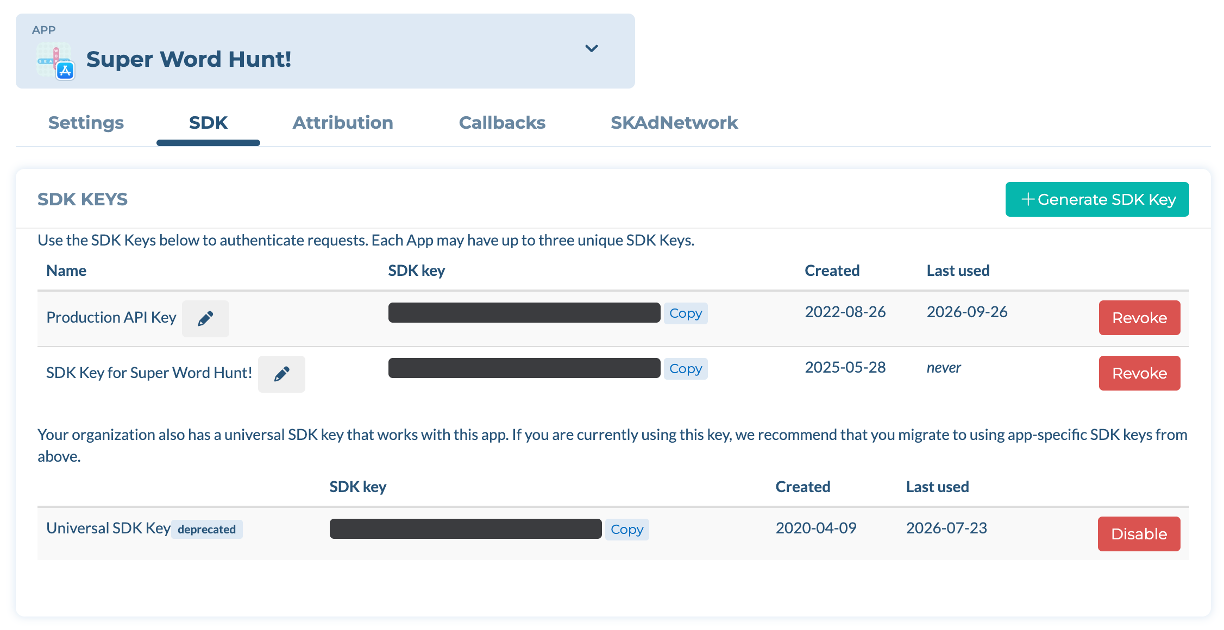
1. Get your `SDK_KEY` from your app page. Note: `SDK_KEY` is unique for each of your app. You can create up to 3 keys for the same app.

 ![app_api_key.png](https://tenjin.com/wp-content/uploads/2026/01/app_api_key1.png)

1. In your Activity, import Tenjin: `import com.tenjin.android.TenjinSDK;`
2. In the `onResume` method of your main `Activity` class, add the following line of code:

 Java

```
TenjinSDK instance = TenjinSDK.getInstance(this, "");
instance.connect();
```

```
TenjinSDK instance = TenjinSDK.getInstance(this, "");

instance.connect();
```

**NOTE:** If your app has the logic to ask user’s consent between `onCreate` and `onResume`, use `onCreate` instead of `onResume` for Tenjin SDK initialization because users who don’t consent won’t be tracked on `onResume`.

**NOTE:** Please ensure you implement this code on every `onResume`, not only on the first app open of the app.

---

### Other Android store

If you distribute your apps outside of Google Play Store or Amazon store(Other Android store), implement the following initial setups.

### Permission

 XML

```
<uses-permission android:name="android.permission.INTERNET" />
<uses-permission android:name="android.permission.ACCESS_NETWORK_STATE" /> <!-- Required to get network connectivity (i.e. wifi vs. mobile) -->
```

```
<uses-permission android:name="android.permission.INTERNET" />
<uses-permission android:name="android.permission.ACCESS_NETWORK_STATE" /> <!-- Required to get network connectivity (i.e. wifi vs. mobile) -->
```

Google Play Services require all API level 32 (Android 13) apps using the advertising_id(Android Advertising ID (AAID)) to declare the Google Play Services AD_ID permission (shown below) in their manifest file.

 XML

```
<uses-permission android:name="com.google.android.gms.permission.AD_ID"/>
```

```
<uses-permission android:name="com.google.android.gms.permission.AD_ID"/>
```

### Android Advertising ID (AAID) and Install Referrer

Add [Android Advertising ID (AAID)](https://developers.google.com/android/guides/setup#list-dependencies) and [Install Referrer](https://developer.android.com/google/play/installreferrer/library) libraries, add it to your build.gradle file.

 Java

```
dependencies {
  implementation 'com.google.android.gms:play-services-ads-identifier:{version}'
  implementation 'com.android.installreferrer:installreferrer:{version}'
}
```

```
dependencies {
  implementation 'com.google.android.gms:play-services-ads-identifier:{version}'
  implementation 'com.android.installreferrer:installreferrer:{version}'
}
```

If you are using an [Ad Network](https://tenjin.com/blog/best-ad-networks-to-advertise-hybrid-hyper-casual-games-in-2024/) that targets the IMEI, you will need to add the following permissions enabled. (If you are distributing your apps in Google Play, please **DO NOT** add this permission.)

 XML

```
<uses-permission android:name="android.permission.READ_PHONE_STATE" />
```

```
<uses-permission android:name="android.permission.READ_PHONE_STATE" />
```

### OAID

Tenjin supports promoting your app on other Android App Stores using the Android OAID. We have the following requirements for integrating OAID libraries.

### MSA OAID

MSA OAID is an advertising ID for devices manufactured in China that the MSA (Mobile Security Alliance) provides. For integration with the [MSA library](http://www.msa-alliance.cn/col.jsp?id=120), download the following [oaid\_sdk\_1.0.25.aar](https://github.com/tenjin/tenjin-android-sdk/blob/master/msa-oaid/oaid_sdk_1.0.25.aar) and [supplierconfig.json](https://github.com/tenjin/tenjin-android-sdk/blob/master/msa-oaid/supplierconfig.json).

Add the following to your project gradle file:

 Plaintext

```
implementation files('libs/oaid_sdk_1.0.25.aar')
```

```
implementation files('libs/oaid_sdk_1.0.25.aar')
```

Be sure to copy the [supplierconfig.json](https://github.com/tenjin/tenjin-android-sdk/blob/master/msa-oaid/supplierconfig.json) file to the `assets` folder of your project.

### Huawei OAID

For outside of China, you can collect OAID using the library provided by Huawei. For integration with the [Huawei OAID library](https://developer.huawei.com/consumer/en/codelab/HMSAdsOAID/index.html#3), add the following to your project:

In your `build.gradle` file, add the Maven address for the Huawei SDKs:

 Java

```
allprojects {
    repositories {
        google()
        maven { url 'https://developer.huawei.com/repo/' }
    }
}
```

```
allprojects {
    repositories {
        google()
        maven { url 'https://developer.huawei.com/repo/' }
    }
}
```

 Java

```
dependencies {
    implementation 'com.huawei.hms:ads-identifier:{version}'
}
```

```
dependencies {
    implementation 'com.huawei.hms:ads-identifier:{version}'
}
```

### Huawei Install Referrer

If you are marketing your app with [Huawei App Gallery](https://appgallery.huawei.com/), add both the `Huawei OAID` SDK from above and the [Install Referrer](https://developer.huawei.com/consumer/en/codelab/HMSAdsTransformOAID/index.html#3) library.

 Java

```
dependencies {
    implementation 'com.huawei.hms:ads-identifier:{version}'
    implementation 'com.huawei.hms:ads-installreferrer:{version}'
}
```

```
dependencies {

    implementation 'com.huawei.hms:ads-identifier:{version}'
    implementation 'com.huawei.hms:ads-installreferrer:{version}'

}
```

---

### App Store

By default, **unspecified** is the default App Store. Update the app store value to **other**.

1. `AndroidManifest.xml`:

 XML

```
<meta-data
    android:name="TENJIN_APP_STORE"
    android:value="other" />
```

```
<meta-data
    android:name="TENJIN_APP_STORE"
    android:value="other" />
```

1. `setAppStore()`:

 Java

```
TenjinSDK instance = TenjinSDK.getInstance(this, "");
instance.setAppStore(TenjinSDK.AppStoreType.other);
```

```
TenjinSDK instance = TenjinSDK.getInstance(this, "");

instance.setAppStore(TenjinSDK.AppStoreType.other);
```

---

### App Initialization

1. Get your `SDK_KEY` from your app page. Note: `SDK_KEY` is unique for each of your app. You can create up to 3 keys for the same app.

 ![app_api_key.png](https://tenjin.com/wp-content/uploads/2026/01/app_api_key1.png)

1. In your Activity, import Tenjin: `import com.tenjin.android.TenjinSDK;`
2. In the `onResume` method of your main `Activity` class, add the following line of code:

 Java

```
TenjinSDK instance = TenjinSDK.getInstance(this, "");
instance.connect();
```

```
TenjinSDK instance = TenjinSDK.getInstance(this, "");

instance.connect();
```

**NOTE:** Please ensure you implement this code on every `onResume`, not only on the first app open of the app. If we notice that you don’t follow our recommendation, we can’t give you proper support or your account might be suspended.

---

### Proguard Settings

 JavaScript

```
-keep class com.tenjin.** { *; }
-keep public class com.google.android.gms.ads.identifier.** { *; }
-keep public class com.google.android.gms.common.** { *; }
-keep public class com.android.installreferrer.** { *; }
-keep class * extends java.util.ListResourceBundle {
    protected java.lang.Object[][] getContents();
}

# Keep the signatures that Gson/TypeToken rely on
-keepattributes Signature
-keepattributes *Annotation*

# General Gson/TypeToken protection
-keep class com.google.gson.reflect.TypeToken { *; }
-keep class * extends com.google.gson.reflect.TypeToken
```

```
-keep class com.tenjin.** { *; }
-keep public class com.google.android.gms.ads.identifier.** { *; }
-keep public class com.google.android.gms.common.** { *; }
-keep public class com.android.installreferrer.** { *; }
-keep class * extends java.util.ListResourceBundle {
    protected java.lang.Object[][] getContents();
}

# Keep the signatures that Gson/TypeToken rely on
-keepattributes Signature
-keepattributes *Annotation*

# General Gson/TypeToken protection
-keep class com.google.gson.reflect.TypeToken { *; }
-keep class * extends com.google.gson.reflect.TypeToken
```

Do not obfuscate oaid classes:

 Java

```
-keep class XI.CA.XI.**{*;}
-keep class XI.K0.XI.**{*;}
-keep class XI.XI.K0.**{*;}
-keep class XI.xo.XI.XI.**{*;}
-keep class com.asus.msa.SupplementaryDID.**{*;}
-keep class com.asus.msa.sdid.**{*;}
-keep class com.bun.lib.**{*;}
-keep class com.bun.miitmdid.**{*;}
-keep class com.huawei.hms.ads.identifier.**{*;}
-keep class com.samsung.android.deviceidservice.**{*;}
-keep class com.zui.opendeviceidlibrary.**{*;}
-keep class org.json.**{*;}
-keep public class com.netease.nis.sdkwrapper.Utils {public ;}
```

```
-keep class XI.CA.XI.**{*;}
-keep class XI.K0.XI.**{*;}
-keep class XI.XI.K0.**{*;}
-keep class XI.xo.XI.XI.**{*;}
-keep class com.asus.msa.SupplementaryDID.**{*;}
-keep class com.asus.msa.sdid.**{*;}
-keep class com.bun.lib.**{*;}
-keep class com.bun.miitmdid.**{*;}
-keep class com.huawei.hms.ads.identifier.**{*;}
-keep class com.samsung.android.deviceidservice.**{*;}
-keep class com.zui.opendeviceidlibrary.**{*;}
-keep class org.json.**{*;}
-keep public class com.netease.nis.sdkwrapper.Utils {public <methods>;}
```

If you are using Huawei libraries, you can to use these setttings:

 Java

```
-keep class com.huawei.hms.ads.** { *; }
-keep interface com.huawei.hms.ads.** { *; }
```

```
-keep class com.huawei.hms.ads.** { *; }
-keep interface com.huawei.hms.ads.** { *; }
```

---

## Additional Integration

### GDPR

The General Data Protection Regulation (EU) (GDPR) is a regulation in EU law on data protection and privacy in the European Union (EU) and the European Economic Area (EEA).

You need to get user consent whether they allow tracking or not in first ap open, then write the result into `checkOptInValue()` . After that, you can follow the inetgration as below. If you do not need to be GDPR compliant in your App, please just ignore this whole section.

As part of GDPR compliance, with Tenjin’s SDK you can opt-in, opt-out devices/users, or select which specific device-related params to opt-in or opt-out. `optOut()` will not send any API requests to Tenjin, and we will not process any events.

To opt-in/opt-out:

 Java

```
import com.tenjin.android.TenjinSDK;
public class TenjinDemo extends ActionBarActivity {
    @Override
    public void onResume() {
        //standard code
        super.onResume()
        //Integrate TenjinSDK connect call
        String apiKey = "";
        TenjinSDK instance = TenjinSDK.getInstance(this, apiKey);
        boolean userOptIn = checkOptInValue();
        if (userOptIn) {
            instance.optIn();
        }
        else {
            instance.optOut();
        }
        instance.connect();
        //Your other code...
        //...
    }
    protected boolean checkOptInValue(){
        // check opt-in value
        // return true; // if user opted-in
        return false;
    }
}
```

```
import com.tenjin.android.TenjinSDK;

public class TenjinDemo extends ActionBarActivity {
    @Override
    public void onResume() {
        //standard code
        super.onResume()

        //Integrate TenjinSDK connect call
        String apiKey = "";
        TenjinSDK instance = TenjinSDK.getInstance(this, apiKey);

        boolean userOptIn = checkOptInValue();

        if (userOptIn) {
            instance.optIn();
        }
        else {
            instance.optOut();
        }

        instance.connect();

        //Your other code...
        //...

    }

    protected boolean checkOptInValue(){
        // check opt-in value
        // return true; // if user opted-in
        return false;
    }
}
```

To opt-in/opt-out specific device-related parameters, you can use `optInParams()` or `optOutParams()`.

- `optInParams()` will only send device-related parameters that are specified. `optOutParams()` will send all device-related parameters except ones that are specified.
- Kindly note that we require the following parameter to properly track devices in Tenjin’s system. If the mandatory parameter is missing, the event will not be processed or recorded.
  - `advertising_id`
- If you are targeting IMEI and/or OAID Ad Networks, these params are required:
  - `imei`
  - `oaid`
- If you intend to use Google AdWords, these params are required:
  - `platform`
  - `os_version`
  - `app_version`
  - `locale`
  - `device_model`
  - `build_id`
  - `advertising_id`

If you want to only get specific device-related parameters, use `optInParams()`. In example below, we will only these device-related parameters: `ip_address`, `advertising_id`, `limit_ad_tracking`, and `referrer`.

 Java

```
String apiKey = "";
TenjinSDK instance = TenjinSDK.getInstance(this, apiKey);
String[] optInParams = {"ip_address", "advertising_id", "limit_ad_tracking", "referrer"};
instance.optInParams(optInParams);
instance.connect();
```

```
String apiKey = "";
TenjinSDK instance = TenjinSDK.getInstance(this, apiKey);

String[] optInParams = {"ip_address", "advertising_id", "limit_ad_tracking", "referrer"};
instance.optInParams(optInParams);

instance.connect();
```

If you want to send ALL parameters except specific device-related parameters, use `optOutParams()`. In the example below, we will send ALL device-related parameters except:

 Java

```
String apiKey = "";
TenjinSDK instance = TenjinSDK.getInstance(this, apiKey);
String[] optOutParams = {"locale", "timezone", "build_id"};
instance.optOutParams(optOutParams);
instance.connect();
```

```
String apiKey = "";
TenjinSDK instance = TenjinSDK.getInstance(this, apiKey);

String[] optOutParams = {"locale", "timezone", "build_id"};
instance.optOutParams(optOutParams);

instance.connect();
```

## Opt in/out using CMP

You can automatically opt in or opt out using your CMP consents (purpose 1) which are already saved in the user’s device. The method returns a boolean to let you know if it’s opted in or out.

`optInOutUsingCMP()`

 Java

```
TenjinSDK instance = TenjinSDK.getInstance(this, "");
optInOut = instance.optInOutUsingCMP();
```

```
TenjinSDK instance = TenjinSDK.getInstance(this, "");
optInOut = instance.optInOutUsingCMP();
```

---

### Device-Related Parameters

 ParamDescriptionip_addressIP Addressadvertising_idDevice Advertising IDlimit_ad_trackinglimit ad tracking enabledoaidOpen Advertising IDimeiDevice IMEIplatformPlatformreferrerGoogle Play Install Referreros_versionoperating system versiondevicedevice namedevice_manufacturerdevice manufacturerdevice_modeldevice modeldevice_branddevice branddevice_productdevice productcarrierphone carrierconnection_typecellular or wifiscreen_widthdevice screen widthscreen_heightdevice screen heightos_version_releaseoperating system versionbuild_idbuild IDlocaledevice localecountrylocale countrytimezonetimezone

---

### Purchase Events

To understand user revenue and purchase behavior, developers can send `transaction` events to Tenjin. Tenjin will validate `transaction` receipts for you. Kindly note that we currently only support IAP transactions from Google Play.

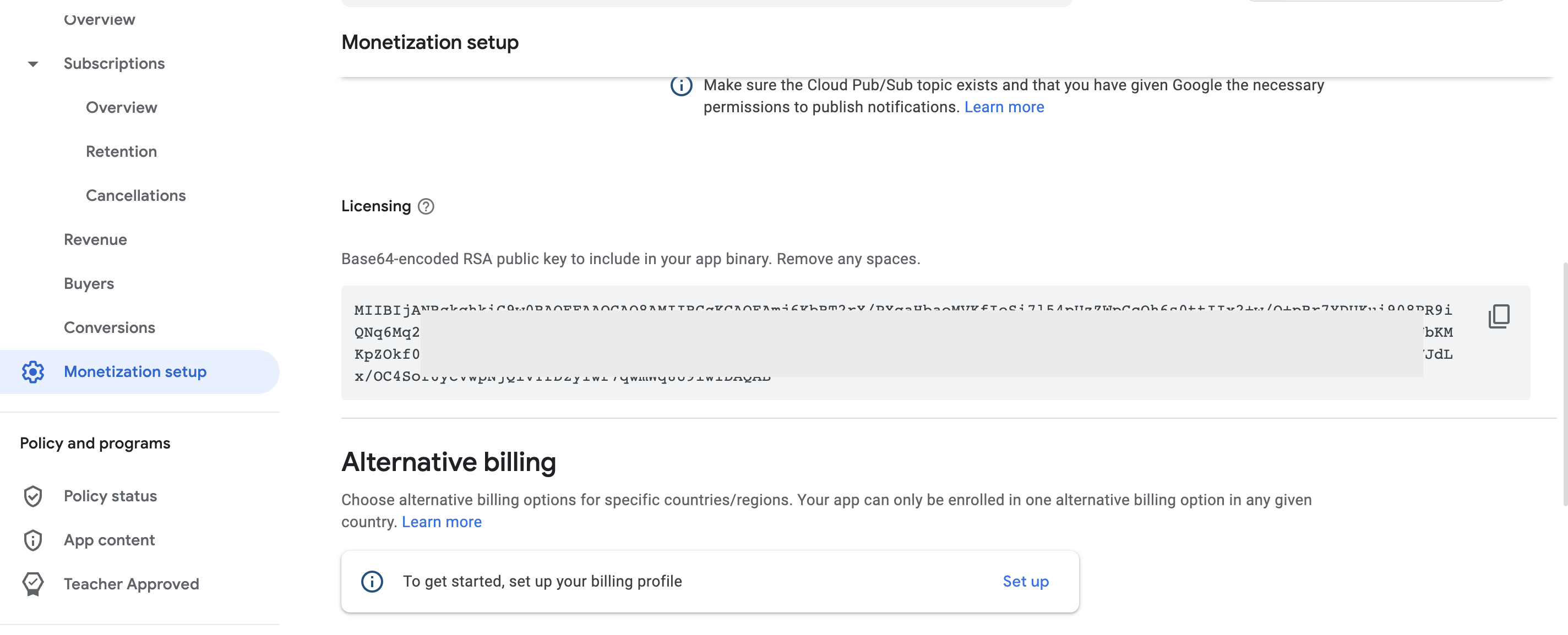
**IMPORTANT:** You will need to add your app’s public key in the [Tenjin dashboard](https://www.tenjin.com/dashboard/apps) (under the app ‘edit’ page). You can retrieve your Base64-encoded RSA public key from the [Google Play Developer Console](https://play.google.com/apps/publish/) \> Select your app > Monetize > Monetization setup > Google Play Billing > Licensing: Base64-encoded RSA public key. Please note that for Android, we currently only support IAP transactions from Google Play.

 ![image.png](https://tenjin.com/wp-content/uploads/2026/01/image404.png)

After entering your Public Key into the Tenjin dashboard for your app, you can use the Tenjin SDK method below:

 Java

```
public void transaction(String productId, String currencyCode, int quantity, double unitPrice, String purchaseData, String dataSignature)
```

```
public void transaction(String productId, String currencyCode, int quantity, double unitPrice, String purchaseData, String dataSignature)
```

Example:

 Java

```

public void sendPurchaseEvent(Purchase purchase, Double price, String currencyCode) {
    String sku = purchase.getSku();
    String purchaseData = purchase.getOriginalJson();
    String dataSignature = purchase.getSignature();
    TenjinSDK instance = getTenjinInstance();
    instance.transaction(sku, currencyCode, 1, price, purchaseData, dataSignature);
}
```

```

public void sendPurchaseEvent(Purchase purchase, Double price, String currencyCode) {
    String sku = purchase.getSku();
    String purchaseData = purchase.getOriginalJson();
    String dataSignature = purchase.getSignature();

    TenjinSDK instance = getTenjinInstance();
    instance.transaction(sku, currencyCode, 1, price, purchaseData, dataSignature);
}
```

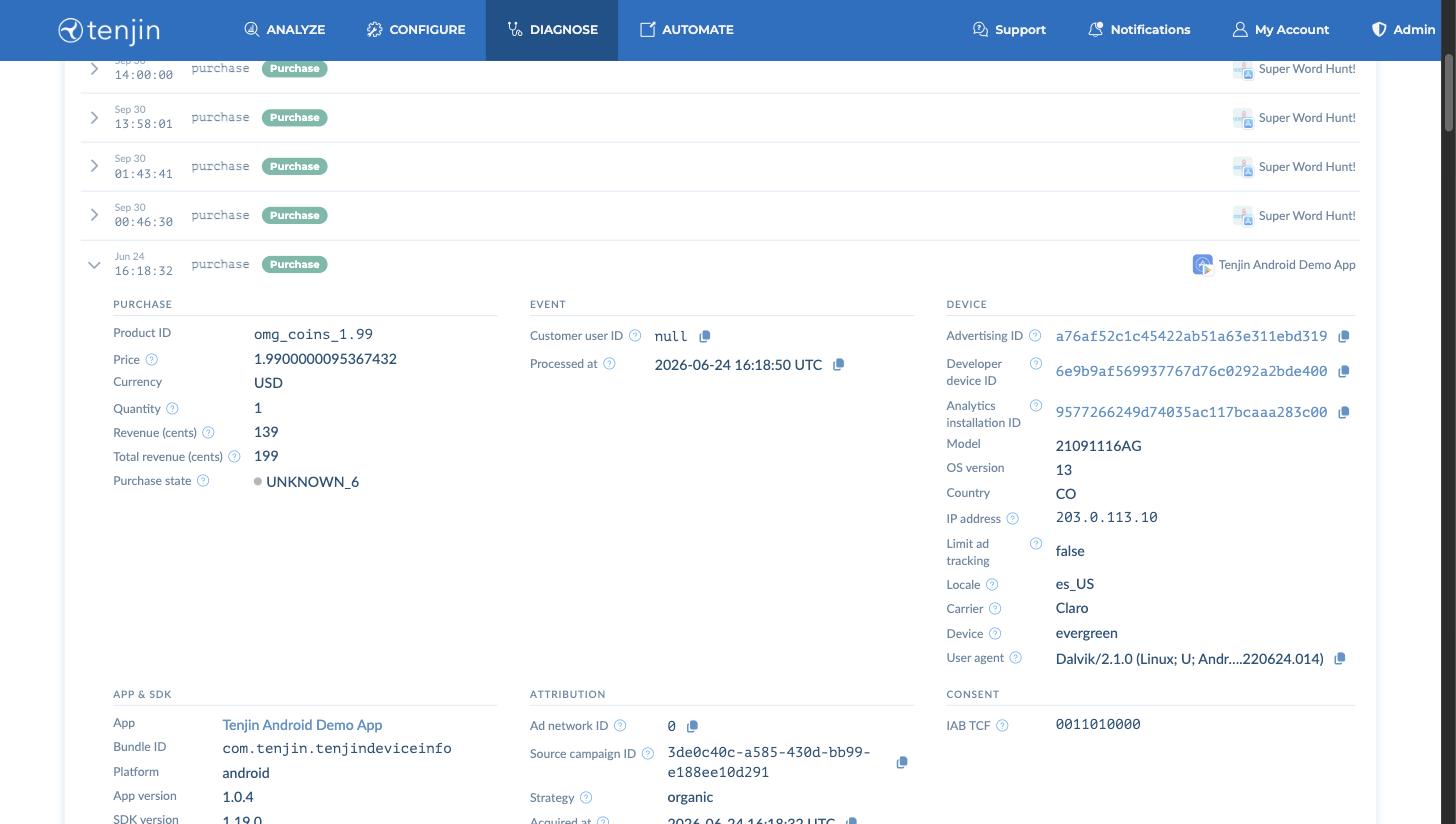
You can verify if the IAP validation is working through our [Live Test Device Data Tool](https://www.tenjin.com/dashboard/sdk_diagnostics). You should see a live event come in:

![](https://s3.amazonaws.com/tenjin-instructions/sdk_live_purchase_events_2.png)

Please ensure to ‘acknowledge’ the purchase event before sending it to Tenjin. For more details, read [here](https://developer.android.com/google/play/billing/integrate#non-consumable-products).

Choose between 0%, 15% and 30% App Store’s revenue commission via our new setup. The steps are –

- Go to CONFIGURE –> Apps
- Click on the app you want to change it for
- Under the ‘App Store Commission’ section click ‘Edit’
- Choose 30%, 15% or 0% as your desired app store commission.
- Select the start date and end date (Or you can keep the end date blank if you dont want an end date)
- Click Save (note: the commission can be applied only to dates moving forward and not historical dates. So please set the start date from the date you make the change and forward)

**Amazon AppStore**

Amazon AppStore receipt validation requires `receiptId` and `userId` parameters.

**IMPORTANT:** You will need to add your Amazon app’s Shared Key in the [Tenjin dashboard](https://www.tenjin.io/dashboard/apps). The shared secret can be found on the Shared Key in your developer account with the [Amazon Appstore account](https://developer.amazon.com/settings/console/sdk/shared-key/)

---

### Custom Events

**NOTE:** The initialization event `connect()` must come before sending any custom events.

IMPORTANT: Limit custom event names to less than 80 characters. Do not exceed 500 unique custom event names.

You can use the Tenjin SDK to pass a custom event: `eventWithName(String name)`.

The custom interactions with your app can be tied to level cost from each acquisition source that you use through Tenjin’s service. Here is an example of usage:

 Java

```
String apiKey = ;
TenjinSDK instance = TenjinSDK.getInstance(this, apiKey);
//Integrate a custom event with a distinct name - ie. swiping right on the screen
instance.eventWithName("swipe_right");
```

```
String apiKey = <sdk_key>;
TenjinSDK instance = TenjinSDK.getInstance(this, apiKey);

//Integrate a custom event with a distinct name - ie. swiping right on the screen
instance.eventWithName("swipe_right");
```

---

### Custom Events with values

You can use the Tenjin SDK to pass a custom event with an integer value: `eventWithNameAndValue(String name, int value)`.

Passing an integer `value` with an event’s `name` allows marketers to sum up and track averages of the values passed for that metric in the Tenjin dashboard. If you plan to use DataVault, these values can be used to derive additional metrics that can be useful.

 Java

```
String sdkKey = ;
TenjinSDK.instance = TenjinSDK.getInstance(this, sdkKey);
//Integrate a custom event with a distinct name and value - ie. paying 100 virtual coins for an item
instance.eventWithNameAndValue("item", 100);
```

```
String sdkKey = <sdk_key>;
TenjinSDK.instance = TenjinSDK.getInstance(this, sdkKey);

//Integrate a custom event with a distinct name and value - ie. paying 100 virtual coins for an item
instance.eventWithNameAndValue("item", 100);
```

Using the example above, the Tenjin dashboard will sum and average the values for all events with the name `item`.

Keep in mind that this event will not work if the value passed not an integer.

 Java

```
//Integrate a custom event with a distinct name and value - ie. paying 100 virtual coins for an item
instance.eventWithNameAndValue("item", "1");
```

```
//Integrate a custom event with a distinct name and value - ie. paying 100 virtual coins for an item
instance.eventWithNameAndValue("item", "1");
```

---

### Server-to-server integration

Tenjin offers [server-to-server integration](https://tenjin.com/docs/server-to-server-s2s-setup/). This allows you to send your Install and post-Install events directly from your servers to Tenjin servers without needing an SDK integration.

---

### App Subversion parameter for A/B Testing (requires DataVault)

If you are running A/B tests and want to report the differences, we can append a numeric value to your app version using the `appendAppSubversion()` method. For example, if your app version `1.0.1`, and set `appendAppSubversion(8888)`, it will report app version as `1.0.1.8888`.

This data will appear within DataVault, where you will be able to run reports using the app subversion values.

 Java

```
TenjinSDK instance = TenjinSDK.getInstance(this, "");
instance.appendAppSubversion(8888);
instance.connect();
```

```
TenjinSDK instance = TenjinSDK.getInstance(this, "");
instance.appendAppSubversion(8888);
instance.connect();
```

---

### LiveOps Campaigns

Tenjin supports retrieving of user Attribution information, like sourcing [ad network](https://tenjin.com/blog/best-ad-networks-to-advertise-hybrid-hyper-casual-games-in-2024/) and campaign, from the SDK. This will allow developers to collect and analyze user-level Attribution data in real-time. Here are the possible use cases using Tenjin LiveOps Campaigns:

- If you have your own data anlytics tool, S2S callback will allow you to tie the Attribution data to your in-game data per device level.
- Show different app content depending on where the user comes from. For example, if user A is attributed to organic and user B is attributed to Meta and user B is likely to be more engaged with your app, then you want to show a special in-game offer after the user installs the app. If you want to discuss more specific use cases, please write to support@tenjin.com.

Details on using LiveOps can be found [here](https://tenjin.com/docs/liveops-campaigns/).

---

### Customer User ID

You can set and get customer user id to send as a parameter on events.

`.setCustomerUserId(userId: "user_id")`

`.getCustomerUserId()`

 Java

```
TenjinSDK instance = TenjinSDK.getInstance(this, "");
instance.setCustomerUserId(userId: "user_id");
userId = instance.getCustomerUserId();
```

```
TenjinSDK instance = TenjinSDK.getInstance(this, "");
instance.setCustomerUserId(userId: "user_id");
userId = instance.getCustomerUserId();
```

## Analytics Installation ID

You can get the analytics id which is generated randomly and saved in the local storage of the device. `getAnalyticsInstallationId()`

 Java

```
TenjinSDK instance = TenjinSDK.getInstance(this, "");
analyticsId = instance.getAnalyticsInstallationId;
```

```
TenjinSDK instance = TenjinSDK.getInstance(this, "");
analyticsId = instance.getAnalyticsInstallationId;
```

---

## User Profile – LiveOps Metrics

The Tenjin Android SDK automatically tracks user engagement metrics to help you understand player behavior and lifetime value. These metrics are collected automatically and can be accessed programmatically.

### Automatic Tracking[](https://github.com/tenjin/tenjin-android-sdk?tab=readme-ov-file#automatic-tracking)

The SDK automatically tracks:

- **Session metrics**: Session count, duration, first/last Session dates
- **In-App Purchases (IAP)**: Transaction count, revenue by currency, purchased product IDs
- **Ad Revenue (ILRD)**: Impression-level revenue from supported ad networks

### Retrieving User Profile Data[](https://github.com/tenjin/tenjin-android-sdk?tab=readme-ov-file#retrieving-user-profile-data)

#### Get Full Profile Object[](https://github.com/tenjin/tenjin-android-sdk?tab=readme-ov-file#get-full-profile-object)

Returns a `UserProfileData` object with all metrics:

 Java

```
import com.tenjin.android.TenjinSDK;
import com.tenjin.android.userprofile.UserProfileData;

TenjinSDK instance = TenjinSDK.getInstance(this, "<sdk_key>");
UserProfileData profile = instance.getUserProfile();

// Session metrics
int sessionCount = profile.getSessionCount();
long totalTime = profile.getTotalSessionTime();
long avgLength = profile.getAverageSessionLength();
long lastSession = profile.getLastSessionLength();
long currentSession = profile.getCurrentSessionDuration();
Long firstSession = profile.getFirstSessionDate();
Long lastSessionDate = profile.getLastSessionDate();

// IAP metrics
int iapCount = profile.getIapTransactionCount();
Map<String, Double> revenueByCurrency = profile.getIapRevenueByCurrency();
List<string> productIDs = profile.getPurchasedProductIDs();

// ILRD metrics
double totalAdRevenue = profile.getTotalILRDRevenueUSD();
Map<String, Double> revenueByNetwork = profile.getIlrdRevenueByNetwork();
```

```
import com.tenjin.android.TenjinSDK;
import com.tenjin.android.userprofile.UserProfileData;

TenjinSDK instance = TenjinSDK.getInstance(this, "<sdk_key>");
UserProfileData profile = instance.getUserProfile();

// Session metrics
int sessionCount = profile.getSessionCount();
long totalTime = profile.getTotalSessionTime();
long avgLength = profile.getAverageSessionLength();
long lastSession = profile.getLastSessionLength();
long currentSession = profile.getCurrentSessionDuration();
Long firstSession = profile.getFirstSessionDate();
Long lastSessionDate = profile.getLastSessionDate();

// IAP metrics
int iapCount = profile.getIapTransactionCount();
Map<String, Double> revenueByCurrency = profile.getIapRevenueByCurrency();
List<string> productIDs = profile.getPurchasedProductIDs();

// ILRD metrics
double totalAdRevenue = profile.getTotalILRDRevenueUSD();
Map<String, Double> revenueByNetwork = profile.getIlrdRevenueByNetwork();
```

**Available Properties (Java getters):**

 MethodReturn TypeDescription`getSessionCount()``int`Total number of sessions`getTotalSessionTime()``long`Total time in milliseconds`getAverageSessionLength()``long`Average Session in milliseconds`getLastSessionLength()``long`Last completed Session in milliseconds`getCurrentSessionDuration()``long`Current active Session in milliseconds`getFirstSessionDate()``Long`First Session timestamp (ms since epoch)`getLastSessionDate()``Long`Last Session timestamp (ms since epoch)`getIapTransactionCount()``int`Total IAP count`getIapRevenueByCurrency()``Map<String, Double>`Revenue by currency code`getPurchasedProductIDs()``List<string>`Sorted product IDs`getTotalILRDRevenueUSD()``double`Total ad revenue USD`getIlrdRevenueByNetwork()``Map<String, Double>`Ad revenue by network

#### Get Profile as Dictionary[](https://github.com/tenjin/tenjin-android-sdk?tab=readme-ov-file#get-profile-as-dictionary)

Returns a map with all metrics for easy serialization:

 Java

```
Map<String, Object> profileDict = instance.getUserProfileDictionary();

// Example usage
Integer sessionCount = (Integer) profileDict.get("session_count");
String firstSession = (String) profileDict.get("first_session_date");
Map<String, Double> iapRevenue = (Map<String, Double>) profileDict.get("iap_revenue_by_currency");
List<string> productIds = (List<string>) profileDict.get("purchased_product_ids");
```

```
Map<String, Object> profileDict = instance.getUserProfileDictionary();

// Example usage
Integer sessionCount = (Integer) profileDict.get("session_count");
String firstSession = (String) profileDict.get("first_session_date");
Map<String, Double> iapRevenue = (Map<String, Double>) profileDict.get("iap_revenue_by_currency");
List<string> productIds = (List<string>) profileDict.get("purchased_product_ids");
```

**Dictionary Keys (Always Present):**

 KeyTypeDescription`session_count``Integer`Total sessions`total_session_time``Long`Total time (milliseconds)`average_session_length``Long`Average Session (milliseconds)`last_session_length``Long`Last Session (milliseconds)`iap_transaction_count``Integer`Total IAP count`total_ilrd_revenue_usd``Double`Total ad revenue USD

**Dictionary Keys (Conditional – only if available):**

 KeyTypeDescription`first_session_date``String`ISO8601 formatted date`last_session_date``String`ISO8601 formatted date`current_session_length``Long`Active Session duration (milliseconds)`iap_revenue_by_currency``Map<String, Double>`Map of currency → revenue`purchased_product_ids``List<string>`Sorted list of product IDs`ilrd_revenue_by_network``Map<String, Double>`Map of network → revenue

#### Reset Profile[](https://github.com/tenjin/tenjin-android-sdk?tab=readme-ov-file#reset-profile)

Clears all user profile data:

 Java

```
instance.resetUserProfile();
```

```
instance.resetUserProfile();
```

```

```

#### Session Configuration[](https://github.com/tenjin/tenjin-android-sdk?tab=readme-ov-file#session-configuration)

Customize Session timeout (default 30 minutes):

 Java

```
UserProfileManager.setSessionTimeoutMs(600000); // 10 minutes
```

```
UserProfileManager.setSessionTimeoutMs(600000); // 10 minutes
```

```

```

---

## Retry Cache

You can enable/disable retrying and caching all events when requests fail or users don’t have internet connection. These events will be sent after a new event has been added to the queue and user has recovered connection.

`.setCacheEventSetting(setting: true)`

 Java

```
TenjinSDK instance = TenjinSDK.getInstance(this, "");
instance.setCacheEventSetting(setting: true);
```

```
TenjinSDK instance = TenjinSDK.getInstance(this, "");
instance.setCacheEventSetting(setting: true);
```

---

### Impression Level Ad Revenue Integration

Tenjin supports the ability to integrate with the Impression Level Ad Revenue (ILRD) feature from,

- AppLovin MAX
- Unity LevelPlay
- HyperBid
- AdMob
- TopOn
- CAS
- TradPlus
- CloudX

This feature allows you to receive events which correspond to your ad revenue is affected by each advertisement show to a user. Access to the integration guide is [here](https://tenjin.com/docs/category/ad-revenue-ad-mediation-setup/)

---

### Google DMA Parameters

**If you already have a CMP integrated, Google DMA parameters will be automatically collected by the Tenjin SDK. There’s nothing to implement in the Tenjin SDK if you have a CMP integrated**. If you want to override your CMP, or simply want to build your own consent mechanisms, you can use the following:

`setGoogleDMAParameters(boolean, boolean)`

 Java

```
TenjinSDK instance = TenjinSDK.getInstance(this, "");
instance.setGoogleDMAParameters(adPersonalization, adUserData);
```

```
TenjinSDK instance = TenjinSDK.getInstance(this, "");
instance.setGoogleDMAParameters(adPersonalization, adUserData);
```

To explicitly manage the collection of Google DMA parameters, you have the flexibility to opt in or opt out at any time. While the default setting is to opt in, you can easily adjust your preferences using the optInGoogleDMA or optOutGoogleDMA methods, ensuring full control over your data privacy settings:

 Java

```
instance.optInGoogleDMA();
instance.optOutGoogleDMA();
```

```
instance.optInGoogleDMA();
instance.optOutGoogleDMA();
```

---

## Testing

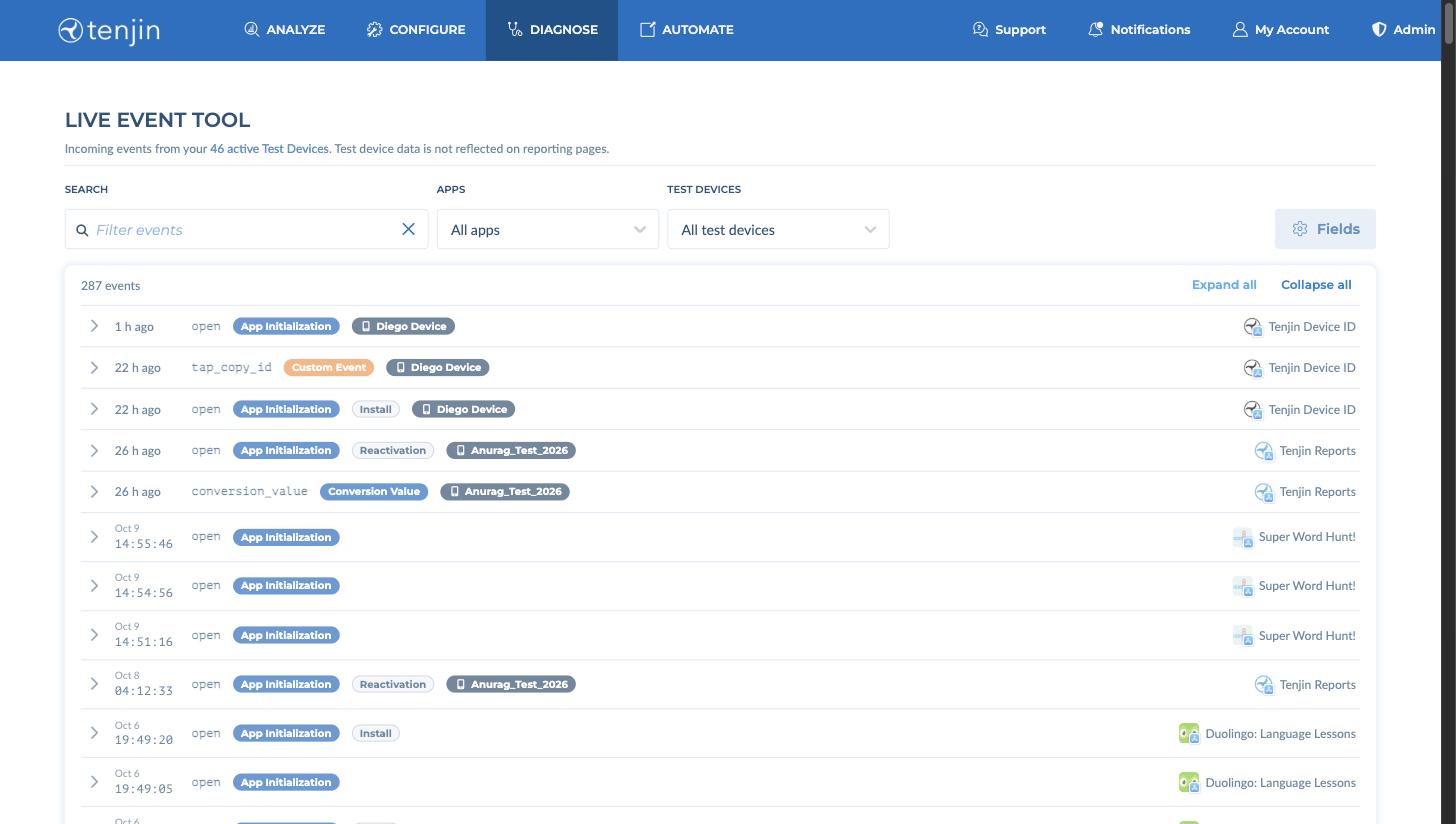
You can verify if the integration is working through our [Live Test Device Data Tool](https://dashboard.tenjin.com/dashboard/sdk_diagnostics). Add your `advertising_id` to the list of test devices. You can find this under Support -> [Test Devices](https://dashboard.tenjin.com/dashboard/debug_app_users). Go to the [Live Event Tool page](https://dashboard.tenjin.com/dashboard/sdk_diagnostics) and send the test events from your app. You should see live events come in:

---