如何在面板中使用筛选器和分组 #
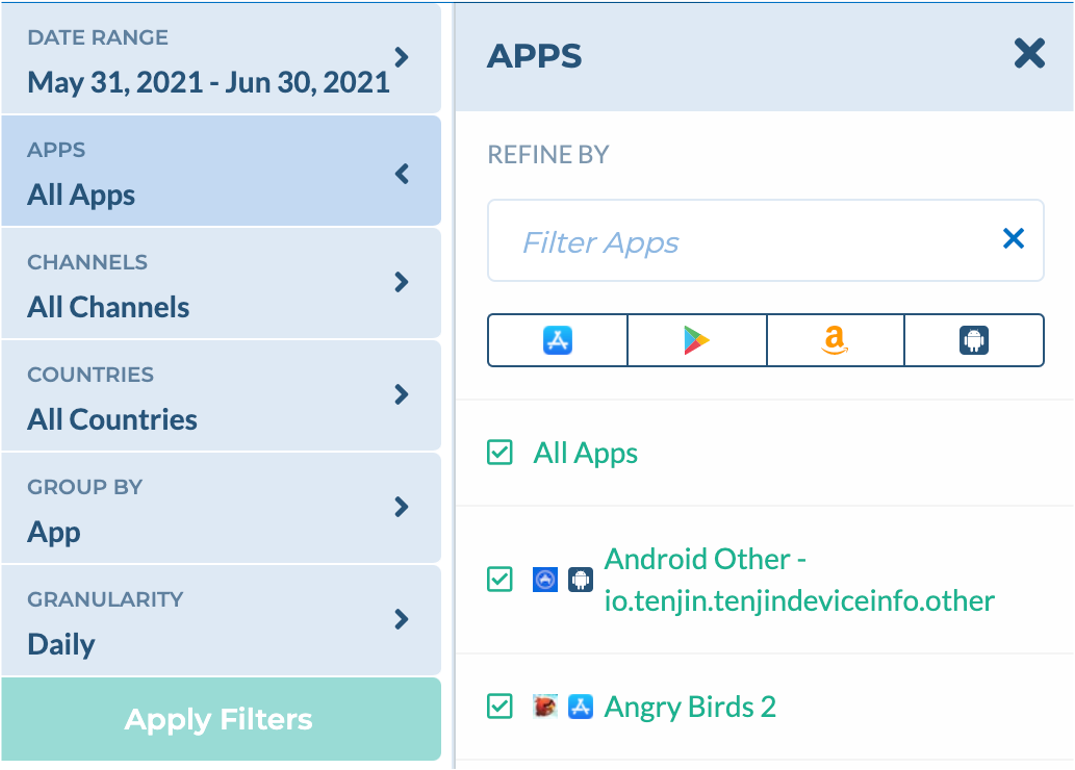
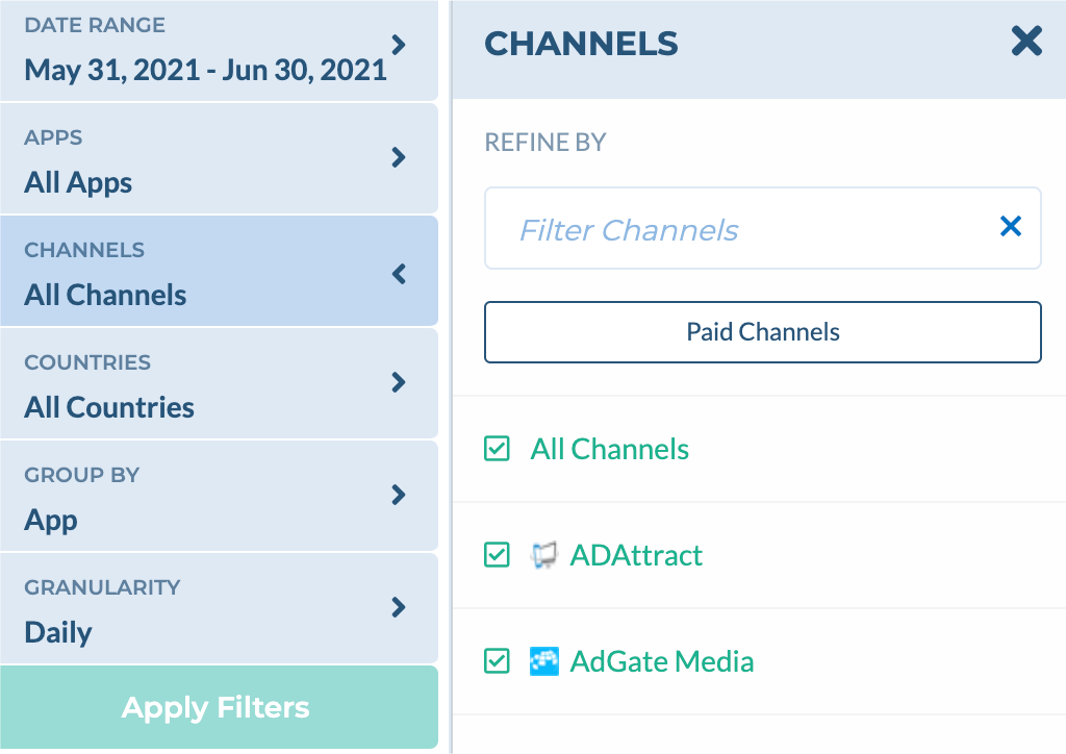
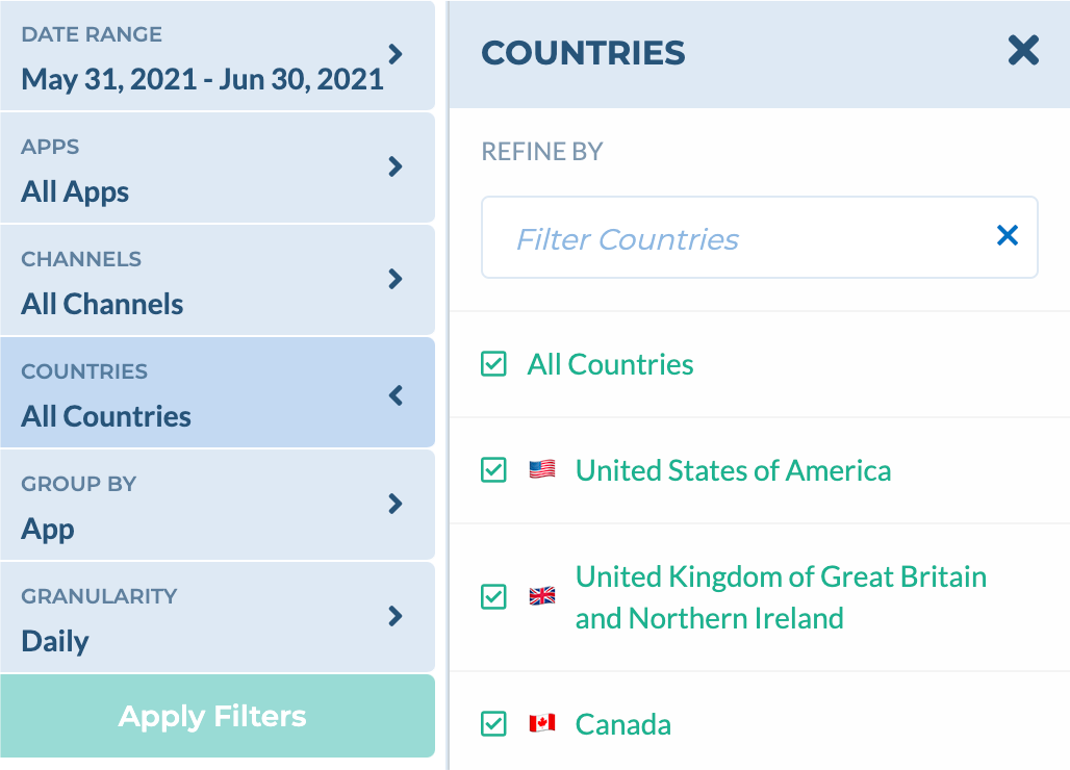
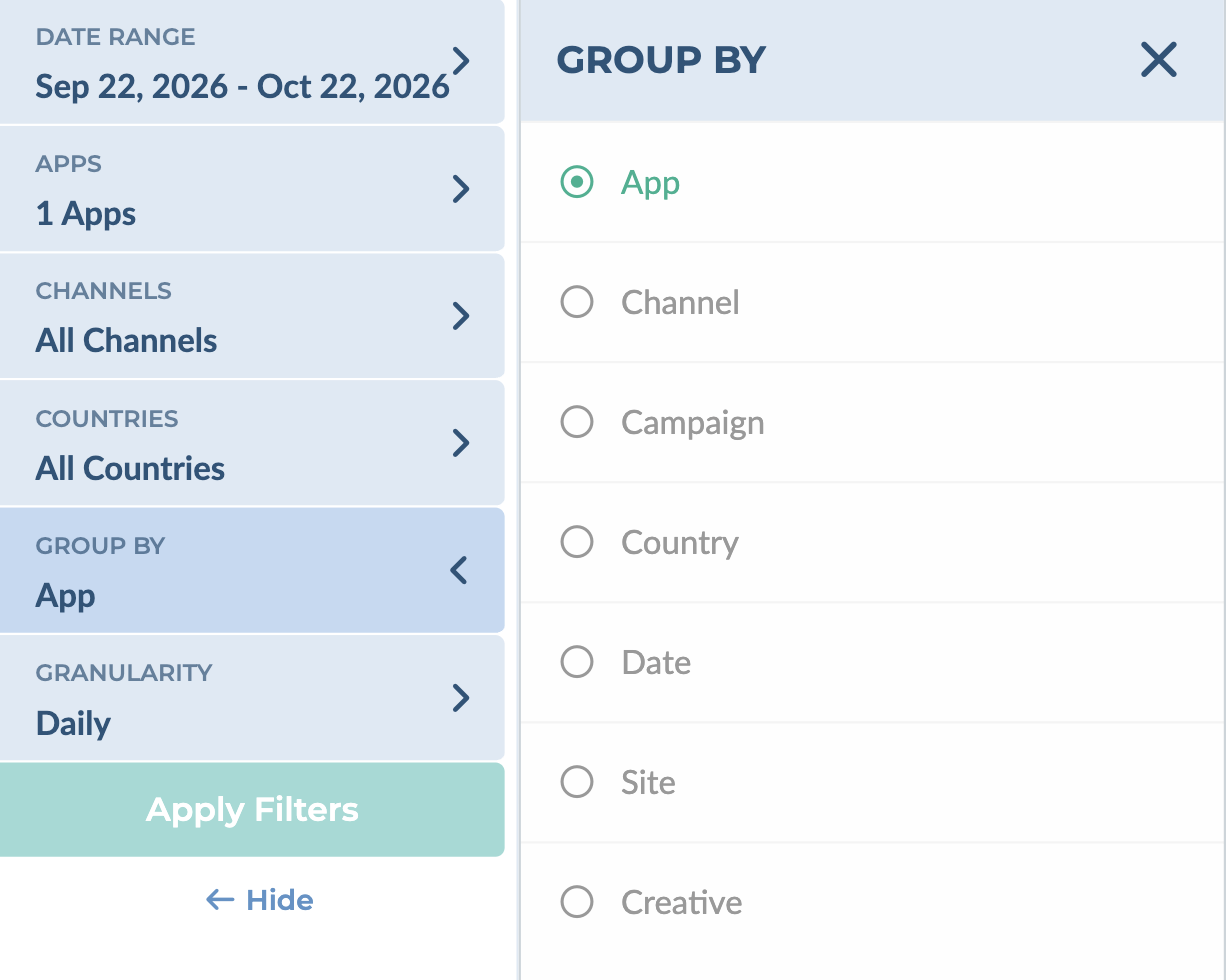
Tenjin’s reports give you two sets of controls. The left panel (Date Range, Apps, Channels, Countries, Group By and Granularity) applies to the whole page. The controls above each report table (Breakdowns or Dimensions, and Filter) apply only to that table.
Breakdowns and Dimensions in the report table #
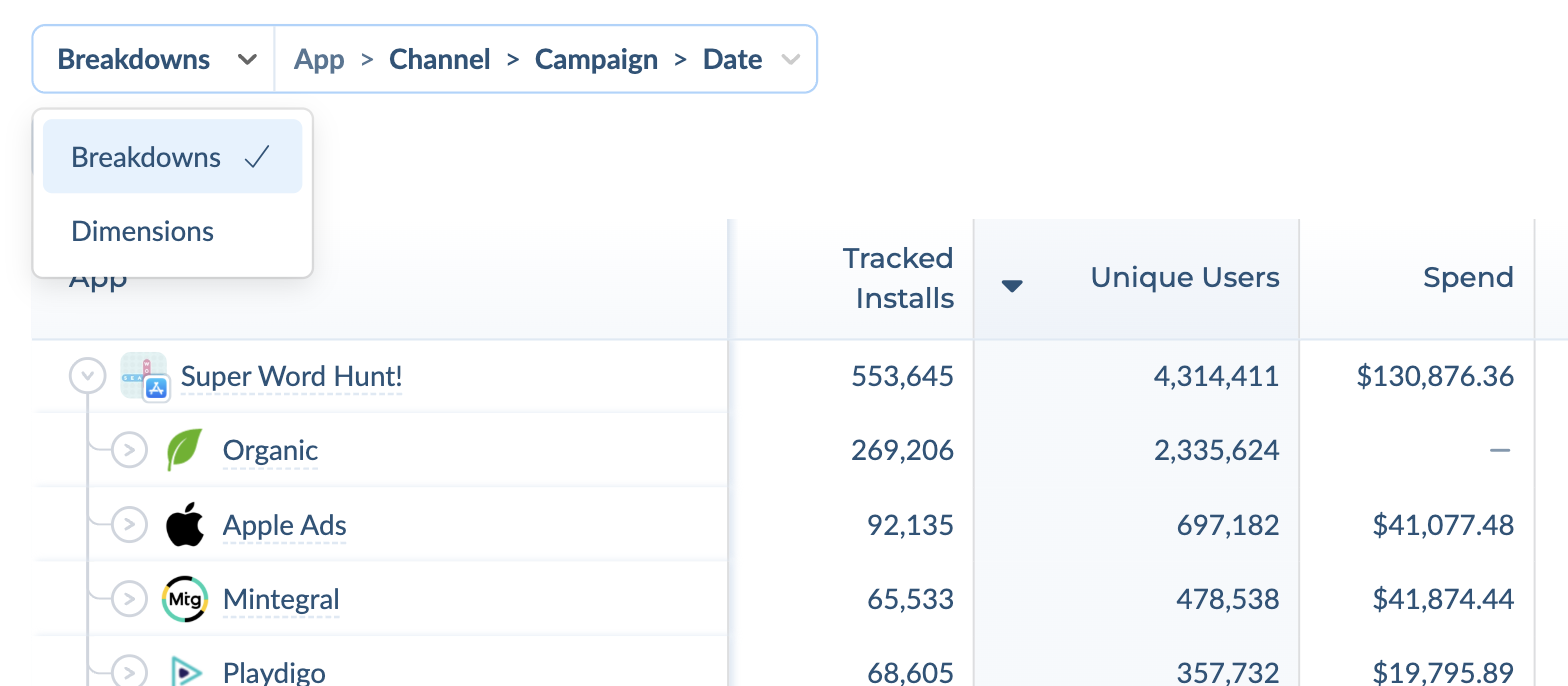
The table on the User Acquisition, Ad Monetization and SKAN reports can show your data in two ways. Use the selector at the top left of the table to switch between them:
- Breakdowns: a drill-down view. Click the arrow next to a row to expand it into the next level, for example App → Channel → Campaign → Date.
- Dimensions: every level is shown as its own column in one flat table, so you can sort and compare across all rows at once. Large results are split into pages.
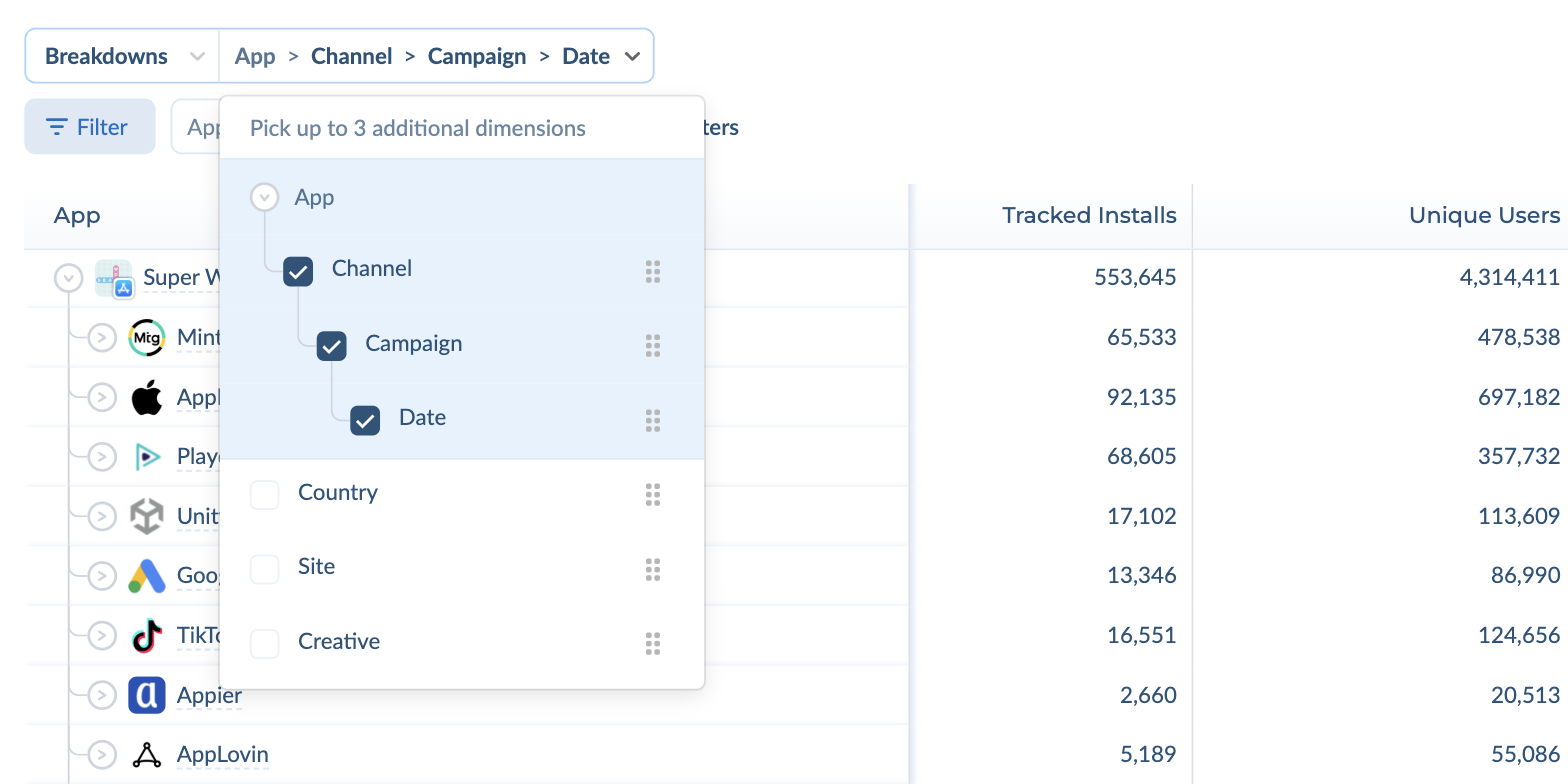
To choose the levels, click the list next to the selector (for example App > Channel > Campaign > Date). You can pick up to 3 dimensions in addition to App, such as Channel, Campaign, Country, Date, Site or Creative, and use the handles to change their order.
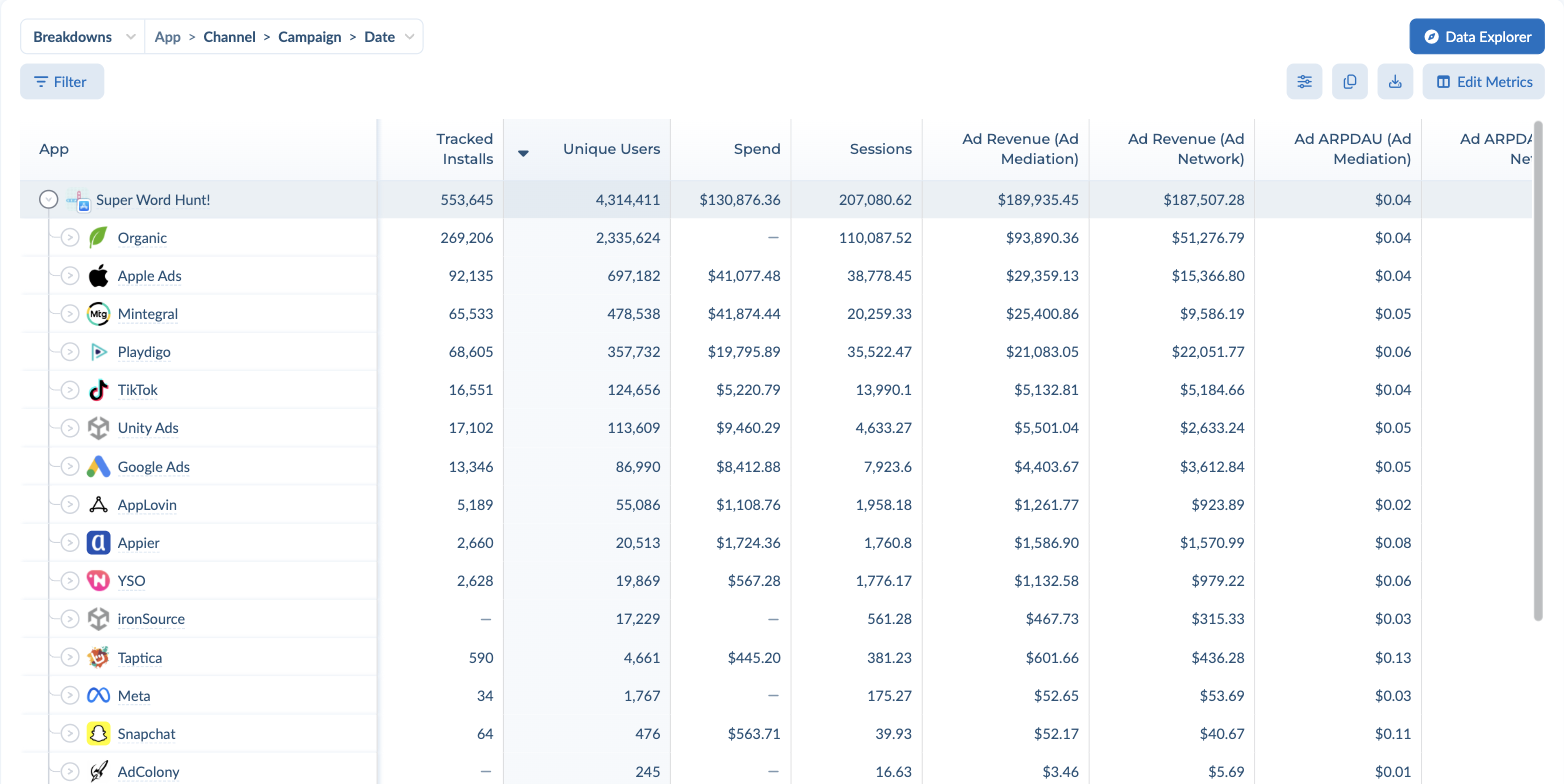
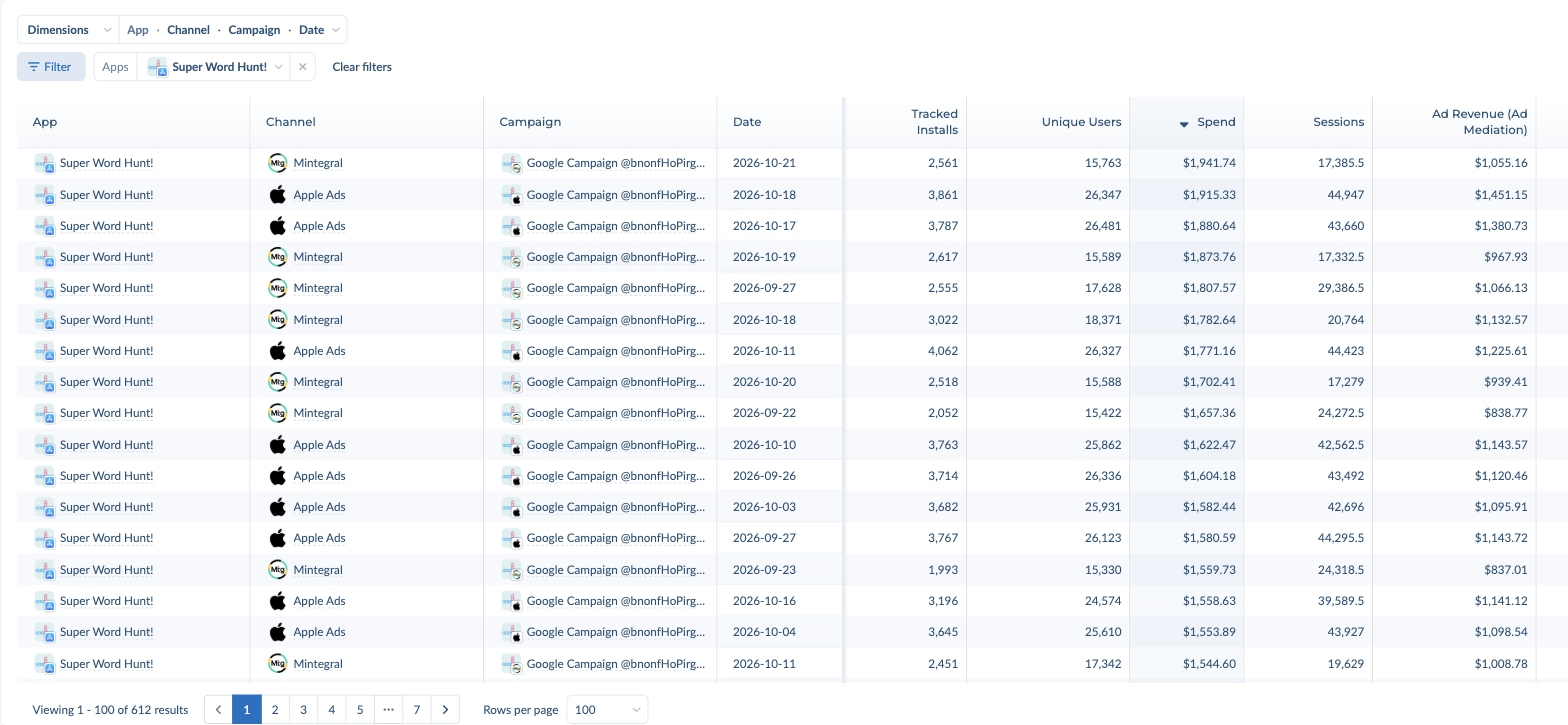
Use case: Quickly identify which channels and campaigns are driving spend within a specific app — without running separate reports.
Filtering the report table #
Each report table has its own filters, separate from the left panel. Click Filter above the table and choose what to filter by:
- Apps, Channels, Countries or Platforms: pick one or more values.
- 指标: show only rows above or below a value, for example Spend greater than $100 or CPI greater than $2.50.
- 搜索: find rows by name.
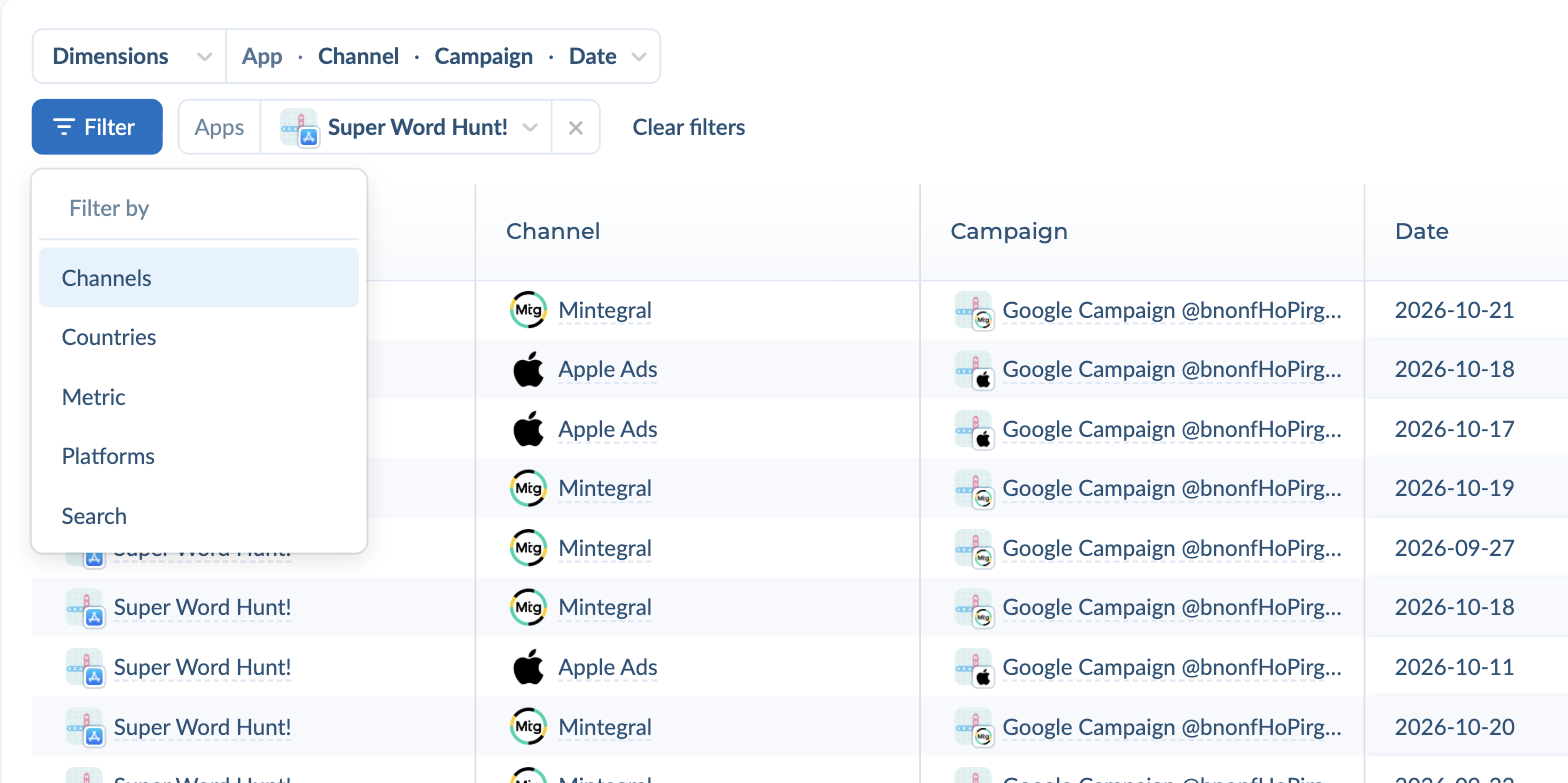
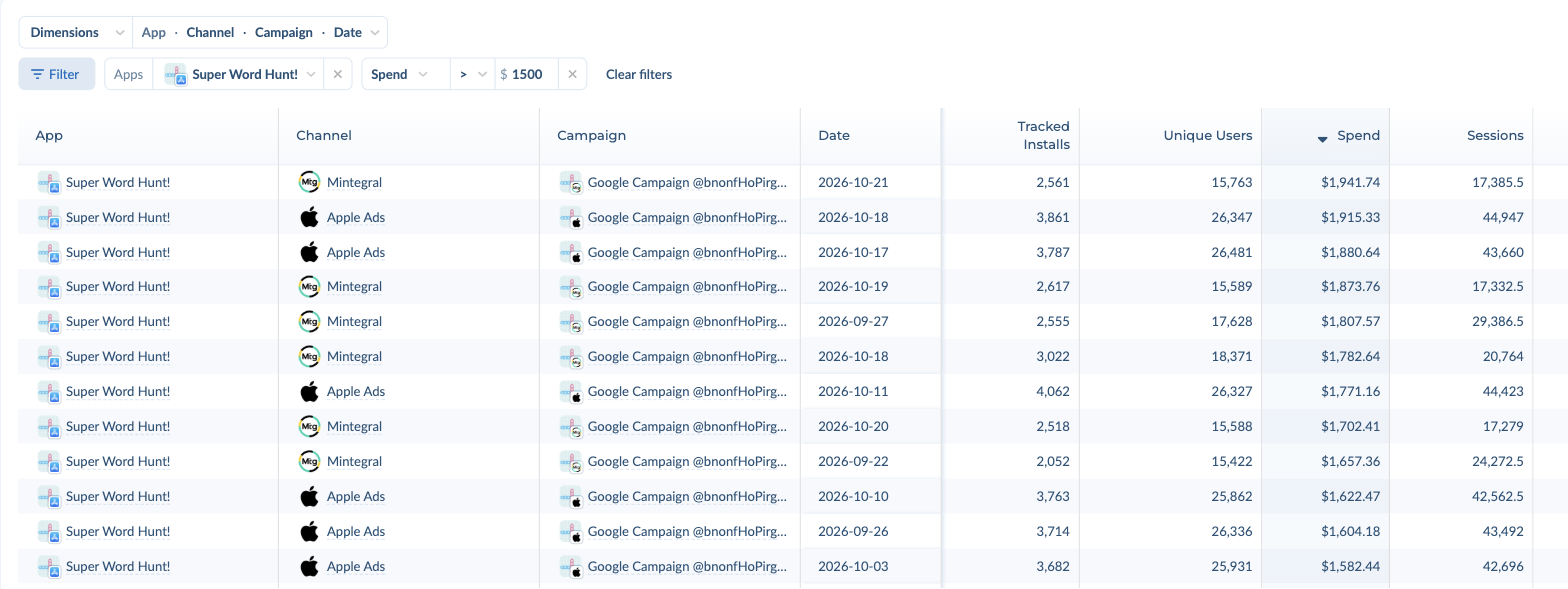
Active filters show next to the Filter button. Click × on a filter to remove it, or Clear filters to remove them all.
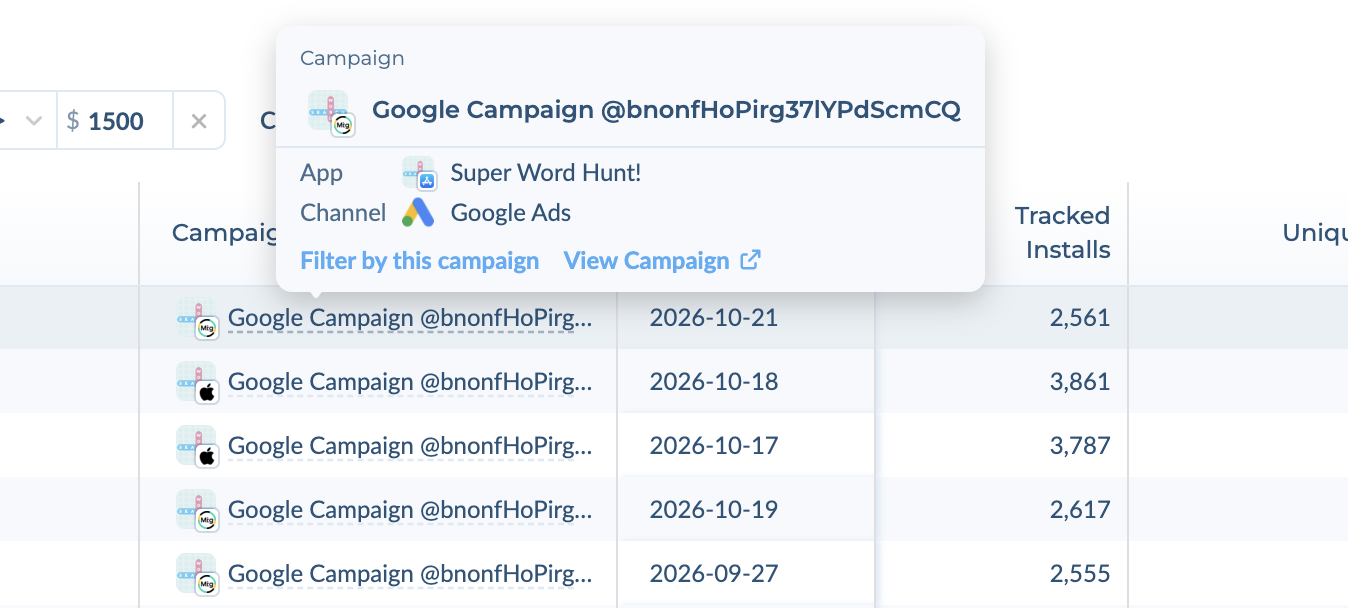
To filter to a single campaign, site, creative or ad placement, hover over its name in the table and click Filter by this (for example, Filter by this campaign). The same hover card shows details about the item and links to it.
Other table controls #
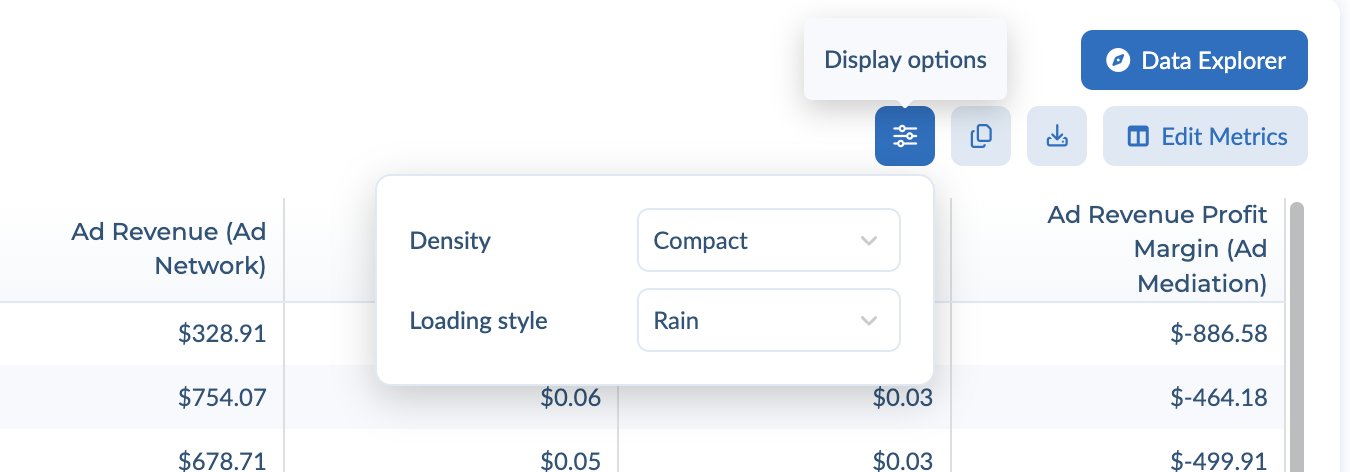
- 显示选项 (sliders icon): change the table density and loading style. Your choice applies to all reporting tables.
- Copy to clipboard: copies the table so you can paste it into a spreadsheet or an AI chat.
- Download CSV: downloads the table as a CSV file.
- Edit Metrics: choose which metric columns to show.
- Data Explorer: opens Data Explorer to build and export a custom report.
- Drag a column header to move the column, or drag its edge to resize it.