Integrate using LLMs (AI) – Use following prompt:
Add Tenjin SDK to my project using: https://raw.githubusercontent.com/tenjin/sdk-llm-guides/main/guides/unity/llm-guide.md
Summary #
The below documentation describes the Unity SDK for Tenjin. To learn more about Tenjin and our product offering, please visit https://www.tenjin.com.
- Please see our Release Notes to see detailed version history of changes.
- Tenjin Unity SDK supports both iOS and Android.
- Review the iOS and Android documentations and apply the proper platform settings to your builds. (iOS, Android)
- For any issues or support, please contact: support@tenjin.com.
If you are using Unity SDK v1.12.29 or lower, please follow these steps before completing the SDK integration.
To upgrade to v.1.12.30 or higher from lower versions, please ensure to remove the Tenjin binaries before installing the latest Unity version.
If you get this error when compiling on iOS: Library not loaded: @rpath/TenjinSDK.framework/TenjinSDK you need to go to “Frameworks, Libraries and Embedded Content” and add TenjinSDK, then select ‘Embed & Sign’
If you have libTenjinSDK.a and/or libTenjinSDKUniversal.a from older Tenjin SDK versions, please delete them and run pod Install to integrate it on iOS
Unity Package Manager (UPM) #
To Install a UPM package from a Git URL:
- Open the Package Manager window, if it’s not already open.
- Open the Add (+) menu in the Package Manager’s toolbar.
- Select Install package from git URL from the Install menu. A text box and an Install button appear.
- Enter the following valid Git URL in the text box (you must append
#followed by the version tag):https://github.com/tenjin/tenjin-unity-sdk.git#1.16.5 - Click Install.
Manual Installation (.unitypackage) #
- Download the latest Unity SDK from here.
- Import the
TenjinUnityPackage.unitypackageinto your project:Assets -> Import Package.
Important Note for Android #
To ensure Tenjin works seamlessly with the latest features and fixes, please make sure your Maven (Gradle) dependencies are up to date, as we distribute our Tenjin Android SDK through Maven. We’ve noticed some developers still using outdated versions, which might cause issues.
If you build through Android Studio, please make sure to run Gradle sync to update the dependencies.
If you don’t use Android Studio, please update your dependencies in Unity by following these steps:
- Open Unity.
- Navigate to Assets > External Dependency Manager > Android Resolver.
- Select Force Resolve to update your Gradle dependencies to the latest versions.
Google Play #
By default, unspecified is the default App Store. Update the app store value to googleplay, if you distribute your app on Google Play Store.
Set your App Store Type value to googleplay:
BaseTenjin instance = Tenjin.getInstance("<SDK_KEY>");
instance.SetAppStoreType(AppStoreType.googleplay);The Tenjin SDK requires the following permissions:
<uses-permission android:name="android.permission.INTERNET" />
<uses-permission android:name="android.permission.ACCESS_NETWORK_STATE" /> <!-- Required to get network connectivity (i.e. wifi vs. mobile) -->Google Play Services requires all API level 32 (Android 13) apps using the advertising_id(Android Advertising ID (AAID)) to declare the Google Play Services AD_ID permission (shown below) in their manifest file. You are required to update the tenjin-android-sdk to version 1.12.8 in order to use the below permission.
<uses-permission android:name="com.google.android.gms.permission.AD_ID"/>Android Advertising ID (AAID) and Install Referrer #
Add Android Advertising ID (AAID) and Install Referrer libraries, add it to your build.gradle file.
dependencies {
  implementation 'com.google.android.gms:play-services-ads-identifier:{version}'
  implementation 'com.android.installreferrer:installreferrer:{version}'
}To be able to collect Meta’s Install Referrer, add these queries to your Android Manifest:
<queries>
  <package android:name="com.facebook.katana" />
</queries>

<queries>
  <package android:name="com.instagram.android" />
</queries>Next, add the following to your strings.xml file (you can create this template file for storing the the string value based on this guide):
<string name="facebook_app_id" translatable="false">YOUR_META_APP_ID</string>Amazon store #
By default, unspecified is the default App Store. Update the app store value to amazon, if you distribute your app on Amazon store.
Set your App Store Type value to amazon:
BaseTenjin instance = Tenjin.getInstance("<SDK_KEY>");
instance.SetAppStoreType(AppStoreType.amazon);OAID and other Android App Stores #
Tenjin supports promoting your app on other Android App Stores using the Android OAID. We have the following requirements for integrating OAID libraries. If you plan to release your app outside of Google Play, make sure to implement these OAID libraries.
MSA OAID #
MSA OAID is an advertising ID for devices manufactured in China that the MSA (Mobile Security Alliance) provides. For integration with the MSA library, download the following oaid\_sdk\_1.0.25.aar.
Place the oaid_sdk_1.0.25.aar file in your project’s Android libs directory: /Assets/Plugins/Android
Set your App Store Type value to other:
BaseTenjin instance = Tenjin.getInstance("<SDK_KEY>");
instance.SetAppStoreType(AppStoreType.other);Huawei OAID #
For outside of China, you can collect OAID using the library provided by Huawei. For integration with the Huawei OAID library, download the following Huawei AAR file: huawei-ads-identifier.aar. If your app is in the Huawei App Gallery, download and add the Huawei Install Referrer file: huawei-ads-installreferrer.aar.
Place the Huawei files in your project’s Android libs directory: /Assets/Plugins/Android
Set your App Store Type value to other:
BaseTenjin instance = Tenjin.getInstance("<SDK_KEY>");
instance.SetAppStoreType(AppStoreType.other);Proguard Settings #
-keep class com.tenjin.** { *; }
-keep public class com.google.android.gms.ads.identifier.** { *; }
-keep public class com.google.android.gms.common.** { *; }
-keep public class com.android.installreferrer.** { *; }
-keep class * extends java.util.ListResourceBundle {
    protected java.lang.Object[][] getContents();
}
-keepattributes *Annotation*If you are using Huawei libraries, you can to use these settings:
-keep class com.huawei.hms.ads.** { *; }
-keep interface com.huawei.hms.ads.** { *; }App Initialization #
- Get your
SDK_KEYfrom the SDK tab of your app page (CONFIGURE > Apps > select your app > SDK). Note:SDK_KEYis unique for each of your app. You can create up to 3 keys for the same app.
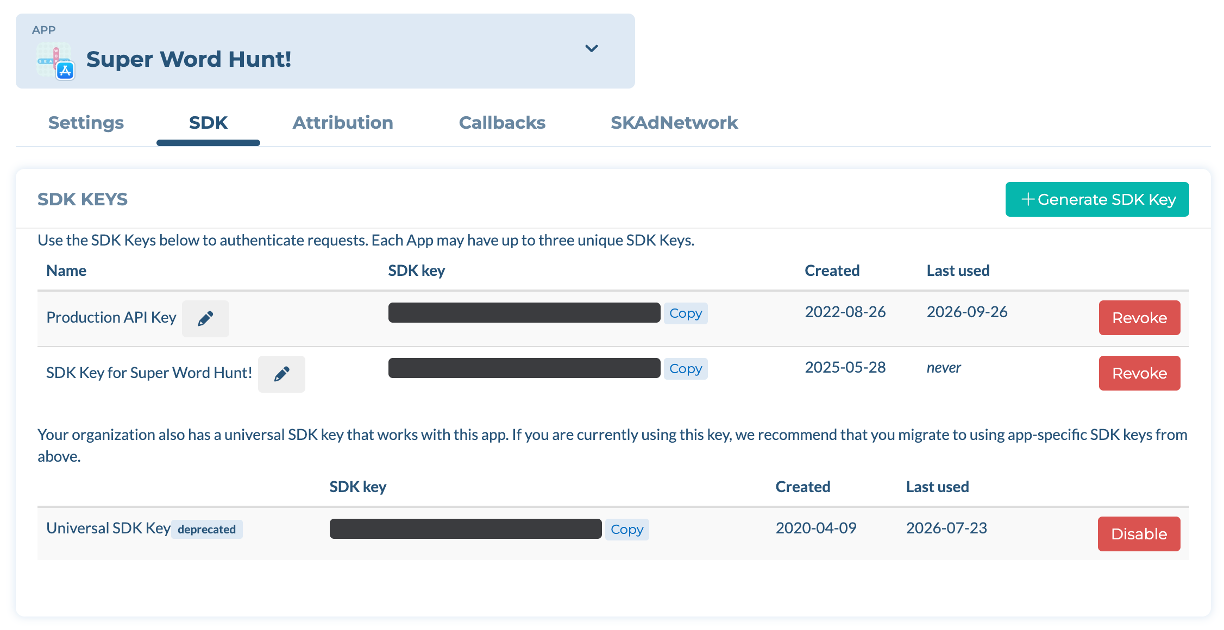
- In your project’s first
Start()method, add the following line of code. Also add toOnApplicationPause()if you want to send sessions data when a user resumes using the app from the background.
using UnityEngine;
using System.Collections;
public class TenjinExampleScript : MonoBehaviour {
  void Start() {
    TenjinConnect();
  }
  void OnApplicationPause(bool pauseStatus) {
    if (!pauseStatus) {
      TenjinConnect();
    }
  }
  public void TenjinConnect() {
    BaseTenjin instance = Tenjin.getInstance("<SDK_KEY>");
    // Sends install/open event to Tenjin
    instance.Connect();
  }
}NOTE: Please ensure to implement this code on every Start() and OnApplicationPause(), not only on the first app open of the app.
App Store #
We support three app store options,
- googleplay
- amazon
- other
By default, unspecified is the default App Store. If you are publishing in a specific App Store, update the app store value to the appropriate app store value. The app store value other is used for Huawei AppGallery and other app stores:
AndroidManifest.xml:
<meta-data
    android:name="TENJIN_APP_STORE"
android:value="{{SET_APP_STORE_TYPE_VALUE}}" />SetAppStoreType():
BaseTenjin instance = Tenjin.getInstance("<SDK_KEY>");
instance.SetAppStoreType(AppStoreType.{{SET_APP_STORE_TYPE_VALUE}});ATTrackingManager (iOS) #
- Starting with iOS 14, you have the option to show the initial ATTrackingManager permissions prompt and selection to opt in/opt out users.
- If the device doesn’t accept tracking permission, IDFA will become zero. If the device accepts tracking permission, the
Connect()method will send the IDFA to our servers. - You can also still call Tenjin
connect(), without using ATTrackingManager. You can choose not to implement ATT if you don’t intend to access or pass the IDFA for any users to Tenjin.
using UnityEngine;
using System.Collections;
using UnityEngine.iOS;

public class TenjinExampleScript : MonoBehaviour {

    void Start() {
        TenjinConnect();
    }

    void OnApplicationPause(bool pauseStatus) {
        if (!pauseStatus) {
            TenjinConnect();
        }
    }

    public void TenjinConnect() {
        BaseTenjin instance = Tenjin.getInstance("SDK_KEY");

        #if UNITY_IOS
        if (new Version(Device.systemVersion).CompareTo(new Version("14.0")) >= 0) {
            // Tenjin wrapper for requestTrackingAuthorization
            instance.RequestTrackingAuthorizationWithCompletionHandler((status) => {
                Debug.Log("===> App Tracking Transparency Authorization Status: " + status);
                // Sends install/open event to Tenjin
                instance.Connect();
            });
        }
        else {
            instance.Connect();
        }
        #elif UNITY_ANDROID
        // Sends install/open event to Tenjin
        instance.Connect();
        #endif
    }
}Displaying an ATT permission prompt #
To comply with Apple’s ATT guidelines, you must provide a description for the ATT permission prompt, then implement the permission request in your application.
> Note: You must implement the permission request before serving ads in your game.
Configuring a user tracking description #
Apple requires a description for the ATT permission prompt. You need to set the description with the NSUserTrackingUsageDescription key in the Info.plist file of your Xcode project. You have to provide a message that informs the user why you are requesting permission to use device tracking data:
- In your Xcode project navigator, open the
Info.plistfile. - Click the add button (+) beside any key in the property list editor to create a new property key.
- Enter the key name
NSUserTrackingUsageDescription. - Select a string value type.
- Enter the app tracking transparency message in the value field. Some examples include:
- “We will use your data to provide a better and personalized ad experience.”
- “We try to show ads for apps and products that will be most interesting to you based on the apps you use, the device you are on, and the country you are in.”
- “We try to show ads for apps and products that will be most interesting to you based on the apps you use.”
> Note: Apple provides specific app store guidelines that define acceptable use and messaging for all end-user facing privacy-related features. Tenjin does not provide legal advice. Therefore, the information on this page is not a substitute for seeking your own legal counsel to determine the legal requirements of your business and processes, and how to address them.
SKAdNetwork and Conversion Values #
As part of SKAdNetwork, we created wrapper method for updatePostbackConversionValue(_:). Our method will register the equivalent SKAdNetwork methods and also send the Conversion values to our servers.
updatePostbackConversionValue(_:) 6 bit value should correspond to the in-app event and shouldn’t be entered as binary representation but 0-63 integer. Our server will reject any invalid values.
As of iOS 16.1, which supports SKAdNetwork 4.0, you can now send coarseValue (String, with possible variants being “low”, “medium” or “high”) and lockWindow (Boolean) as parameters on the update postback method:
updatePostbackConversionValue(conversionValue: Integer, coarseValue: String)
updatePostbackConversionValue(conversionValue: Integer, coarseValue: String, lockWindow: Bool)
- For iOS version 16.1+ which supports SKAdNetwork 4.0, you can call this method as many times as you want and can make the Conversion value lower or higher than the previous value.
- For iOS versions lower than 16.1 supporting SKAdNetwork versions lower than 4.0, you can call this method and our SDK will automatically detect the iOS version and update
conversionValueonly.
using UnityEngine;
using System.Collections;

public class TenjinExampleScript : MonoBehaviour {

    void Start() {
        TenjinConnect();
    }

    void OnApplicationPause(bool pauseStatus) {
        if (!pauseStatus) {
            TenjinConnect();
        }
    }

    public void TenjinConnect() {
        BaseTenjin instance = Tenjin.getInstance("SDK_KEY");

        #if UNITY_IOS
        // Sends install/open event to Tenjin
        instance.Connect();

        // Sets SKAdNetwork Conversion Value
        // You will need to use a value between 0-63
        instance.updatePostbackConversionValue(<Integer between 0 and 63>);

        // For iOS 16.1+ (SKAN 4.0)
        instance.updatePostbackConversionValue(<Integer between 0 and 63>, "medium");
        instance.updatePostbackConversionValue(<Integer between 0 and 63>, "medium", true);
        #elif UNITY_ANDROID
        // Sends install/open event to Tenjin
        instance.Connect();
        #endif
    }
}SKAdNetwork and iOS 15+ Advertiser Postbacks #
To specify Tenjin as the destination for your SK Ad Network postbacks, do the following:
- Select
Info.plistin the Project navigator in Xcode. - Click the Add button (+) beside a key in the property list editor and press Return.
- Type the key name
NSAdvertisingAttributionReportEndpoint. - Choose String from the pop-up menu in the Type column.
- Enter
https://tenjin-skan.com
These steps are adapted from Apple’s instructions at https://developer.apple.com/documentation/storekit/skadnetwork/configuring_an_advertised_app.
GDPR #
As part of GDPR compliance, with Tenjin’s SDK you can opt-in, opt-out devices/users, or select which specific device-related params to opt-in or opt-out. OptOut() will not send any API requests to Tenjin, and we will not process any events.
To opt-in/opt-out:
void Start () {
  BaseTenjin instance = Tenjin.getInstance("SDK_KEY");
  boolean userOptIn = CheckOptInValue();
  if (userOptIn) {
    instance.OptIn();
  }
  else {
    instance.OptOut();
  }
  instance.Connect();
}
boolean CheckOptInValue()
{
  // check opt-in value
  // return true; // if user opted-in
  return false;
}- To opt-in/opt-out specific device-related parameters, you can use the
OptInParams()orOptOutParams(). OptInParams()will only send device-related parameters that are specified.OptOutParams()will send all device-related parameters except ones that are specified.- Kindly note that we require the following parameters to properly track devices in Tenjin’s system. If one of these mandatory parameters is missing, the event will not be processed or recorded.
- For Android,
advertising_id
- For iOS
developer_device_id
- If you are targeting IMEI and/or OAID Ad Networks for Android, add:
imeioaid
- If you intend to use Google Ad Words, you will also need to add:
platformos_versionapp_versionlocaledevice_modelbuild_idadvertising_iddeveloper_device_id(for iOS)
If you want to only get specific device-related parameters, use OptInParams(). In example below, we will only these device-related parameters: ip_address, advertising_id, developer_device_id, limit_ad_tracking, and referrer:
BaseTenjin instance = Tenjin.getInstance("SDK_KEY");

List<string> optInParams = new List<string> {"ip_address", "advertising_id", "developer_device_id", "limit_ad_tracking", "referrer", "iad"};
instance.OptInParams(optInParams);

instance.Connect();
If you want to send ALL parameters except specific device-related parameters, use OptOutParams(). In the example below, we will send ALL device-related parameters except: locale, timezone, and build_id parameters.
BaseTenjin instance = Tenjin.getInstance("SDK_KEY");
List<string> optOutParams = new List<string> {"locale", "timezone", "build_id"};
instance.OptOutParams(optOutParams);
instance.Connect();Opt in/out using CMP #
You can automatically opt in or opt out using your CMP consents (purpose 1) which are already saved in the user’s device. The method returns a boolean to let you know if it’s opted in or out.
OptInOutUsingCMP()
BaseTenjin instance = Tenjin.getInstance("<SDK_KEY>");
optInOut = instance.OptInOutUsingCMP(); Device-Related Parameters #
| Param | Description | Platform |
|---|---|---|
| ip_address | IP Address | All |
| advertising_id | Device Advertising ID | All |
| developer_device_id | ID for Vendor | iOS |
| oaid | Open Advertising ID | Android |
| imei | Device IMEI | Android |
| limit_ad_tracking | limit ad tracking enabled | All |
| platform | platform | All |
| referrer | Google Play Install Referrer | Android |
| os_version | operating system version | All |
| device | device name | All |
| device_manufacturer | device manufactuer | Android |
| device_model | device model | All |
| device_brand | device brand | Android |
| device_product | device product | Android |
| device_model_name | device machine | iOS |
| device_cpu | device cpu name | iOS |
| carrier | phone carrier | Android |
| connection_type | cellular or wifi | Android |
| screen_width | device screen width | Android |
| screen_height | device screen height | Android |
| os_version_release | operating system version | All |
| build_id | build ID | All |
| locale | device locale | All |
| country | locale country | All |
| timezone | timezone | All |
Purchase Events #
iOS IAP Validation #
iOS receipt validation requires transactionId and receipt. The signature will be set to null. For receipt, be sure to send the receipt Payload (the base64 encoded ASN.1 receipt) from Unity.
IMPORTANT: If you have subscription IAP, you will need to add your app’s App-Specific Shared Secret in the Tenjin dashboard (Settings tab of your app page, under IAP Validation). You can retrieve your iOS App-Specific Shared Secret from the iTunes Connect Console > Select your app > App Information > App-Specific Shared Secret.
Android IAP Validation #
Google Play App Store
Google Play receipt validation requires receipt and signature are required (transactionId is set to null).
IMPORTANT: You will need to add your app’s public key in the Tenjin dashboard (Settings tab of your app page, under IAP Validation). You can retrieve your Base64-encoded RSA public key from the Google Play Dweveloper Console > Select your app > Monetize > Monetization setup > Google Play Billing > Licensing: Base64-encoded RSA public key. Please note that for Android, we currently only support IAP transactions from Google Play.
(NOTE) For Google Play, Please ensure to ‘acknowledge’ the purchase event before sending it to Tenjin. For more details, read here
Amazon AppStore
Amazon AppStore receipt validation requires receiptId and userId parameters.
IMPORTANT: You will need to add your Amazon app’s Shared Key in the Tenjin dashboard. The shared secret can be found on the Shared Key in your developer account with the Amazon Appstore account
iOS and Android IAP Example #
In the example below, we are using the widely used MiniJSON library for JSON deserializing.
If you’re using Unity IAP version 5 and above:
For consumable products, the receipt is only available in PendingOrder. Once confirmed (ConfirmedOrder), the receipt becomes empty. Always process purchases and send to Tenjin in OnPurchasePending for consumables.
public static void OnPurchasePending(PendingOrder pendingOrder) {
    ProcessOrder(pendingOrder);
    // Confirm the purchase after processing
    UnityIAPServices.DefaultPurchase().ConfirmPurchase(pendingOrder);
}

public static void ProcessOrder(Order order) {
    // Get the first item from the cart
    var item = order.CartOrdered.Items().FirstOrDefault();
    if (item == null) return;

    var product = item.Product;
    var price = product.metadata.localizedPrice;
    double lPrice = decimal.ToDouble(price);
    var currencyCode = product.metadata.isoCurrencyCode;
    var productId = product.definition.id;
    var info = order.Info;

#if UNITY_ANDROID

    // Parse the unified receipt JSON
    var wrapper = Json.Deserialize(info.Receipt) as Dictionary<string, object>;  // https://gist.github.com/darktable/1411710
    if (wrapper == null) return;

    var store   = (string)wrapper["Store"];
    var payload = (string)wrapper["Payload"];

    if (store.Equals("GooglePlay")) {
        var googleDetails = Json.Deserialize(payload) as Dictionary<string, object>;
        var googleJson    = (string)googleDetails["json"];
        var googleSig     = (string)googleDetails["signature"];

        CompletedAndroidPurchase(productId, currencyCode, 1, lPrice, googleJson, googleSig);
    }

    if (store.Equals("AmazonAppStore")) {
        var amazonDetails   = Json.Deserialize(payload) as Dictionary<string, object>;
        var amazonReceiptId = (string)amazonDetails["receiptId"];
        var amazonUserId    = (string)amazonDetails["userId"];

        CompletedAmazonPurchase(productId, currencyCode, 1, lPrice, amazonReceiptId, amazonUserId);
    }

#elif UNITY_IOS

    // Try SK2 first (Unity IAP 5.1+ on iOS 15+), fall back to SK1
    var receipt = info.Apple?.jwsRepresentation;
    if (string.IsNullOrEmpty(receipt)) {
        receipt = info.Apple?.AppReceipt;
    }

    if (string.IsNullOrEmpty(receipt)) {
        Debug.LogError("No receipt available");
        return;
    }

    var transactionId = info.TransactionID;
    CompletedIosPurchase(productId, currencyCode, 1, lPrice, transactionId, receipt);

#endif
}

private static void CompletedAndroidPurchase(string ProductId, string CurrencyCode, int Quantity,
                                            double UnitPrice, string Receipt, string Signature)
{
    BaseTenjin instance = Tenjin.getInstance("SDK_KEY");
    instance.Transaction(ProductId, CurrencyCode, Quantity, UnitPrice, null, Receipt, Signature);
}

private static void CompletedIosPurchase(string ProductId, string CurrencyCode, int Quantity,
                                        double UnitPrice, string TransactionId, string Receipt)
{
    BaseTenjin instance = Tenjin.getInstance("SDK_KEY");
    instance.Transaction(ProductId, CurrencyCode, Quantity, UnitPrice, TransactionId, Receipt, null);
}

private static void CompletedAmazonPurchase(string ProductId, string CurrencyCode, int Quantity,
                                            double UnitPrice, string ReceiptId, string UserId)
{
    BaseTenjin instance = Tenjin.getInstance("SDK_KEY");
    instance.TransactionAmazon(ProductId, CurrencyCode, Quantity, UnitPrice, ReceiptId, UserId);
}If you’re using Unity IAP version 4 (or earlier):
public static void OnProcessPurchase(PurchaseEventArgs purchaseEventArgs) {
    var price = purchaseEventArgs.purchasedProduct.metadata.localizedPrice;
    double lPrice = decimal.ToDouble(price);
    var currencyCode = purchaseEventArgs.purchasedProduct.metadata.isoCurrencyCode;

    var wrapper = Json.Deserialize(purchaseEventArgs.purchasedProduct.receipt) as Dictionary<string, object>;
    // https://gist.github.com/darktable/1411710
    if (null == wrapper) {
        return;
    }

    var store     = (string)wrapper["Store"];    // GooglePlay, AmazonAppStore, AppleAppStore, etc.
    var payload   = (string)wrapper["Payload"];  // For Apple: base64 encoded ASN.1 receipt. For Android: raw JSON receipt.
    var productId = purchaseEventArgs.purchasedProduct.definition.id;

    #if UNITY_ANDROID
    if (store.Equals("GooglePlay")) {
        var googleDetails = Json.Deserialize(payload) as Dictionary<string, object>;
        var googleJson    = (string)googleDetails["json"];
        var googleSig     = (string)googleDetails["signature"];
        CompletedAndroidPurchase(productId, currencyCode, 1, lPrice, googleJson, googleSig);
    }
    if (store.Equals("AmazonApps")) {
        var amazonDetails   = Json.Deserialize(payload) as Dictionary<string, object>;
        var amazonReceiptId = (string)amazonDetails["receiptId"];
        var amazonUserId    = (string)amazonDetails["userId"];
        CompletedAmazonPurchase(productId, currencyCode, 1, lPrice, amazonReceiptId, amazonUserId);
    }
    #elif UNITY_IOS
    var transactionId = purchaseEventArgs.purchasedProduct.transactionID;
    CompletedIosPurchase(productId, currencyCode, 1, lPrice, transactionId, payload);
    #endif
}

private static void CompletedAndroidPurchase(string ProductId, string CurrencyCode, int Quantity, double UnitPrice, string Receipt, string Signature) {
    BaseTenjin instance = Tenjin.getInstance("SDK_KEY");
    instance.Transaction(ProductId, CurrencyCode, Quantity, UnitPrice, null, Receipt, Signature);
}

private static void CompletedIosPurchase(string ProductId, string CurrencyCode, int Quantity, double UnitPrice, string TransactionId, string Receipt) {
    BaseTenjin instance = Tenjin.getInstance("SDK_KEY");
    instance.Transaction(ProductId, CurrencyCode, Quantity, UnitPrice, TransactionId, Receipt, null);
}

private static void CompletedAmazonPurchase(string ProductId, string CurrencyCode, int Quantity, double UnitPrice, string ReceiptId, string UserId) {
    BaseTenjin instance = Tenjin.getInstance("SDK_KEY");
    instance.TransactionAmazon(ProductId, CurrencyCode, Quantity, UnitPrice, ReceiptId, UserId);
}(Flexible App Store Commission setup) Choose between 0%, 15% and 30% App Store’s revenue commission via our new setup. The steps are –
- Go to CONFIGURE –> Apps
- Click on the app you want to change it for
- Under the ‘App Store Commission’ section click ‘Edit’
- Choose 30%, 15% or 0% as your desired app store commission.
- Select the start date and end date (Or you can keep the end date blank if you dont want an end date)
- Click Save (note: the commission can be applied only to dates moving forward and not historical dates. So please set the start date from the date you make the change and forward)
(Dynamic App Store Commission, iOS only) Pick Dynamic in the App Store Commission section to apply Apple’s country-specific rates (EU, Japan, China, Brazil, 30% everywhere else), and tick Apple Small Business Program if you’re enrolled.
Subscription IAP #
- You are responsible to send a subscription transaction one time during each subscription interval (i.e., For example, for a monthly subscription, you will need to send us 1 transaction per month). In the example timeline below, a transaction event should only be sent at the “First Charge” and “Renewal” events. During the trial period, do not send Tenjin the transaction event.

- Tenjin does not de-dupe duplicate transactions.
- If you have iOS subscription IAP, you will need to add your app’s App-Specific Shared Secret in the Tenjin dashboard (Settings tab of your app page, under IAP Validation). You can retrieve your iOS App-Specific Shared Secret from the iTunes Connect Console \> Select your app \> Features \> In-App Purchases \> App-Specific Shared Secret.
- For more information on iOS subscriptions, please see: Apple documentation on Working with Subscriptions
- For more information on Android subscriptions, please see: Google Play Billing subscriptions documentation
Custom Events #
IMPORTANT: Limit custom event names to less than 80 characters. Do not exceed 500 unique custom event names.
- Include the Assets folder in your Unity project
- In your projects’ method for the custom event, write the following for a named event:
Tenjin.getInstance("and the following for a named event with an integer value:").SendEvent("name") Tenjin.getInstance("").SendEvent("nameWithValue","value") - Make sure
valuepassed is an integer value(“2000” for example, not “0.02”). Ifvalueis not an integer value,valueparameter will be omitted.
Here’s an example of the code:
void MethodWithCustomEvent(){
    //event with name
    BaseTenjin instance = Tenjin.getInstance ("SDK_KEY");
    instance.SendEvent("name");
    //event with name and integer value
    instance.SendEvent("nameWithValue", "value");
}.SendEvent("name") is for events that are static markers or milestones. This would include things like tutorial_complete, registration, or level_1.
.SendEvent("name", "value") is for events that you want to do math on a property of that event. For example, ("coins_purchased", "100") will let you analyze a sum or average of the coins that are purchased for that event.
Server-to-server integration #
Tenjin offers server-to-server integration. This allows you to send your Install and post-Install events directly from your servers to Tenjin servers without needing an SDK integration.
App Subversion parameter for A/B Testing #
If you are running A/B tests and want to report the differences, we can append a numeric value to your app version using the AppendAppSubversion() method. For example, if your app version 1.0.1, and set AppendAppSubversion(8888), it will report app version as 1.0.1.8888.
This data will appear within DataVault, where you will be able to run reports using the app subversion values.
BaseTenjin instance = Tenjin.getInstance("<API KEY>");
instance.AppendAppSubversion(8888);
instance.Connect();LiveOps Campaigns #
Tenjin supports retrieving of user Attribution information, like sourcing Ad Network and campaign, from the SDK. This will allow developers to collect and analyze user-level Attribution data in real-time. Here are the possible use cases using Tenjin LiveOps Campaigns:
- If you have your own data anlytics tool, S2S callback will allow you to tie the Attribution data to your in-game data per device level.
- Show different app content depending on where the user comes from. For example, if user A is attributed to organic and user B is attributed to Facebook and user B is likely to be more engaged with your app, then you want to show a special in-game offer after the user installs the app. If you want to discuss more specific use cases, please write to support@tenjin.com.
Details on using LiveOps can be found here.
Customer User ID #
You can set and get customer user id to send as a parameter on events.
.SetCustomerUserId("user_id")
.GetCustomerUserId()
BaseTenjin instance = Tenjin.getInstance("<SDK_KEY>");
instance.SetCustomerUserId("user_id");
string userId = instance.GetCustomerUserId(); Analytics Installation ID #
You can get the analytics id which is generated randomly and saved in the local storage of the device. GetAnalyticsInstallationId()
BaseTenjin instance = Tenjin.getInstance("<SDK_KEY>");
analyticsId = instance.GetAnalyticsInstallationId; Retry/cache events #
You can enable/disable retrying and caching all events when requests fail or users don’t have internet connection. These events will be sent after a new event has been added to the queue and user has recovered connection.
.SetCacheEventSetting(true)
BaseTenjin instance = Tenjin.getInstance("<SDK_KEY>");
instance.SetCacheEventSetting(true); Google DMA Parameters #
If you already have a CMP integrated, Google DMA parameters will be automatically collected by the Tenjin SDK. There’s nothing to implement in the Tenjin SDK if you have a CMP integrated. If you want to override your CMP, or simply want to build your own consent mechanisms, you can use the following:
SetGoogleDMAParameters(bool, bool)
BaseTenjin instance = Tenjin.getInstance("<SDK_KEY>");
instance.SetGoogleDMAParameters(adPersonalization, adUserData); To explicitly manage the collection of Google DMA parameters, you have the flexibility to opt in or opt out at any time. While the default setting is to opt in, you can easily adjust your preferences using the OptInGoogleDMA or OptOutGoogleDMA methods, ensuring full control over your data privacy settings:
instance.OptInGoogleDMA();
instance.OptOutGoogleDMA(); User Profile – LiveOps Metrics #
The Tenjin SDK automatically tracks and aggregates user Session and revenue metrics that can be used for LiveOps campaigns, user segmentation, and analytics. The User Profile feature provides real-time access to these metrics for individual users.
Tracked Metrics #
The SDK automatically tracks the following metrics per user:
| Metric | Description | Type |
|---|---|---|
session_count | Total number of sessions | Integer |
total_session_time | Cumulative Session time in milliseconds | Number |
average_session_length | Average Session duration in milliseconds | Number |
last_session_length | Last completed Session duration in milliseconds | Number |
iap_transaction_count | Total number of IAP transactions | Integer |
total_ilrd_revenue_usd | Total ILRD ad revenue in USD | Number |
first_session_date | ISO8601 timestamp of first Session | String |
last_session_date | ISO8601 timestamp of most recent completed Session | String |
current_session_length | Current active Session duration in milliseconds | Number |
iap_revenue_by_currency | Revenue breakdown by currency code | JSON String |
purchased_product_ids | Array of purchased product IDs | JSON String |
ilrd_revenue_by_network | ILRD revenue by Ad Network | JSON String |
Note: Conditional fields (dates, current Session, revenue maps, product arrays) are only included in the dictionary if data exists.
Available Methods #
Get User Profile Dictionary #
Returns a dictionary containing all tracked metrics for the current user. All values are returned as strings (numbers, JSON arrays, and JSON objects are converted to strings).
BaseTenjin instance = Tenjin.getInstance("<SDK_KEY>");
Dictionary<string, string> profile = instance.GetUserProfileDictionary();

if (profile != null && profile.Count > 0)
{
    Debug.Log("Session Count: " + profile["session_count"]);
    Debug.Log("Total Session Time (ms): " + profile["total_session_time"]);
    Debug.Log("Average Session Length (ms): " + profile["average_session_length"]);
    Debug.Log("Last Session Length (ms): " + profile["last_session_length"]);
    Debug.Log("IAP Transaction Count: " + profile["iap_transaction_count"]);
    Debug.Log("Total ILRD Revenue USD: " + profile["total_ilrd_revenue_usd"]);

    // Convert milliseconds to seconds if needed
    long totalTimeMs = long.Parse(profile["total_session_time"]);
    Debug.Log($"Total Session Time: {totalTimeMs / 1000.0:F1} seconds");

    // Revenue by currency is a JSON string (conditional)
    if (profile.ContainsKey("iap_revenue_by_currency"))
    {
        Debug.Log("IAP Revenue by Currency: " + profile["iap_revenue_by_currency"]);
        // Example: {"USD":99.99,"EUR":49.99}
    }

    // Product IDs is a JSON array string (conditional)
    if (profile.ContainsKey("purchased_product_ids"))
    {
        Debug.Log("Purchased Products: " + profile["purchased_product_ids"]);
        // Example: ["com.app.coins100","com.app.coins500"]
    }
}
else
{
    Debug.Log("User profile not available yet");
}Reset User Profile #
Clears all tracked metrics for the current user. Useful for testing or when a user logs out.
BaseTenjin instance = Tenjin.getInstance("<SDK_KEY>");
instance.ResetUserProfile();
Debug.Log("User profile has been reset");Platform-Specific Notes #
Data Availability:
User profile data becomes available after the first Session is tracked. The GetUserProfileDictionary() method returns real-time data from the SDK’s in-memory cache.
Time Units:
- All time values are now in milliseconds on both iOS and Android for consistency
- Convert to seconds if needed:
milliseconds / 1000.0
Complex Data Types:
- Revenue maps (
iap_revenue_by_currency,ilrd_revenue_by_network) are returned as JSON strings:{"USD":99.99,"EUR":49.99} - Product ID arrays (
purchased_product_ids) are returned as JSON strings:["product1","product2"]
Impression Level Ad Revenue Integration #
Tenjin supports the ability to integrate with the Impression Level Ad Revenue (ILRD) feature from the mediation providers below. Most providers offer a Subscribe helper that hooks the mediation Callbacks automatically, plus a FromJSON method to forward an impression payload manually; follow the linked guide for the full setup of each provider.
| Provider | Methods | Setup guide |
|---|---|---|
| AppLovin MAX | SubscribeAppLovinImpressions(), AppLovinImpressionFromJSON(json) | Guide |
| Unity LevelPlay | SubscribeLevelPlayRewardedAdImpressions(ad), SubscribeLevelPlayInterstitialAdImpressions(ad), SubscribeLevelPlayBannerAdImpressions(ad), IronSourceImpressionFromJSON(json) | Guide |
| AdMob | SubscribeAdMobBannerViewImpressions(ad, adUnitId), SubscribeAdMobRewardedAdImpressions(ad, adUnitId), SubscribeAdMobInterstitialAdImpressions(ad, adUnitId), SubscribeAdMobRewardedInterstitialAdImpressions(ad, adUnitId), AdMobImpressionFromJSON(json) | Guide |
| HyperBid | SubscribeHyperBidImpressions(), HyperBidImpressionFromJSON(json) | |
| TopOn | SubscribeTopOnImpressions(), TopOnImpressionFromJSON(json) | Guide |
| CAS | SubscribeCASImpressions(manager), SubscribeCASBannerImpressions(bannerView), CASImpressionFromJSON(json) | Guide |
| TradPlus | SubscribeTradPlusImpressions(), TradPlusImpressionFromJSON(json), TradPlusImpressionFromAdInfo(adInfo) | Guide |
| CloudX | SubscribeCloudXImpressions(), CloudXImpressionFromJSON(json) | Guide |
| Other providers | CustomImpressionFromJSON(json) | See Custom mediation |
This feature allows you to receive events which correspond to your ad revenue which is affected by each advertisement shown to a user. Access to the full documentation is here.
Custom mediation #
If your mediation provider is not on the list above, you can report impressions with the generic custom mediation method, available since v1.17.0. Pass a JSON object string with your impression data. Required fields are network_name, currency, and either revenue_decimal (revenue for this impression) or revenue_cpm (revenue per 1,000 impressions); the full list of accepted fields is in the ILRD API documentation. Impressions sent this way are reported under the custom mediation source, with ad_revenue_mediation and the device parameters set automatically by the SDK.
BaseTenjin instance = Tenjin.getInstance("<SDK_KEY>");

string impressionJson = "{\"network_name\":\"my_network\",\"mediation_country\":\"US\",\"currency\":\"USD\",\"ad_unit_id\":\"my_ad_unit_id\",\"ad_format\":\"banner\",\"revenue_decimal\":0.001,\"precision\":\"BID\"}";

instance.CustomImpressionFromJSON(impressionJson);Testing #
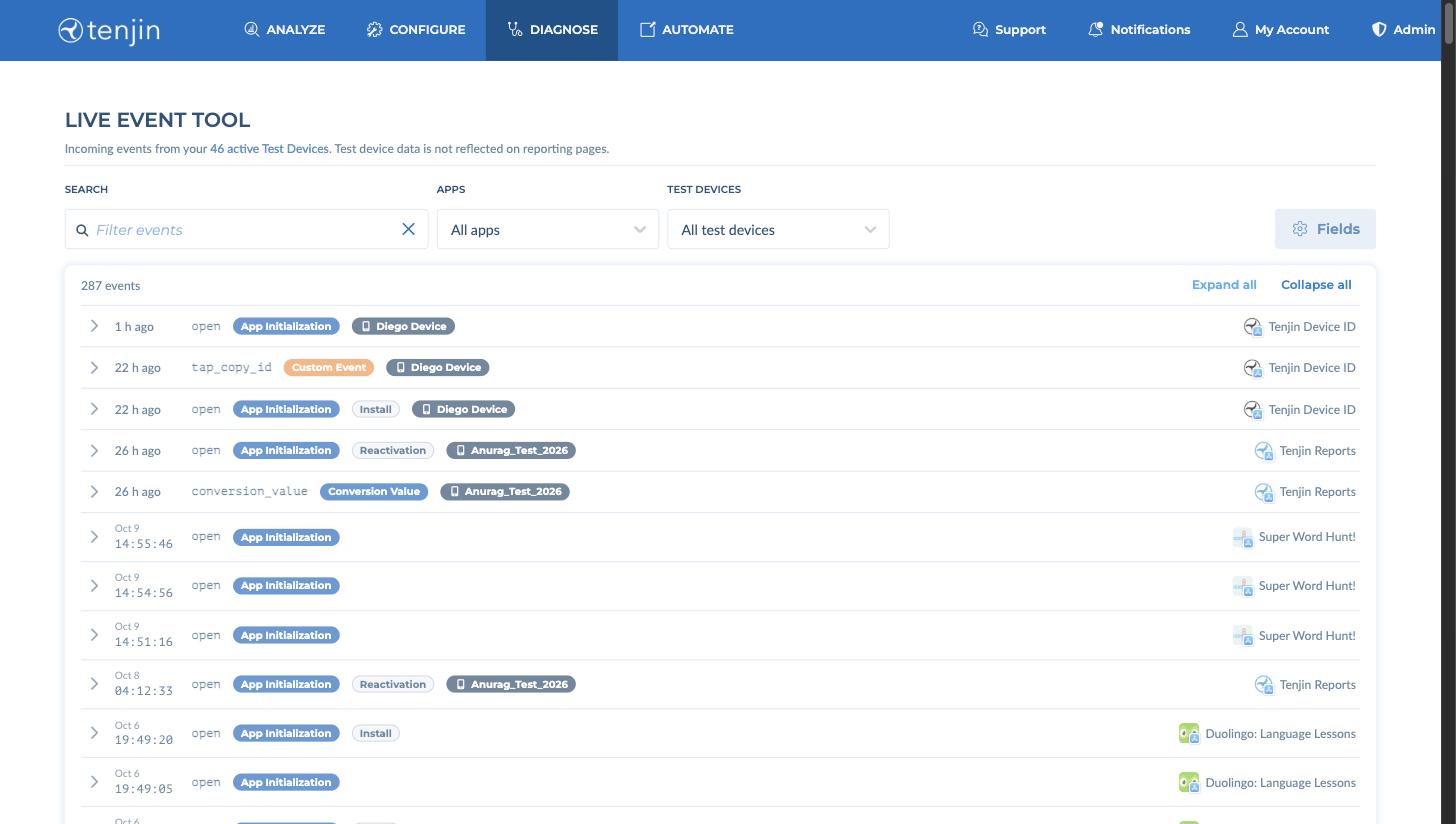
You can verify if the integration is working correctly with our Live Event Tool. Add your advertising_id or IDFA/GAID to the list of test devices. You can find this under DIAGNOSE > Test Devices. Go to the Live Event Tool page and send the test events from your app. You should see live events come in: