What is a PAI Campaign? #
In Google Play Auto-Install (PAI) campaigns, Original Equipment Manufacturers (OEMs), mobile carriers, and app discovery partners preload or suggest apps during a device’s first activation (the “out-of-the-box” experience). This allows advertisers to reach users at the very moment they start using their new phone, without running traditional online ads.
How Attribution Works: Unlike standard campaigns that rely on ad clicks, PAI uses the Google Play Install Referrer API.
- The OEM or carrier passes a specific tracking string (containing the utm_campaign) to the Google Play Store when the app is installed.
- When the user opens the app, the Tenjin SDK fetches this string directly from the Play Store.
- Tenjin matches this referrer data to attribute the Install deterministically.
Pre-requisites #
To ensure Tenjin can capture PAI Attribution data, refer to the Tenjin Android SDK documentation and confirm that the Google Play Install Referrer library is added to your app’s build.gradle dependencies.
Supported Partners #
Common partners that support PAI campaigns include:
- Xiaomi
- Oppo
- Vivo
- Huawei
- Honor
- Transsion
Setup Guide #
Step 1: Create Campaign on Tenjin Dashboard #
- Navigate to CONFIGURE > Channels, click Add a Channel and select your partner for this campaign.
- For Oppo & Vivo Global: Simply type in an account name and click Add Ad Account.
- For Xiaomi: Enter your App ID and App Key.
- Navigate to CONFIGURE > Campaigns and click Create Campaign.
- Under Marketing Account, select the account you just created.
- Select the App for your campaign.
- Give the campaign a name and click Create Campaign.
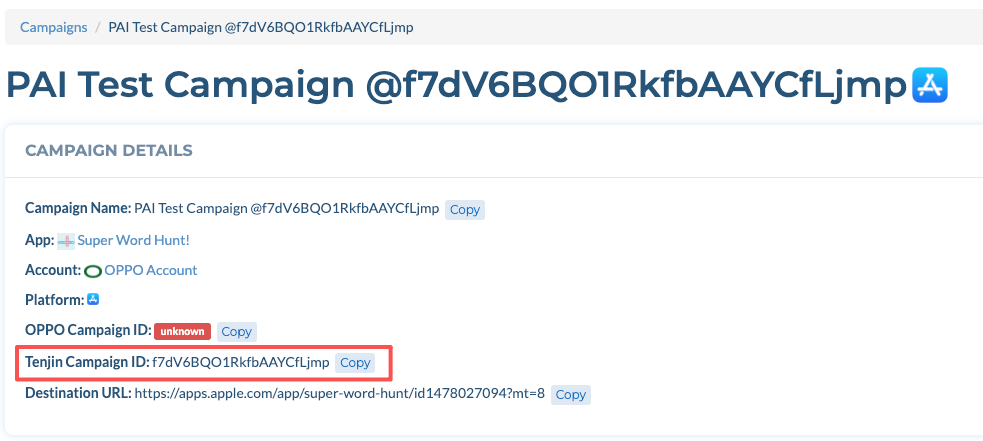
Step 2: Copy Tenjin Campaign ID #
- Click into the campaign you just created.
- Locate the Tenjin Campaign ID (an alphanumeric string).
- Click Copy.
Step 3: Configure Install Callbacks #
To ensure your partner can optimize the campaign, you must send Install data back to them.
- Go to the CONFIGURE > Apps and select your app.
- Under Callbacks > Integrations tab, select the channel (e.g. Oppo) in dropdown.
- Ensure the Install Callback is toggled ON.
Step 4: Adjust Attribution Window (Recommended) #
PAI campaigns typically have a longer Conversion cycle than standard ads (a user might set up their phone but not open your app for several days).
- Check with your Account Manager at the Ad Network for their recommended window (usually 30 days).
- If the recommended window differs from your app’s default (Tenjin default is 7 days), you should adjust it for this specific channel to avoid data discrepancies.
- Go to CONFIGURE > Apps, select your app, and select Attribution Tab.
- Select the channel of your campaign (e.g. Oppo)
- Toggle on “Override App Settings“
- Set the Click Attribution Attribution Device Matching window to 30 days (or the value recommended by your partner).
If you wish to set a different Attribution Window from the other campaigns under this channel, you can create a custom channel just for the PAI campaign.
Step 5: Send Tenjin Campaign ID to your Account Manager #
Send the Tenjin Campaign ID (from Step 2) to your Account Manager at the Ad Network. They will input this ID into their system to map the utm_campaign string correctly.