How to invite new users in your organization to the Tenjin Dashboard #
- Under the main menu, click Manage Organization.
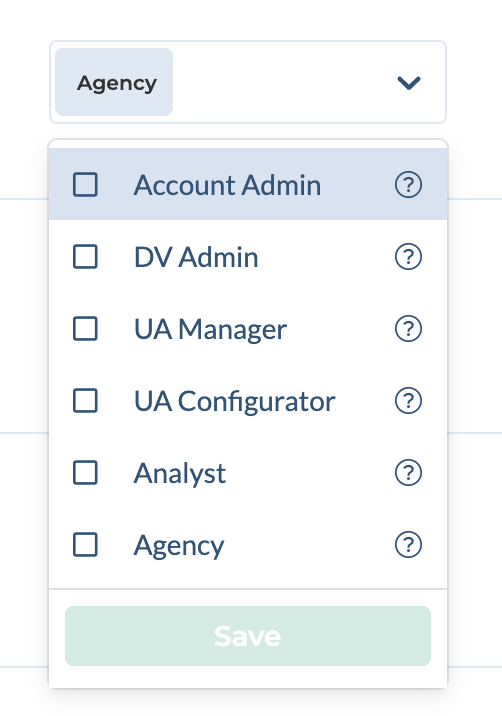
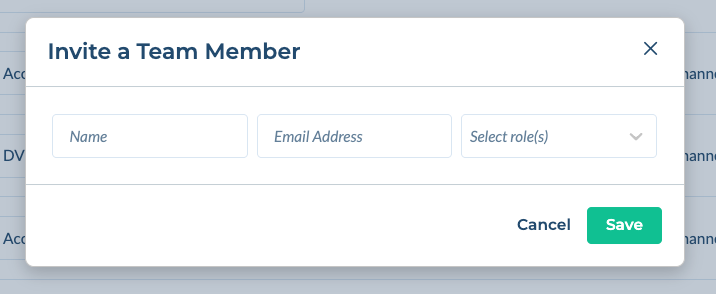
- You can invite new users in your organization to the Tenjin account. Click on ‘Invite a Team member’ and just add their name, email address and select permission type. The different permission types are described below in the dropdown.
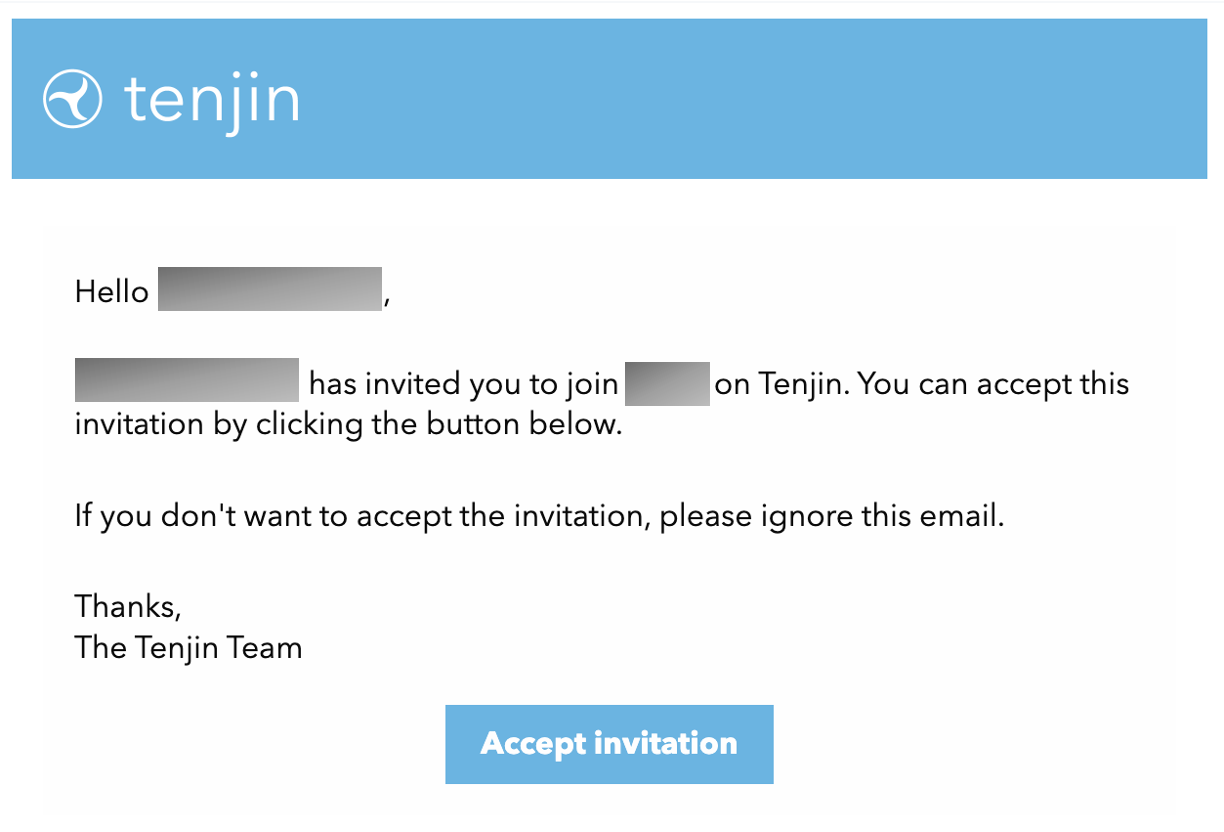
- The person will get the following email and need to accept the invitation.

- You can also remove existing users or change user access levels on this page.
- You can view a user’s access tokens by clicking the ‘Access Tokens’ button. You will then be taken to a page that lists all the user’s access tokens. This page shows when the token was last used and allows you to revoke access if necessary.


- If you decide to leave (and we’ll miss you!), please email support@tenjin.com.
Roles and Access Levels #
- Account Administration: Full access to the dashboard except DataVault administration. They can update access levels of peers.
- DataVault Administration: Full access to the dashboard including DataVault administration. They cannot change access levels of peers.
- UA Manager: Access to campaigns, apps, reports (app-level only). Also access to Diagnose -> Health (app-level only)
- UA Configurator: Access to campaigns, apps and channels.
- Analyst: Ability to view reporting data only for selected apps but unable to manage Campaigns, Apps, or Channels.
- Agency: Access to Campaigns, Reports, Data Health, Attribution & SKAN settings, Aggregate Data Export (channel-scoped and app-level access)
- Developer: Access to Apps, Event Health. No access to Callbacks, Attribution windows or SKAN settings
Users can be assigned multiple non-conflicting access levels (e.g. Account Administration and DataVault Administration). Users can be removed only by the Tenjin account owner.