A retargeting ad reaches users who already have your app, or who had it before. To bring a user back into the app, the ad has to open the app directly, with a deep link.
Deep link vs deferred deep link #
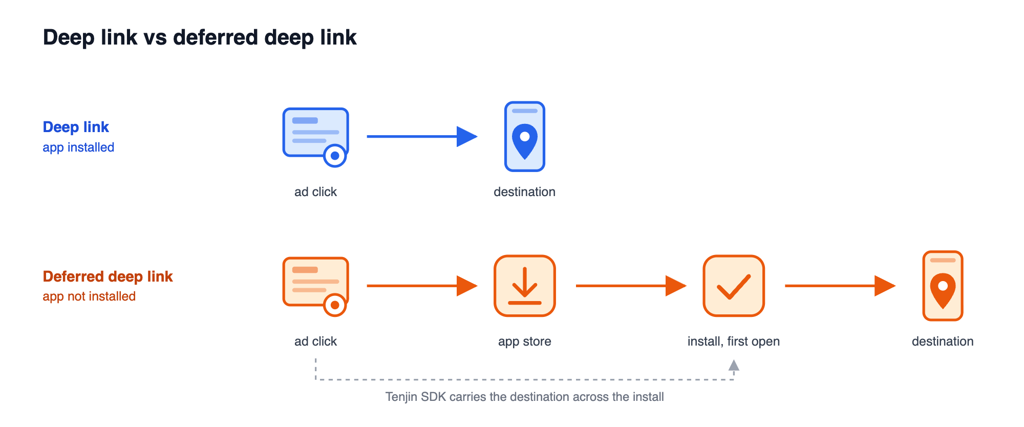
- Deep link: the user has the app. The link opens it straight at the destination.
- Deferred deep link: the user doesn’t have the app, which for retargeting means a reinstall. The link goes to the app store, and the app reads the destination from the Tenjin SDK after it is opened. See If the user reinstalls, Deferred Deep Linking and LiveOps Campaigns.
Types of deep links #
| Custom URL scheme | Universal Links (iOS) / App Links (Android) | |
|---|---|---|
| Example | myapp://shop/item/1 | https://yourdomain.com/shop/item/1 |
| Redirect Behavior | Opens the app when it is installed. With a Tenjin tracking link, users who don’t have the app go to the fallback. | Opens the app when installed, otherwise the web page. Fallback is built within the OS. |
| Setup | Works with every channel and is the simplest to set up: the scheme is registered in the app, nothing is needed on a domain. | The link’s domain needs to be verified for your app: the verification file on your domain (apple-app-site-association, assetlinks.json) and the matching entry in the app (the Associated Domains entitlement on iOS, an autoVerify intent filter on Android). |
| Browser Compatibility | Supported by all browsers. Some browsers ask the user to confirm before opening the app. | Not every browser or in-app browser honors them; where it doesn’t, the link opens as a web page even if the app is installed. |
| With Tenjin tracking links | Supported. Use this type. | Not supported for opening the app. The user goes to the normal destination instead. |
Where to put your deep link #
Many channels open the app themselves, from the deep link you set in the channel: the self-attributing networks (Google, Meta, TikTok) and OEM store channels such as OPPO and Xiaomi. The Tenjin tracking link is not part of that redirect.
Other channels rely on the Tenjin tracking link to open the app. Add these two parameters to the campaign’s click URL. The setup is the same for each of these channels.
| Parameter | Value | What it does |
|---|---|---|
deeplink_url | Your custom URL scheme, URL-encoded. For example, myapp:// becomes myapp%3A%2F%2F. | Sets where the user lands in the app. |
deeplink | 1 | Turns on opening the app directly. Without it, the user goes to the normal destination, even if deeplink_url is set. |
Example click URL:
https://track.tenjin.io/v0/<channel>/<campaign_id>?advertising_id={advertising_id}&click_id={click_id}&deeplink_url=myapp%3A%2F%2F&deeplink=1Add deeplink=1 to the click URL only. The impression URL doesn’t redirect users, so it doesn’t need it. There is no dashboard setting for this yet, so add the parameters to your tracking links by hand.
What happens when a user clicks #
With deeplink=1 and a custom URL scheme in deeplink_url:
| User clicks on | What happens |
|---|---|
| Chrome on Android | Opens the app directly. If the app isn’t installed, the user goes to the fallback. |
| Any browser on iOS | A Tenjin page tries to open the app, and the browser may ask the user to confirm. If the user is still on the page after 4 seconds, they go to the fallback. |
| In-app browsers and other Android browsers | Usually the same Tenjin page. Some browsers may open the app directly. |
| Desktop, or a device that doesn’t match the app’s platform | Goes to the normal destination. |
The fallback is your app’s store page by default. To send users somewhere else, add redirect_url to the click URL with a web link. redirect_url can’t hold a custom URL scheme: a value like myapp:// is ignored and the user goes to the store.
If the user reinstalls #
If the user reinstalled after the inactivity threshold, Tenjin saves the deep link from their click and the SDK can return it as deferred_deeplink_url. It may not be ready the moment the app opens, so read it with getAttributionInfo and retry if it’s empty. Only route the user on it once. See LiveOps Campaigns for sample code.
A reinstall before the inactivity threshold keeps its original attribution, so it doesn’t get the new deep link. See Re-engagement Attribution.
Developer setup #
Your developer needs to register a custom URL scheme in the app, on iOS and on Android.
- The bare scheme,
yourgame://with nothing after it, must open the app. Opening a specific screen is optional. - Pick a scheme no other app is likely to register, such as
yourstudio-yourgame. If two apps register the same scheme, iOS doesn’t define which one opens. - Already using Universal Links or App Links? Keep them, but still set up a custom scheme for Tenjin tracking links.
iOS #
- Xcode: target settings > Info tab > URL Types > add your scheme, without
://. See Apple’s guide, Defining a custom URL scheme for your app. - Unity: Edit > Project Settings > Player > iOS > Other Settings > Configuration > Supported URL schemes, add your scheme without
://. See Unity’s guide, Deep linking on iOS.
Android #
Add this intent filter to your launcher activity (the one with the MAIN / LAUNCHER filter), as a second filter next to that one:
<intent-filter>
    <action android:name="android.intent.action.VIEW" />
    <category android:name="android.intent.category.DEFAULT" />
    <category android:name="android.intent.category.BROWSABLE" />
    <data android:scheme="yourgame" />
</intent-filter>- Leave out
android:host. If you set a host (for example,yourgame://open), the bare scheme won’t open the app, so use that full link as yourdeeplink_urlinstead. - The activity needs
android:exported="true", otherwise a browser can’t open it. - Unity: Edit > Project Settings > Player > Android > Publishing Settings > Build > enable Custom Main Manifest. Then add the filter inside the UnityPlayerActivity (or UnityPlayerGameActivity) element in
Assets/Plugins/Android/AndroidManifest.xml. See Unity’s guide, Deep linking on Android.
Test it #
On a device with the app installed:
- Check the scheme. On iOS, type
yourgame://into Safari’s address bar and tap Open. On Android, runadb shell am start -W -a android.intent.action.VIEW -d "yourgame://". The app should come to the front. Use adb rather than Chrome’s address bar, because Chrome blocks app launches from typed URLs. - Check the tracking link. Open your click URL with
deeplink_urlanddeeplink=1in the phone’s browser (Safari or Chrome). The app should open. Don’t open it from inside Slack or another app, because the link may not redirect there.